
Shop SALTYFACE
Buy Used : $58.00
FREE delivery October 21 - 27. Details
Or fastest delivery Tuesday, October 20. Details
Used: Very Good | Details
Condition: Used: Very Good
Comment: Wacom Tablet, USB cable and pen only. Serial number recorded for fraud prevention.
Only 1 left in stock - order soon.
Added to

Sorry, there was a problem.

There was an error retrieving your Wish Lists. Please try again.

Sorry, there was a problem.

List unavailable.
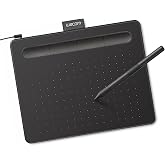
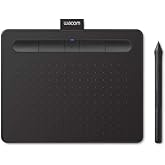
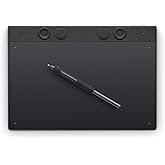
  • Wacom Intuos Draw CTL490DW Digital Drawing and Graphics Tablet

Wacom Intuos Draw CTL490DW Digital Drawing and Graphics Tablet

4.4 out of 5 stars (3,392)

$58.00
Get $50 off instantly: Pay $8.00 $58.00 upon approval for Amazon Visa. No annual fee.

About this item

  • Pen and tablet for digital art
  • Four customizable ExpressKeys
  • Compact size, 8.25-by-6.7 inches
  • Comes with a free Draw Pack including: Art Rage Lite sketching and drawing software, online tutorials, and a free 8x10 metal photo print
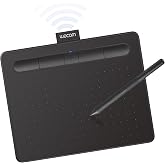
  • Connects to Mac (10.8.5 and above) or PC (Windows 7 and above) via USB cable

Product information

Warranty & Support

Amazon.com Return Policy:You may return any new computer purchased from Amazon.com that is "dead on arrival," arrives in damaged condition, or is still in unopened boxes, for a full refund within 30 days of purchase. Amazon.com reserves the right to test "dead on arrival" returns and impose a customer fee equal to 15 percent of the product sales price if the customer misrepresents the condition of the product. Any returned computer that is damaged through customer misuse, is missing parts, or is in unsellable condition due to customer tampering will result in the customer being charged a higher restocking fee based on the condition of the product. Amazon.com will not accept returns of any desktop or notebook computer more than 30 days after you receive the shipment. New, used, and refurbished products purchased from Marketplace vendors are subject to the returns policy of the individual vendor.
Product Warranty: For warranty information about this product, please click here. [PDF ]

Feedback

Wacom Intuos Draw CTL490DW Digital Drawing and Graphics Tablet


Found a lower price? Let us know. Although we can't match every price reported, we'll use your feedback to ensure that our prices remain competitive.

Where did you see a lower price?

Price Availability
/
/
/
/
Please sign in to provide feedback.

Product Description

Just starting out and finding your own style? Intuos Draw makes creating fun. Draw, paint, and edit with an easy to use pen tablet. It's a full range of art supplies all in one tool. When you're ready to create, Intuos Draw is the perfect place to start. Whatever your artistic ambitions, Intuos Draw can take you there. Find everything you need to get started in one package. Each Wacom quality pen tablet comes with a free creative package that includes downloadable creative software, services, and online tutorials too. And the simple setup means you'll be creating in no time. The pressure sensitive pen, responsive tablet, and customizable Express Keys put a whole new digital toolbox at your fingertips. Intuos Draw brings the fun back to art. Chances are, you'll find yourself inspired. Your new creative world is waiting.

Product guides and documents

Safety and product resources

Safety documents

What's in the box

  • ["Art Rage Lite", "Metal Photo Print"]
  • Top Brand: Wacom

    Highly Rated
    100K+ customers rate items from this brand highly
    Trending
    10K+ orders for this brand in past 3 months
    Low Returns
    Customers usually keep items from this brand

    Customer reviews

    4.4 out of 5 stars
    3,392 global ratings

    Customers say

    Customers find the graphics tablet performs better than previous models and is fantastic for beginners, with one noting it's ideal for breaking into the art community. They appreciate its versatility for designing and drawing, particularly for digital artwork classes, and find it useful for their needs. The size receives mixed feedback - while it's small enough to carry in a backpack, some customers prefer a larger model. Moreover, responsiveness and compatibility also get mixed reviews, with some praising the response time while others report lag issues, and while it works well with laptops and software, some mention it doesn't work on Macs.
    AI Generated from the text of customer reviews

    Select to learn more

    1006 customers mention performance, 891 positive, 115 negative
    Customers are satisfied with the tablet's performance, finding it better than their previous models.
    Five StarsRead more
    Four StarsRead more
    Great product. My son wanted this for his 16th birthday. Since he received it he's been using it with GIMP and other editing software.Read more
    ...Overall, it's a great and affordable alternative to those who want to take notes, draw, or both over traditional touchscreen tablets....Read more
    190 customers mention enjoyment, 177 positive, 13 negative
    Customers find the graphic tablet enjoyable, with many mentioning that their children love using it, with one customer noting it made their 13-year-old very happy.
    ...as a gift for my daughter to start off her digital drawing and she loves it. It takes a bit of getting used too but in no time you will be drawing.Read more
    Got this as gift for our son and he loves it. Has so many options and the matching protective case is great too! He Loves it.Read more
    ...It gets three stars because my daughter loves it and it operates with app store software. Maddening is the process of registering the device....Read more
    A fun and inexpensive starter tablet, works great and would make a nice affordable gift for yourself or someone else....Read more
    127 customers mention versatility, 118 positive, 9 negative
    Customers find the graphics tablet versatile, particularly for designing, drawing, and digital art creation, with customers mentioning they can create beautiful artwork for their classes.
    Great drawing pad!Read more
    ...say that it does the job really well and that it is a perfect beginner's drawing tablet for those who don't want to spend a lot....Read more
    ...Other than that it's great for getting into digital art even if it is better suited for an OTG digital art setup.Read more
    ...I've been using it for about a year now and I'm still in love. perfect for any artist!...Read more
    97 customers mention suitability for beginners, 84 positive, 13 negative
    Customers find the graphic tablet suitable for beginners, describing it as a fantastic and ideal place to start. One customer mentions that online lessons become much easier with this device.
    Very trustable product, from my part i can say that this is great for beginners, myself included, not a single complain about it and conclusion that...Read more
    ...curve..it's not fun for the first few days or even weeks..good for beginners or anyone who wants to get into digital drawing....Read more
    great beginner drawing tablet.Read more
    Easy istall great beginner tablet.Read more
    92 customers mention functionality, 86 positive, 6 negative
    Customers find the graphic tablet useful and wonderful for their needs, with one mentioning it's a great way to get acquainted with the technology.
    ...Great value and it just what I needed to upgrade from my old Wacom Bamboo Fun.Read more
    I love this Wacom, it's customizable, easy to learn, and very useful. I use it with Photoshop and illustrator.Read more
    My granddaughter is a very artistic girl and this is perfect for beginners.Read more
    If you just want to doodle, a drawing tablet is a wonderful improvement to the hobby and cheaper in the long run than paper and pencils....Read more
    110 customers mention size, 65 positive, 45 negative
    Customers have mixed opinions about the tablet's size: while some appreciate that it's small enough to fit in a backpack, others prefer a larger model.
    I really love it! It's incredible that even being small and cheap it keeps being great when you are working on it... it doesn't have Zoom, but the...Read more
    GOOD! I thought it is too small at first,but the size is good for me to painting at laptop,suprised.Read more
    Compact and simple to use, great for beginners. Didn't take too long to get used to using this vs regular pen and paper....Read more
    Good quality cheap tablet, only issue is it's small so doesn't sync perfectly with my monitor and so it comes off at too sensitive when I move the...Read more
    88 customers mention responsiveness, 46 positive, 42 negative
    Customers have mixed experiences with the tablet's responsiveness, with some praising its quick response time and acceleration, while others report that it starts lagging and takes longer than expected to work properly.
    ...just getting into digital art , the pen is lightweight and very responsive . I use manga studio 5 with it and it works awesome with that as well !...Read more
    it has bad response times and really just impossible to use in general. now it just sits on my desk all day using up space.Read more
    Small, sleek, and responsive. Very nice tablet for low price. Pen feels a little cheap but otherwise pretty solid drawing tablet.Read more
    Website freezes every time I try to register this product, kicks me out. After creating account, I get "permission denied" on everything....Read more
    81 customers mention compatibility, 51 positive, 30 negative
    Customers have mixed experiences with the tablet's compatibility: while it works well with laptops and software, particularly with Gimp 2.8, some report it doesn't work on Macs.
    Works on Linux, just what I needed.Read more
    It works well on Windows but not on Mac. The pen doesn't point accurately on mac and I can feel the delay. So already returned.Read more
    Works fine on windows 7... I would give it 5 stars -- Avoid using with windows 10....Read more
    Works great with Manga studio 5. Nicely packaged.Read more
    Great little baby tablet
    5 out of 5 stars
    Great little baby tablet
    I love my Wacom Tablet it really has helped me learn and be able to create art with the detail that I need over a mouse. The only problem I've had with the Tablet is the Software registration which I was unable to activate due to my software key already being used. This Isn't really a problem since I use Medibang; still it's something to be aware of. If you are unsure if you should get this tablet or any other tablet whether due to uncertainty or brand name or what have you. I highly recommend and have been recommended Wacom; if you are uncertain about tablets overall I will say this. Getting a tablet will not make you magically better* however you will notice a difference in the overall finesse of your art. I am very detailed when it comes to my art and when I was using a mouse I didn't have nearly as much control over my lines as I do using a tablet. I also noticed that I find art much more enjoyable to create on a tablet and thus I am more often learning and making art and hence getting better*! So having a tablet does have many positive factors... Now for the negatives mostly related to this tablet. It is small baby tablet! Please note that is has software that matches your screen and you wont run out of room on your tablet. The problem for me is that my hand cannot rest on the tablet and thus droops off the edges which makes control sometimes a bit of an issue. Another situation are the ever vanishing nibblets, these little guys like to wear out but Wacom being the nice people they are give you a few of these little fellows with your purchase. I couldn't really give you a time frame on how quickly they wear but its moderately fast. These two slight issues that I have don't retract at all from owning this tablet since there are ways to solve them. Like being gentler on the stylus and tweaking the settings in the Wacom tablet to fit your needs. Overall a tablet is just another tool that eases hand/eye/pen coordination and with any tablet you need a software that you feel comfortable with and like so I also recommend checking out various programs and see which one is right for you! This tablet will suit your needs and your wallet will thank you...just keep an eye on your nibblets they will run if given the chance XD. Good luck and have fun creating the next generation of art!
    Thank you for your feedback
    Sorry, there was an error
    Sorry we couldn't load the review

    Top reviews from the United States

    • 5 out of 5 stars
      Amazing Graphics Tablet for Drawing or Painting!
      Reviewed in the United States on December 28, 2015
      Brief content visible, double tap to read full content.
      Full content visible, double tap to read brief content.

      This tablet is the smallest in this brand, and this one it's only a pen tablet, it doesn't have the touch functionality.

      The tablet has 4 expressive keys that can be maped with the driver (undo, redo, pan/scroll/zoom), and the pen has also two buttons that also can be mapped to different functions (eraser, pressure).

      It includes a free software bundle with the program ArtRage Lite and a few tutorial videos, I didn't have any problems at all with the download and registration of the software and the tablet to Wacom's page. Obviously you register first your Wacom tablet and then they give you the serial number for your ArtRage product.

      Now, let's see more about this tablet per categories:

      1-Drivers: I had a couple of problems with this, the tablet came with a CD with the driver installer, although I rather'd download the driver from the Wacom website. I downloaded and installed it (tablet not connected), then I connected my tablet and it worked, I mapped the expressive keys with the driver and I tried the tablet with ArtRage and it worked fine, then all of sudden, pen wasn't working and also the expressive keys, so I opened the Wacom Tablet Properties and nothing! It appeared a message that said DRIVER NOT FOUND, weird as hell! So, I deleted the tablet's driver and installed it again, and it worked for a few minutes, and then... nothing! The same thing happened! So I deleted again, reinstalled it again, but this time I changed the usb port, I plugged my tablet in a different usb port and that's was it! Mistery solved! Apparently the usb port lost connection with the tablet, so that's why the message DRIVER NOT FOUND, when I changed the tablet to another port the tablet didn't fail again. So it's important try this if it happens the same to you.

      2-Software: Like I said before, the Intuos Draw includes the ArtRage Lite, I also tried the Autodesk Sketchbook and both work flawless, I mapped the expressive keys for both programs and also the pen, they'r both amazing apps for you different kind of art.

      3-Tablet and Pen: Here comes the most important, the tablet and pen work with EMR (Electromagnetic Resonance) the pen doesn't use batteries, so it works with electromagnetism. So, this has a downfall. I usually use my tablet with my laptop on my desk in my room. One day I took my laptop and tablet to the tv room, and I put my laptop on my lap and the tablet on the couch's arm, when I opened the software it started to behave really weird, the pen did lines that I wasn't doing, the expressive keys didn't work at all and things like that. So intermediately I took my laptop and tablet and went back to my room, put both on my desk, and the tablet and pen work perfectly again! So, it's simple to guess, there were some kind of interference in my tv room that made my tablet and pen behave that way, maybe an electric failure somewhere, some cable loose or I don't know really, what I Do know, is that something interrupted the connection between the tablet and pen. I think this is important to know, and it only happened in the tv room, in my room I have my speakers connected to my iPod on my desk, and I always listen to music when I'm drawing, and it doesn't interfere with the tablet or pen, they both work perfect even near my speakers and tv also on, so that's why I guess there must be some electric failure in my tv room. So, that's not a tablet or pen problem, I think it's the way they work together, you just have to make sure you won't have any problems where you're gonna use mostly your tablet.

      The pen is absolutely accurate! And that's because of the EMR, the lines, eraser, everything you do it's completely accurate! The active area is 6'' x 3.7''

      OVERALL: The Wacom brand is the best in the market. I would definitely recommend this tablet for people with small budget or with reduced space on the desk. It works amazing with the different software. The driver issue has nothing to do with the tablet itself, the Intuos Draw works as suppose to do and it's really cool for drawing or painting, it's easy to use and the pen has the right size, it feels like a graphite pencil in your hand. If you're not used to have your eyes and hand in different places, this might not be suited for you. I only used paper and graphite pencils but I wanted to try to draw also in digital, it's a little bit hard at the beginning but I think you can get used to.

      This is an amazing tablet, and I wouldn't hesitate in recommend it to someone or buying another one.

      5 people found this helpful
      Sending feedback...
      Thank you for your feedback.
      Sending feedback...
      Thanks, we'll investigate in the next few days.

      We'll check if this review meets our community guidelinesOpens in a new tab. If it doesn't, we'll remove it.

    • 5 out of 5 stars
      For someone planning on going digital for the first time, a must buy
      Reviewed in the United States on April 1, 2016
      Brief content visible, double tap to read full content.
      Full content visible, double tap to read brief content.

      So amazon has been amazing so far in terms of service. Priority shipping is extremely fast, I got this tablet within 22 hours.

      Anyways let's get to the review.

      So the wacom Intuos (small) drawing tablet, yes, or no?

      Yes! For someone who has just ventured into digital art, this drawing tablet is very smooth for a first time user, but I would recommend you get this particular tablet and not the touch tablet, I'll explain why later.

      Pros.

      Easy to setup, easy to install software. I have a Dell inspirion with Windows 10 and it ran very smooth. Minor hiccup with registration, but I used the windows search bar, type in Wacom desktop centre, and you can simply register from there with no issues.

      . Free software is actually amazing for the price you pay. It has a decent amount of tools to choose from, tracing options, reference options, import and exporting files, layers. For a starting and aspiring artist this package is a must buy.

      . Don't be shy, you can actually put some pressure on this little guy. If you have a light touch it has good response, and if you put on the pressure its very smooth, the texture and feel of the pad is almost like paper.

      . It has an option for wireless, but seriously don't waste the money. The USB is long enough to situate a nice little setup, you can be 5 to 6 feet away from your computer/laptop and still be comfortable, especially with a nice HDMI setup, and the USB seems durable, but I would be cautious.

      . Hot keys/ shortcuts are extremely useful. Just type in Wacom tablet properties on your search bar, get in and assign your shortcuts. I love the two buttons on the pen, I can pan and zoom, and I haven't even set all my buttons on the tablet, I just have undo and application shortcut, though its not so clear how to set them, I just happened to get them set.

      . Mapping is pretty good. Acting as a mouse, the double tap is great, clicking is satisfying, pretty smooth.

      Cons

      . Alright, the pen is cheap, but that's only if you are a decent artist, or have used a lot of tablets in the past with better equipment. A first time artist wouldn't seem to off by it, but they could have added some grip, especially near the two buttons, because if you aren't always in the same position to the buttons, you will sometimes fumble the pen, and if you plan to use it for more than 3-4 hours at a time, it might start to become an issue.

      . It's very sensitive in terms of tracking the pen. You have to be about an inch away from the actual pad for it to sense it, so if you don't have steady hands, it will be hard to get use to. I'm fine with it, but you are also limited to your movement because of the small size, and it can sometimes affect steady lines, but all and all its very smooth to navigate with. So because of this fact, if you have the touch tablet, you are basically going to kick yourself for it, because sometimes you want to rest your hand on the pad, and not have it hovering over the dam tablet constantly, if you even get close with your hand, it will probably give you problems, I'm glad I reverted back to the touchless choice .

      Other than that this tablet is a beauty for a first time purchase. The price is right, the quality is great, and even for the average artist this tablet is actually very handy. It's a lot of fun, and I am completely satisfied with this purchase. 5/5

      10 people found this helpful
      Sending feedback...
      Thank you for your feedback.
      Sending feedback...
      Thanks, we'll investigate in the next few days.

      We'll check if this review meets our community guidelinesOpens in a new tab. If it doesn't, we'll remove it.

    • 4 out of 5 stars
      Great product, if you are patient to getting through startup and learning curves.
      Reviewed in the United States on December 28, 2015
      Brief content visible, double tap to read full content.
      Full content visible, double tap to read brief content.

      Other reviewers have mentioned that if you are new to pen tablets, it takes some getting used to. Heed the warning, it really does. That said, after 1.5 weeks of use I am just now beginning to get the hang of this. And believe me, for drawing, doodling, doing scratch text for notes, or what ever, this is awesome! It looks like Wacom has been the leader in this product space, and as far as the tablet product itself goes, I guess they are. Once you get past your own bunch of glitches if you are new to it.

      On the down side, for me, is the software aspect. But there are 2 parts to this so if you're really reading this, follow closely. There's the tablet "driver" software and hardware-support applications, and then there's the "drawing and art" apps that are not fully tied to any particular tablet. Wacom's driver and support apps are exactly what I demand -- install, run, it works. No futzing around trying to "patch" or configure or tune, the software that mates the Intuos to the operating system works straight away, no problems.

      Be advised though, I am speaking only for Mac since that's what I use, I can't speak to the Windows universe on this.

      Moving along with software, here's where it got sketchy for me (pun possibly intended...) what I do with the tablet is scratching out electronics circuit drawings and jotting down notes and formulas related to the circuit of interest. Some for design ideas, some for study into areas I'm not so familiar with.

      I wanted this because I'm tired of generated piles of paper that I ultimately just throw out once I've moved on. I also wanted to be able to save my work in case I want to go back and look at something, which my own bad habit of scrapping the pencil-and-paper work prevents me from doing. So I went for this tablet, thinking that the "free," "drawing" software would do the trick. So here we go.

      I am not an artist. My on-paper transfer ability looks more like a stoned chicken dragging 3 pencils around. That's my lot. So I don't want to be unfair to artists who are familiar with these software packages but for types like me, the "free" software offered by Wacom came down to ONE app that is more-or-less market tied to the Intuos Draw tablet. It's a 3rd party app that you cannot get access to until you successfully register your tablet with Wacom, an adventure that took me 5 calendar days to complete. That really sucked (referring more to the Wacom website than the app). It was finally rectified by Wacom via email after I sent a painfully detailed problem description of what was going on.

      Fast forward to "let's get that software ..." so I did, access and download and emailed registration key activities went ok, but then I got into the software and for what I need, it was simply horrible. It's not Wacom's fault per se, that I can tell. But still, only ONE app, and it was very unintuitive for me the newbie to this. The pen-motion to render delay is horrid. And that's wired to the tablet. Some folks have complained about slow reaction times to pen action, but that's mostly over the Wireless Kiit woes threads on the 'net. Not applicable to my set up, so far.

      So with a very low "aggravation threshold" for these types of things, I scrapped the drawing app and looked for something different. Enter my old friend, the world of Open Source Software, where any Linux user would easily recognize an app called GIMP. Well it turns out the folks behind GIMP have ported to Apple OS-X (and apparently Windows too), and people on the associated forums swear by the combo of GIMP and Wacom tablets like mine. Great news for those like me who are doing free-form capture that surely does not qualify as art. If that's all you're doing, go with GIMP, it's 0 delay with pen motion, highly adjustable, and of course, also free.

      With GIMP and the Intuos I've been trekking through the pen over here, output over there disconnect (remember the part about getting used to using a tablet?) for around this past 1.5 weeks, and I love this thing.

      Ok, one more hoorah to go: The USB cable tethering the tablet to my laptop drove me nuts, so I ordered the Wacom Wireless Kit for the Intuos. THAT is the icing on the cake. Great adaptation over wireless, and I get no "drawing delay" using GIMP (I've done a separate review on the kit). The Wacom "driver and system" software picked up the tablet hardware connection immediately. Just read the quick-start steps in your language, do what it says, and away you go. No more USB cable (unless you need to charge the battery on the tablet).

      SUMMARY:

      * Tablet: great. allow yourself to get used to drawing in once place and seeing it on your screen 2 feet away from where your hand is.

      * USB cable connection. Works well, ok if the cable doesn't bug you. Otherwise annoying.

      * Wireless Kit: a true gem.

      * Product registration on Wacom's site. has the potential to make you want to send to whole thing back. Be diligent, contact Wacom Tech support. They will help.

      * "Free" Software sponsored by Wacom: not for me, may makes more sense to an artist.

      7 people found this helpful
      Sending feedback...
      Thank you for your feedback.
      Sending feedback...
      Thanks, we'll investigate in the next few days.

      We'll check if this review meets our community guidelinesOpens in a new tab. If it doesn't, we'll remove it.

    • 5 out of 5 stars
      Great little baby tablet
      Reviewed in the United States on April 27, 2016
      Brief content visible, double tap to read full content.
      Full content visible, double tap to read brief content.

      I love my Wacom Tablet it really has helped me learn and be able to create art with the detail that I need over a mouse. The only problem I've had with the Tablet is the Software registration which I was unable to activate due to my software key already being used. This Isn't really a problem since I use Medibang; still it's something to be aware of. If you are unsure if you should get this tablet or any other tablet whether due to uncertainty or brand name or what have you. I highly recommend and have been recommended Wacom; if you are uncertain about tablets overall I will say this. Getting a tablet will not make you magically better* however you will notice a difference in the overall finesse of your art. I am very detailed when it comes to my art and when I was using a mouse I didn't have nearly as much control over my lines as I do using a tablet. I also noticed that I find art much more enjoyable to create on a tablet and thus I am more often learning and making art and hence getting better*! So having a tablet does have many positive factors...

      Now for the negatives mostly related to this tablet. It is small baby tablet! Please note that is has software that matches your screen and you wont run out of room on your tablet. The problem for me is that my hand cannot rest on the tablet and thus droops off the edges which makes control sometimes a bit of an issue. Another situation are the ever vanishing nibblets, these little guys like to wear out but Wacom being the nice people they are give you a few of these little fellows with your purchase. I couldn't really give you a time frame on how quickly they wear but its moderately fast. These two slight issues that I have don't retract at all from owning this tablet since there are ways to solve them. Like being gentler on the stylus and tweaking the settings in the Wacom tablet to fit your needs.

      Overall a tablet is just another tool that eases hand/eye/pen coordination and with any tablet you need a software that you feel comfortable with and like so I also recommend checking out various programs and see which one is right for you!

      This tablet will suit your needs and your wallet will thank you...just keep an eye on your nibblets they will run if given the chance XD.

      Good luck and have fun creating the next generation of art!

      Great little baby tablet
      5 out of 5 stars
      Great little baby tablet
      Reviewed in the United States on April 27, 2016

      I love my Wacom Tablet it really has helped me learn and be able to create art with the detail that I need over a mouse. The only problem I've had with the Tablet is the Software registration which I was unable to activate due to my software key already being used. This Isn't really a problem since I use Medibang; still it's something to be aware of. If you are unsure if you should get this tablet or any other tablet whether due to uncertainty or brand name or what have you. I highly recommend and have been recommended Wacom; if you are uncertain about tablets overall I will say this. Getting a tablet will not make you magically better* however you will notice a difference in the overall finesse of your art. I am very detailed when it comes to my art and when I was using a mouse I didn't have nearly as much control over my lines as I do using a tablet. I also noticed that I find art much more enjoyable to create on a tablet and thus I am more often learning and making art and hence getting better*! So having a tablet does have many positive factors...

      Now for the negatives mostly related to this tablet. It is small baby tablet! Please note that is has software that matches your screen and you wont run out of room on your tablet. The problem for me is that my hand cannot rest on the tablet and thus droops off the edges which makes control sometimes a bit of an issue. Another situation are the ever vanishing nibblets, these little guys like to wear out but Wacom being the nice people they are give you a few of these little fellows with your purchase. I couldn't really give you a time frame on how quickly they wear but its moderately fast. These two slight issues that I have don't retract at all from owning this tablet since there are ways to solve them. Like being gentler on the stylus and tweaking the settings in the Wacom tablet to fit your needs.

      Overall a tablet is just another tool that eases hand/eye/pen coordination and with any tablet you need a software that you feel comfortable with and like so I also recommend checking out various programs and see which one is right for you!

      This tablet will suit your needs and your wallet will thank you...just keep an eye on your nibblets they will run if given the chance XD.

      Good luck and have fun creating the next generation of art!

      26 people found this helpful
      Sending feedback...
      Thank you for your feedback.
      Sending feedback...
      Thanks, we'll investigate in the next few days.

      We'll check if this review meets our community guidelinesOpens in a new tab. If it doesn't, we'll remove it.

    • 3 out of 5 stars
      Not great with Windows 10 and the pen is too small
      Reviewed in the United States on November 11, 2015
      Brief content visible, double tap to read full content.
      Full content visible, double tap to read brief content.

      Tablet is OK, but included pen is so small diameter-wise that it is not comfortable to hold for long periods. It actually makes your fingers cramp. I ended up taking off the silicone cover from an old Wacom pen that no longer worked and put the cover on the new pen so that I could hold it comfortably. The soft cloth pen holder at the back of the tablet is useless. The pen (even without my added sleeve) only fits part way into this holder because it is so tight. Also, I had a great deal of difficulty getting the tablet to work with Windows 10. It STILL does not work with Outlook 365 (I had to buy a separate wireless mouse to use with Outlook). The problem is with the driver, and both Wacom and Microsoft haven't got it quite right yet. If you want to use this tablet with a desktop setup that is NOT TOUCHSCREEN, then it is hard to get the tablet working properly, especially with PhotoShop where you need the varying levels of pressure/tilt/etc. On the plus side - it does save energy by turning off after a period of non-use which you can set. I like the wireless - nice not having a cord running across my desktop.

      31 people found this helpful
      Sending feedback...
      Thank you for your feedback.
      Sending feedback...
      Thanks, we'll investigate in the next few days.

      We'll check if this review meets our community guidelinesOpens in a new tab. If it doesn't, we'll remove it.

    • 5 out of 5 stars
      Great for hobbyists who want quality on the cheap!
      Reviewed in the United States on October 2, 2015
      Brief content visible, double tap to read full content.
      Full content visible, double tap to read brief content.

      I'm a broke college student with a digital art hobby. I tried using a tablet before, but i was so cheap and poorly built, it was unusable. The Intuos Draw, however, is my new favorite thing. Like, ever. I'm used to drawing with pen and paper, but I was actually surprised by how easy it was to get used to drawing on the tablet. I've been drawing all afternoon, and so far i have been able to draw with just as much quality as i would on paper.

      Technical things I like:

      You can hover a decent distance over the tablet and it will still move the cursor ( again, i had a bad tablet that only let me hover a 1/4 inch).

      All buttons on the tablet and pen are super easy to map. I mapped them to undo, redo, zoom in, zoom out, pan, and hold pressure.

      The nib feels great on the tablet. It doesn't slip around, but it doesn't stick either. Feels kind of like pencil and paper.

      The look and feel is fantastic

      The pressure sensitivity can be adjusted so it's perfect. Everything comes out flawlessly on the screen with no lag or blots where the sensitivity gets confused at low pressure.

      Technical things that are kind of meh :

      Occasionally the pen draws out a dot of full pressure. I might be slipping on a button or something, but it's not an impedance because it only happens rarely.

      I haven't found this to impact my quality or efficiency, but the pen feels a little light and a little plastic-y. I might just end up getting used to it. The texture keeps it in your hand.

      The drivers didn't install right when i ran the installer on the disk, but i was able to easily download them (this was probably an issue with my machine).

      Would I recommend this to a friend? YES!

      I can see myself using this 70$ tablet for years. 10/10 best tablet for your money.

      722 people found this helpful
      Sending feedback...
      Thank you for your feedback.
      Sending feedback...
      Thanks, we'll investigate in the next few days.

      We'll check if this review meets our community guidelinesOpens in a new tab. If it doesn't, we'll remove it.

    • 5 out of 5 stars
      Love It!
      Reviewed in the United States on November 14, 2015
      Brief content visible, double tap to read full content.
      Full content visible, double tap to read brief content.

      Before I start, this works a lot better being from the actual wacom company, because the reason I brought this is because my old one (A bamboo tablet) wouldn't work with my second laptop and was having a hard time on the first. That one I got from someone off of amazon who had no purpose for it anymore and was selling it ( The pen wouldn't work/ draw but my finger did and I couldn't seem to fix it no matter how hard I tried) A word of advice for those who are new to the whole drawing with a tablet thing, sometimes looking for a cheap tablet isn't a good idea, I wanted to try it out but I didn't want to waste my money on something I possibly wouldn't like (Which I did after getting used to it.) Just look for something in a reasonable price range that works for you from the the seller of this product (Which I recommend/prefer ) or another company that makes drawing tablets and If you rather stick to pen and paper then you could return it or give it to someone who wanted one that you know.

      When I first ordered it I thought it was going to be the same size as the bamboo tablet, but I actually like the small size because I don't have to fiddle about trying to get comfortable, which I quite like. Plus I like the little compartment in the back with the pen nibs because I lose things really easily, especially small things and when I got my old one it came in a small baggie(which i lost for awhile) with this sliver thing which I suppose was to be used to pull the nib out of the pen but me being me used it to sharpen the nib as well.... I also like the built in nib exterior. The only thing I don't like is how hard it is to get the software that comes with the product. (Still haven't been able to get it,going to try again.) but when I try to make an account to resister the product, My country (United States) doesn't show and I don't think it will let me pass on to the next step if the information after country selection is wrong or doesn't match up, That seems to be the only problem I have with it but otherwise the overall performance and handling of it is fantastic. The slim and light build is a great and perfect for travel and storage. Glad I brought it when I could.

      2 people found this helpful
      Sending feedback...
      Thank you for your feedback.
      Sending feedback...
      Thanks, we'll investigate in the next few days.

      We'll check if this review meets our community guidelinesOpens in a new tab. If it doesn't, we'll remove it.

    • 5 out of 5 stars
      First Impressions: Love It
      Reviewed in the United States on August 31, 2016
      Brief content visible, double tap to read full content.
      Full content visible, double tap to read brief content.

      Using with my desktop running Windows 10. Installing the drivers was easy and painless; I did it through the website rather than using the included disc.I mainly wanted this drawing pad to do simple animations in Adobe After Effects.

      Here are my first impressions:

      First of all, I'm new at the whole digital drawing pad thing. It took me a while to get my hand/eye coordination adjusted. If you've never used a graphics pad before, it may be a little weird using the pen and not looking down. I had to acclimate my hand to move while I kept my eyes on the monitor. (Again, first time ever using a graphic drawing pad). At first, my lines looked messy, like a three-year-old's, but PRACTICE will make it all better.

      Once I got a good feel for it, I was able to do simple animations on Adobe After Effects CS6. I eventually had to stop after about three hours of playing with it because my fingers started cramping up.

      The pressure sensitivity is pretty neat, I can make thick or thin lines depending on how hard I press down. Also, hovering the pen about 1/2" over the pad acts as a mouse in which you can control your computer's cursor and you can click on things by tapping on the pad with the pen. Another nice thing is that I can rest my hand on the actual pad and it won't mess it up or mis-read the pen.

      Some Pros and Cons:

      Pro: Pen does not require a battery (How does it work? Magic?)

      Pro: Easy set-up through the website

      Pro: Optional wireless connection (sold separately)

      Cons: Small pen may cramp fingers after extended use

      Cons: No built in eraser (but you can use Ctrl + Z to un-do)

      Overall, it has been a great and fun experience. If you're new to the whole graphic pad scene, this is a great inexpensive option.

      Closing Thought:

      Newbies, treat that pen like a new horse. You can't just hop on her and start riding. You have to gain the horse's trust, get a feel for it, get some "behind-the-wheel" training. Build a relationship with her and with time, patience, and practice you'll be riding into the sunset together...figuratively speaking of course.

      6 people found this helpful
      Sending feedback...
      Thank you for your feedback.
      Sending feedback...
      Thanks, we'll investigate in the next few days.

      We'll check if this review meets our community guidelinesOpens in a new tab. If it doesn't, we'll remove it.

    Top reviews from other countries

      Translated by Amazon
      See original
    • 5 out of 5 stars
      Perfecta para iniciar en el mundo digital sin gastar demasiado.
      Reviewed in Mexico on May 2, 2018
      Brief content visible, double tap to read full content.
      Full content visible, double tap to read brief content.

      Referente a tabletas gráficas, ya había probado software digital anteriormente de la mano de una Huion de las mas básicas y al pasarme a esta Wacom debo decir que la experiencia es totalmente nueva y mejorada; como si hubiera iniciado en el arte digital otra vez, pero en el camino correcto. Realmente esta Intuos Draw esta para sorprender y su calidad es digna de la marca como tal.

      El empaque y la presentación de la tableta es algo llamativa y los detalles están bien cuidados, ademas de que tiene un toque elegante e intuitivo para revelar la tableta en una bonita primera impresión, ademas de que todo viene en su sitio sin que falte algo. El código viene por un lateral y tampoco es que sea algo que cualquiera pueda ver hasta que lees donde esta la llave para el software gratis. En este apartado Wacom nunca decepciona.

      En cuanto a la tableta, pues es toda una maravilla en su totalidad. La calidad en los materiales de construcción se siente inmediatamente y los pequeños detalles se hacen notar. El enchufe para el cable y este mismo están diseñados de tal modo que quede por un lado de forma que no se doble el cable y que no se dañe el conector. La pequeña pestaña de tela que tiene por arriba ayuda a guardar el lápiz para facilitar el transporte de la tableta, y tanto los repuestos, como la ranura para el wireless y el quita puntas, se encuentran debajo de la tableta al quitar la tapa, cosa que de alguna manera mantiene todo seguro para que nada se pierda y este todo en el mismo lugar.

      Los aspectos de uso y trabajo también están buenos, pues los botones express keys de la tableta y el lápiz son muy útiles si se les da uso, ademas de que la pulsación es cómoda y suave. El lápiz y su autonomía sin baterías es algo que siempre destaca de los lapices Wacom, ademas de que la superficie de la tableta y la calidad y peso del stylus se sienten muy bien, lo que hace ágil el uso de la tableta a la hora de trabajar. Realmente la calidad de construcción del periférico en general brinda buenas sensaciones en todo sentido.

      Si lo que necesitas es una tableta gráfica para trabajar en digital o igual apenas te estas metiendo en esto y no quieres gastar mucho dinero pero buscas calidad, sin duda la Intuos Draw de Wacom es la respuesta definitiva a tus necesidades e inquietudes futuras. Altamente recomendada.

      Perfecta para iniciar en el mundo digital sin gastar demasiado.
      Perfecta para iniciar en el mundo digital sin gastar demasiado.
      Perfecta para iniciar en el mundo digital sin gastar demasiado.
      Perfecta para iniciar en el mundo digital sin gastar demasiado.
      Perfecta para iniciar en el mundo digital sin gastar demasiado.
      Perfecta para iniciar en el mundo digital sin gastar demasiado.
      Perfecta para iniciar en el mundo digital sin gastar demasiado.
      Perfecta para iniciar en el mundo digital sin gastar demasiado.
      Perfecta para iniciar en el mundo digital sin gastar demasiado.
      Perfecta para iniciar en el mundo digital sin gastar demasiado.
      5 out of 5 stars
      Perfecta para iniciar en el mundo digital sin gastar demasiado.
      Reviewed in Mexico on May 2, 2018

      Referente a tabletas gráficas, ya había probado software digital anteriormente de la mano de una Huion de las mas básicas y al pasarme a esta Wacom debo decir que la experiencia es totalmente nueva y mejorada; como si hubiera iniciado en el arte digital otra vez, pero en el camino correcto. Realmente esta Intuos Draw esta para sorprender y su calidad es digna de la marca como tal.

      El empaque y la presentación de la tableta es algo llamativa y los detalles están bien cuidados, ademas de que tiene un toque elegante e intuitivo para revelar la tableta en una bonita primera impresión, ademas de que todo viene en su sitio sin que falte algo. El código viene por un lateral y tampoco es que sea algo que cualquiera pueda ver hasta que lees donde esta la llave para el software gratis. En este apartado Wacom nunca decepciona.

      En cuanto a la tableta, pues es toda una maravilla en su totalidad. La calidad en los materiales de construcción se siente inmediatamente y los pequeños detalles se hacen notar. El enchufe para el cable y este mismo están diseñados de tal modo que quede por un lado de forma que no se doble el cable y que no se dañe el conector. La pequeña pestaña de tela que tiene por arriba ayuda a guardar el lápiz para facilitar el transporte de la tableta, y tanto los repuestos, como la ranura para el wireless y el quita puntas, se encuentran debajo de la tableta al quitar la tapa, cosa que de alguna manera mantiene todo seguro para que nada se pierda y este todo en el mismo lugar.

      Los aspectos de uso y trabajo también están buenos, pues los botones express keys de la tableta y el lápiz son muy útiles si se les da uso, ademas de que la pulsación es cómoda y suave. El lápiz y su autonomía sin baterías es algo que siempre destaca de los lapices Wacom, ademas de que la superficie de la tableta y la calidad y peso del stylus se sienten muy bien, lo que hace ágil el uso de la tableta a la hora de trabajar. Realmente la calidad de construcción del periférico en general brinda buenas sensaciones en todo sentido.

      Si lo que necesitas es una tableta gráfica para trabajar en digital o igual apenas te estas metiendo en esto y no quieres gastar mucho dinero pero buscas calidad, sin duda la Intuos Draw de Wacom es la respuesta definitiva a tus necesidades e inquietudes futuras. Altamente recomendada.

      Sending feedback...
      Thanks, we'll investigate in the next few days.

      We'll check if this review meets our community guidelinesOpens in a new tab. If it doesn't, we'll remove it.

      Translated from Spanish by Amazon
      See original
    • 5 out of 5 stars
      Gi f
      Reviewed in India on April 16, 2019
      Brief content visible, double tap to read full content.
      Full content visible, double tap to read brief content.

      This product is really good in animation, illustration. Good job! Wacom.

      Sending feedback...
      Thanks, we'll investigate in the next few days.

      We'll check if this review meets our community guidelinesOpens in a new tab. If it doesn't, we'll remove it.

    • 5 out of 5 stars
      Just Like Pencil & Paper
      Reviewed in Canada on July 3, 2017
      Brief content visible, double tap to read full content.
      Full content visible, double tap to read brief content.

      This tablet works very well with Adobe Photoshop, which I use it to create many drawings on. The drawing feels like pencil and paper, and the shading that you can do with the pressure sensitivity looks like it too. The size fits perfectly on my desk, but the cord is long enough (for me) that you can draw with it on your lap. The 4 added buttons are a nice feature as well, great for undo/redo, etc. The pen allows you to change brush size and type very easily. It is very easy to draw while looking at your monitor, something I was worried about at first, but once I tried it, I found I had no issue with it whatsoever. Great product, especially for its low price.

      Sending feedback...
      Thanks, we'll investigate in the next few days.

      We'll check if this review meets our community guidelinesOpens in a new tab. If it doesn't, we'll remove it.

    • 4 out of 5 stars
      Alta sensibilidade
      Reviewed in Brazil on March 23, 2018
      Brief content visible, double tap to read full content.
      Full content visible, double tap to read brief content.

      A mesa é muito bonita e fácil de instalar. Tem grande sensibilidade ao toque. Mas para utiliza-la para escrever ela deixa um pouco a desejar. Mas o produto é de alta qualidade. Recomendo para todos.

      Sending feedback...
      Thanks, we'll investigate in the next few days.

      We'll check if this review meets our community guidelinesOpens in a new tab. If it doesn't, we'll remove it.

      Translated from Portuguese by Amazon
      See original
    • 5 out of 5 stars
      Five Stars
      Reviewed in India on April 27, 2018
      Brief content visible, double tap to read full content.
      Full content visible, double tap to read brief content.

      Loved it... Tablet is awesome.

      Sending feedback...
      Thanks, we'll investigate in the next few days.

      We'll check if this review meets our community guidelinesOpens in a new tab. If it doesn't, we'll remove it.