Repository navigation
Understanding Xanadu
The information in this wiki pertains to the now-defunct Xanadu cluster. Please visit our new documentation for up-to-date guidance on accessing UCHC HPC resources.
- What is a cluster
- How to obtain an account
- How to reset a password
- How to access the Xanadu cluster
- HPC resources and limits
-
Working with Slurm (Running interactive jobs and submission scripts)
- Resource Limitations
- Different ways of Running Jobs
- How to submit, Monitor and Cancel a Job
- Need a GPU compute node (Please refer Resource Limitations).
- How to load software
- File system
- How to Transfer Data Between Clusters
A desktop or a laptop, in most cases, is inadequate for analysis of large scale datasets (e.g. Genomics) or to run simulations (e.g. protein docking). They lack both the processing power and the memory to execute these analyses. This limitation can be overcome by combining machines (computers) in a predefined architecture/configuration so that they act as a single unit with enhanced computational power and shared resources. This is the basic concept of a high performance cluster. A cluster consists of a set connected computers that work together so that they can be viewed as a single system. Each computer unit in a cluster is referred as ‘node’. The components of a cluster are usually connected through fast local area networks (“LAN”), with each node running its own instance of an operating system. The benefits of clusters include low cost, elasticity and the ability to run jobs anytime. anywhere.
- Never run anything on the head node of a cluster (where you first login).
- Keep track of what you are running and refrain from using all nodes at the same time.
- Run and write your output files in your home directory or designated locations.
- Be sure to clean up your temporary and intermediate files. Storage is limited.
To obtain an account in Xanadu, you must have a UCH account, also known as a CAM account. The following link will allow you to request this: http://bioinformatics.uconn.edu/contact-us/ Select: "Account Request (Xanadu cluster) " from the list on the contact-us page. Once you submit the request, you will receive a CAM form from a member of the UCH HPC team. You will fill out this second form, and upon approval, you will be able to access this cluster.
An interface exists to reset your password here: (or paste the following link in the browser window: https://password.cam.uchc.edu) Your CAM credentials will allow you to access this resource. You will likely be asked to reset your password every 6 months. If you find that you are unable to login to the terminal, your password may need a reset. There are some instructions here
Xanadu has two submit nodes (VM machines) on which a user can login and can access the cluster. The two submit nodes are xanadu-submit-ext and xanadu-submit-int. From a users perspective, both nodes are identical and one does not provide any extra advantage over the other. You will connect to submit nodes via a terminal (command line interface) via SSH protocol. If you are on a mac or linux machine, this is available on your operating system. Directions for Windows are below in this section and discuss Putty as an option.
The hpc-submit-ext node can be accessed from anywhere and does not require a VPN connection.
$ssh <username>@xanadu-submit-ext.cam.uchc.edu
In rare cases when xanadu-submit-ext is having issues, users can access xanadu-submit-int. However, to access it users must establish a VPN connection as the internal submit node is behind a firewall. Note: For a limited time, for those who are already running jobs in the old cluster the external and internal submit nodes can be reached using old-xanadu-submit-ext and old-xanadu-submit-int hostnames.
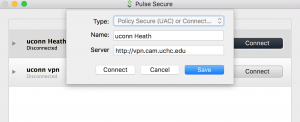
To connect via the Virtual Private Network (VPN) client, you will need to download the free Pulse Secure application that is linked here: http://remoteaccess.uconn.edu/vpn-overview/connect-via-vpn-client-2/ The server URL to connect to UCHC VPN which requires the CAM login/password:
Once pulse secure is downloaded it can be configured using the instructions below.
- Open Pulse secure
- Add new connection
- Set Server URL to : vpn.cam.uchc.edu
- Save
- Connect and login with CAM ID and Passwd
Once a vpn connection is established, login to internal submit node
$ ssh username@xanadu-submit-int.cam.uchc.edu
Windows users will need to use an SSH client to connect to the cluster.Install Putty and configure for use: Putty Configuration steps. Open Putty it will open Window1 (see below).
- Provide host name e.g. xanadu-submit-ext.cam.uchc.edu or xanadu-submit-int.cam.uchc.edu
- Expand SSH tab and select X11 (shown in window2) (optional)
- Enable X11 forwarding by selecting it. (window2) (optional)
- Scroll up the left panel and select Session.(window1)
- Name your session e.g. Xanadu_cluster and click save tab to save
- Your session name should appear in saved sessions
- Double click on your session name to connect to server with SSH session
Xanadu cluster uses the Slurm, which is a highly scalable cluster management and job scheduling system for large and small Linux clusters. The nodes (individual nodes within the cluster) are divided into groups which are called partitions. Xanadu has several partitions available: general, xeon, amd and himem. 
$ sinfo -s
PARTITION  AVAIL  TIMELIMIT   NODES(A/I/O/T)  NODELIST
general*      up   infinite        10/1/0/11  xanadu-[01-02,04-05,08,10,39,46-47,49-50]
vcell         up   infinite          0/4/0/4  xanadu-[76-79]
vcellpu       up   infinite          0/1/0/1  xanadu-32
himem         up   infinite          1/1/1/3  xanadu-[03,06,40]
himem2        up   infinite          1/0/0/1  xanadu-07
xeon          up   infinite         9/1/0/10  xanadu-[01-02,04-05,08,39,46-47,49-50]
amd           up   infinite          1/0/0/1  xanadu-10
mcbstudent    up   infinite          0/1/0/1  xanadu-71
gpu           up   infinite          6/2/1/9  xanadu-[01-08,84]
special       up   infinite          0/2/0/2  xanadu-[78-79]
crbm          up   infinite          2/0/0/2  xanadu-[49-50]
In the above the general* is the default partition for the users. Where NODES(A/I/O/T) are a count of a particular configuration by node state in the form of "Available / Idle / Other / Total ". Xanadu cluster is mainly divided into few partitions:
general partition: nodes have 16-48 cores and 128-580 GB memory
$ sinfo -N -l -p general
NODELIST   NODES PARTITION       STATE CPUS    S:C:T MEMORY TMP_DISK WEIGHT AVAIL_FE REASON
xanadu-01      1  general*       mixed   36   2:18:1 338508        0      1 cpu_xeon none
xanadu-02      1  general*       mixed   36   2:18:1 322380        0      1 cpu_xeon none
xanadu-04      1  general*       mixed   36   2:18:1 322380        0      1 cpu_xeon none
xanadu-05      1  general*       mixed   36   2:18:1 386892        0      1 cpu_xeon none
xanadu-08      1  general*       mixed   36   2:18:1 580427        0      1 cpu_xeon none
xanadu-10      1  general*       mixed   48    8:6:1 386972        0      1 cpu_amd, none
xanadu-39      1  general*   allocated   16    2:8:1 128825        0      1 cpu_amd, none
xanadu-46      1  general*       mixed   40   2:10:2 257914        0      1 cpu_xeon none
xanadu-47      1  general*   allocated   40   2:10:2 257738        0      1 cpu_xeon none
xanadu-49      1  general*       mixed   20   2:10:1 257914        0      1 cpu_xeon none
xanadu-50      1  general*   allocated   40   2:10:2 257914        0      1 cpu_xeon none
himem[2] partition(s): nodes have 36-64 cores and 515-1032 GB memory
$ sinfo -N -l -p himem,himem2
NODELIST   NODES PARTITION       STATE CPUS    S:C:T MEMORY TMP_DISK WEIGHT AVAIL_FE REASON
xanadu-03      1     himem        idle   36   2:18:1 773963        0      1 cpu_xeon none
xanadu-06      1     himem       mixed   36   2:18:1 515701        0      1 cpu_xeon none
xanadu-07      1    himem2   allocated   36   2:18:1 103198        0      1 cpu_xeon none
xanadu-40      1     himem        idle   64    8:8:1 515789        0      1 cpu_amd, none
The general partition can be further divided according to the processor type used in each node:
xeon partition: 10 nodes with 15-40 cores and 128-580 GB memory
$ sinfo -N -l -p xeon
NODELIST   NODES PARTITION       STATE CPUS    S:C:T MEMORY TMP_DISK WEIGHT AVAIL_FE REASON
xanadu-01      1      xeon       mixed   36   2:18:1 338508        0      1 cpu_xeon none
xanadu-02      1      xeon       mixed   36   2:18:1 322380        0      1 cpu_xeon none
xanadu-04      1      xeon       mixed   36   2:18:1 322380        0      1 cpu_xeon none
xanadu-05      1      xeon        idle   36   2:18:1 386892        0      1 cpu_xeon none
xanadu-08      1      xeon       mixed   36   2:18:1 580427        0      1 cpu_xeon none
xanadu-39      1      xeon   allocated   16    2:8:1 128825        0      1 cpu_amd, none
xanadu-46      1      xeon       mixed   40   2:10:2 257914        0      1 cpu_xeon none
xanadu-47      1      xeon   allocated   40   2:10:2 257738        0      1 cpu_xeon none
xanadu-49      1      xeon       mixed   20   2:10:1 257914        0      1 cpu_xeon none
xanadu-50      1      xeon   allocated   40   2:10:2 257914        0      1 cpu_xeon none
amd partition: one node with 48 cores and 386 GB memory
$ sinfo -N -l -p amd
NODELIST   NODES PARTITION       STATE CPUS    S:C:T MEMORY TMP_DISK WEIGHT AVAIL_FE REASON
xanadu-10      1       amd       mixed   48    8:6:1 386972        0      1 cpu_amd, none
gpu partition: nine nodes with 36-48 cores; 322-1032 GB of memory; and A10, M10, or T4 GPUs
$ sinfo -N -l -p gpu
NODELIST   NODES PARTITION       STATE CPUS    S:C:T MEMORY TMP_DISK WEIGHT AVAIL_FE REASON
xanadu-01      1       gpu       mixed   36   2:18:1 338508        0      1 cpu_xeon none
xanadu-02      1       gpu       mixed   36   2:18:1 322380        0      1 cpu_xeon none
xanadu-03      1       gpu        idle   36   2:18:1 773963        0      1 cpu_xeon none
xanadu-04      1       gpu       mixed   36   2:18:1 322380        0      1 cpu_xeon none
xanadu-05      1       gpu        idle   36   2:18:1 386892        0      1 cpu_xeon none
xanadu-06      1       gpu       mixed   36   2:18:1 515701        0      1 cpu_xeon none
xanadu-07      1       gpu   allocated   36   2:18:1 103198        0      1 cpu_xeon none
xanadu-08      1       gpu       mixed   36   2:18:1 580427        0      1 cpu_xeon none
xanadu-84      1       gpu        idle   48   4:12:1 386972        0      1 cpu_amd, none
To access the gpu partition, users need to use the following directives for partition and qos:
$ srun --partition=gpu --qos=general --pty bash
mcbstudent partition: one node with 385 GB memory and 40 cores. This node is restricted to courses and workshops held by UConn. Course instructors can request to reserve the nodes for their course in advance by requesting it through the online form available in our website [link to the form].
$ sinfo -N -l -p mcbstudent
NODELIST   NODES  PARTITION       STATE CPUS    S:C:T MEMORY TMP_DISK WEIGHT AVAIL_FE REASON
xanadu-71      1 mcbstudent        idle   40   2:20:1 385593        0      1 cpu_xeon none
Students and course instructors with access to this partition must use the following arguments to use the mcbstudent node:
$ srun --partition=mcbstudent --qos=mcbstudent --pty bash
Summary of the nodes associated in the Xanadu cluster: 


(If you need an extension click here. Extension requests must be sent at least 2 days prior to the job end date, excluding weekends. We will attempt to accommodate short notice extension requests, but you should endeavor to get a confirmation from support staff via Slack or email.)
- Home directories: Each user is given 1TB by default and this can be increased to 2TB on request.
-
Lab Directories: For projects, that require access to the same data files by multiple users, a lab directory can be requested by the PI. The default lab directory size is set to 2TB but can be upgraded to 10TB on request. Use cbcsupport@uconn.edu for your requests.

To check how much space you have used, can use the disk usage command :
$ du -sh <path to the directory>
You can check the current lab space usage using this link
-
Long-term storage: The cluster has designated space
/archivefor long-term storage. We strongly encourage users to archive their files that are no longer used in the analysis. This archive location has a reasonably fast access speed that will allow quick retrieval of the files when needed. The archive directory for users or labs is not set/created by default, hence it has to be requested either by the user or PI (for lab archive space). There is no size or time limit set for the archived data. PI and users can send their archive directory requests to cbcsupport@uconn.edu.
For a lab group the long time storage space need to be requested by the PI to cbcsupport@uconn.edu via email.
When you connect with the cluster using ssh, (to external-submit-node or internal-submit-node) you will be connected with the submit-nodes, which are virtual environments which have been placed to submit jobs using submission scripts. These submit nodes only have 4GB of memory and overpowering these nodes with running commands such as copying files, removing files, executing jobs will hinder the others from getting access to the cluster. If your purpose is to write a script, copy files, delete files or to execute short jobs which does not last that long, then you should get into an interactive session and the submit-node is not the one for you. If you have have already wrote your script and want to submit it, then submit-node is the one for you.
The first point of contact for a user on the cluster is the head-node/submit-node. Any command that is given at the prompt is executed by the head-node/submit-node. This is not desirable as head-node/submit-node has a range of tasks to perform and its use for computational purpose will slow down its performance. However, often it is convenient/desired to run some commands on command line rather than running them through a script. This can be achieved by initiating an "Interactive session" by executing commands on compute-nodes. How to Start a Interactive Session Interactive sessions are allowed through internal and external submit nodes. There are no big differences between the internal and external submit nodes except that the external submit node can be reached without using the VPN (explained below). It is also not possible to ssh from the external submit node to other internal servers. Once logged in start an interactive session using srun command To start a bash interactive session:
$ salloc --partition=general --qos=general
To reattach to a running interactive session:
$ sattach <jobid.stepid>
To start a bash interactive session with memory allocation:
$ salloc --partition=general --qos=general --mem=200M
It is also important to know the free memory available before starting your interactive session using sinfo -o "%n %e":
sinfo -o "%n %e"
HOSTNAMES FREE_MEM
xanadu-33 326092
xanadu-29 326694
...
...
Free memory is indicated in MB. Once you logged into the interactive session, to check the memory in the interactive session can use the sstat <jobid>.batch command. The jobid number has to be appended by suffix .batch:
$ sstat 471448.batch
#!/bin/bash
#SBATCH --job-name=myscript
#SBATCH -N 1
#SBATCH -n 1
#SBATCH -c 1
#SBATCH --partition=general
#SBATCH --qos=general
#SBATCH --mail-type=END
#SBATCH --mem=5G
#SBATCH --mail-user=first.last@uconn.edu
#SBATCH -o myscript_%j.out
#SBATCH -e myscript_%j.err

echo `hostname`
echo "Hello World"
module load fastqc/0.11.5
fastqc /home/CAM/$USER/raw_data/file.fastq
A general script will consist of 3 main parts:
- The #!/bin/bash line which allows to run as a bash script
- Parameters for the SLURM scheduler indicated by #SBATCH
- Command submission line(s) which comes from your selected application
The #SBATCH lines indicate the set of parameters for the SLURM scheduler.
#SBATCH --job-name=myscript Is the name of your script
#SBATCH -n 1 --ntasks Number of Task to run. The default is one task per node.
#SBATCH -N 1 --nodes This line requests that the task (-n) and cores requested (-c) are all on same node. Only change this to >1 if you know your code uses a message passing protocol like MPI. SLURM makes no assumptions on this parameter -- if you request more than one core (-n > 1) and your forget this parameter, your job may be scheduled across nodes; and unless your job is MPI (multinode) aware, your job will run slowly, as it is oversubscribed on the master node and wasting resources on the other(s).
#SBATCH -c 1 (or --cpus-per-task) The number of cpus requested per task.
#SBATCH --partition=general This line specifies the SLURM partition (in this instance it will be the general partition) under which the script will be run
#SBATCH --mail-type=END Mailing options to indicate the state of the job. In this instance it will send a notification at the end
#SBATCH --mem=5G 5GB of memory requested (required)
#SBATCH --mail-user=first.last@uconn.edu Email which the notification should be sent to
#SBATCH -o myscript_%j.out Specifies the file to which the standard output will be appended, %j will add JOBID number to file name.
#SBATCH -e myscript_%j.err Specifies the file to which standard error will be appended, %j will add JOBID number to file name.
echo `hostname` Gets the name of the node the job is running. We strongly recommend to put this line in every script that you are running. So it will help the HPC team to determine and troubleshoot any problems when an error is encountered.
$ module load fastqc/0.11.5 Load the software fastqc of version 0.11.5. Use module load to load required software package with appropriate version.
$ fastqc /home/CAM/$USER/raw_data/file.fastq Runs fatstqc on file.fastqfile located at /home/CAM/$USER/raw_data/
- Always specify the absolute path to the input files. This will avoid errors and job failures in case the script is moved around.
How to specify the partition and qos in a submission script: To submit a job to a particular partition, --partition and --qos must be specified in the script. To use the general partition:
--partition=general --qos=general
To use the himem partition:
--partition=himem --qos=himem
If you are interested in using a GPU node please set the partition and qos as below:
--partition=gpu --qos=general
Please note that there is only one GPU node on Xanadu cluster (xanadu-06). Xanandu-06 is also part of general partition so sometimes it may take a while to get on it if it is heavily used.
To submit a script to the cluster can be done using the sbatch command All scripts are submitted to the cluster with the following command:
$ sbatch myscript.sh
In some special cases when you want to submit a job with out login to the cluster can be done using:
$ ssh @xanadu-submit-ext.cam.uchc.edu sbatch myscript.sh
Before submitting the above job you may need to include the following line to your ~/.bashrc file
$ . /etc/profile.d/modules.sh
Then need to add the following line at the end of your ~/.bash_profile file:
$ source ~/.bashrc
To monitor all the jobs squeue can be used
$ squeue
             JOBID PARTITION     NAME     USER   ST       TIME  NODES NODELIST(REASON)
            246233   general  STO_001    USER1   CG       4:48      1 xanadu-21
            301089     himem ProtMasW    USER2   PD       0:00      1 (Priority)
            301013       amd ProtMasN    USER2    R    5:43:21      1 xanadu-24
            301677   general mv_db.sh    USER3    R      14:48      1 xanadu-22
            297400     himem  bfo_111    USER4    R 1-07:16:26      4 xanadu-[30-33]
It will give information on the jobs on all partitions. One important aspect is the state of the job in the queue. Where;
R - Running PD - Pending CG - Cancelled
To monitor a particular job squeue command can be used. In this example, the jobID is 201185. This number is provided at the time of job submission and can be used to reference the job while it is running and after it has completed.
$ squeue -j 201185
             JOBID PARTITION     NAME     USER     ST       TIME  NODES NODELIST(REASON)
            201185   general myscript     usr1      R       0:29      1 xanadu-20
To monitor jobs submitted by a user
$ squeue -u UserID

            JOBID PARTITION     NAME     USER ST       TIME  NODES NODELIST(REASON)
            200642   general Trinity   UserID  R    3:51:29      1 xanadu-22
            200637   general Trinity   UserID  R    3:54:26      1 xanadu-21
            200633   general Trinity   UserID  R    3:55:51      1 xanadu-20
To monitor jobs in a particular partition:
$ squeue -p general
             JOBID PARTITION     NAME     USER ST       TIME  NODES NODELIST(REASON)
            287283   general     bash    User1  R   15:54:58      2 xanadu-[24-25]
            203251   general   blastp    User2  R 3-02:22:39      1 xanadu-23
            203252   general   blastp    User3  R 3-02:22:39      1 xanadu-23
Display information on a running/completed job sacct can be used
$ sacct
       JobID    JobName  Partition    Account  AllocCPUS      State ExitCode
------------ ---------- ---------- ---------- ---------- ---------- --------
288052             gmap    general pi-wegrzyn          1  COMPLETED      0:0
288052.batch      batch            pi-wegrzyn          1  COMPLETED      0:0
288775             gmap    general pi-wegrzyn          1    RUNNING      0:0
$ sacct --format=jobid,jobname,account,partition,ntasks,alloccpus,elapsed,state,exitcode -j 288775

       JobID    JobName    Account  Partition   NTasks  AllocCPUS    Elapsed      State ExitCode
------------ ---------- ---------- ---------- -------- ---------- ---------- ---------- --------
288775             gmap pi-wegrzyn    general                   1   00:02:55    RUNNING      0:0
How to check the time limit allocated for a specific job (Start, Elapsed, Timelimit);
$ sacct --format=Start,Elapsed,Timelimit -j 592709
              Start    Elapsed  Timelimit
------------------- ---------- ----------
2018-10-09T11:45:32 15-22:04:19 21-00:00:+
To get more information about a specific job scontrol can be used
$ scontrol show jobid 900001
JobId=900001 JobName=blast
   UserId=USER1(#####) GroupId=domain users(#####) MCS_label=N/A
   Priority=5361 Nice=0 Account=pi QOS=general
   JobState=RUNNING Reason=None Dependency=(null)
   Requeue=1 Restarts=0 BatchFlag=1 Reboot=0 ExitCode=0:0
   RunTime=01:39:25 TimeLimit=UNLIMITED TimeMin=N/A
   SubmitTime=2017-06-27T16:51:36 EligibleTime=2017-06-27T16:51:36
   StartTime=2017-06-27T16:51:36 EndTime=Unknown Deadline=N/A
   PreemptTime=None SuspendTime=None SecsPreSuspend=0
   Partition=general AllocNode:Sid=hpc-submit-int:27120
   ReqNodeList=(null) ExcNodeList=(null)
   NodeList=xanadu-24
   BatchHost=xanadu-24
   NumNodes=1 NumCPUs=1 NumTasks=1 CPUs/Task=1 ReqB:S:C:T=0:0:\*:\*
   TRES=cpu=1,node=1
   Socks/Node=\* NtasksPerN:B:S:C=0:0:\*:1 CoreSpec=\*
   MinCPUsNode=1 MinMemoryNode=0 MinTmpDiskNode=0
   Features=(null) Gres=(null) Reservation=(null)
   OverSubscribe=OK Contiguous=0 Licenses=(null) Network=(null)
   Command=blast.sh
   WorkDir=Plant
   StdErr=blast.err
   StdIn=/dev/null
   StdOut=blast.out
   Power=
If you want more information on the job, you can add the -dd option to the command as:
$ scontrol show -dd jobid 900001
If you need to stop a job which you have submitted, you can use the command scancel with the JobID number:
$ scancel <jobID>
To terminate all your jobs:
$ scancel -u <UserID>
Loading software can be done using the module command. To check the available softwares in the cluster use module avail command, which will give the available modules/software packages in the cluster. Following is a small portion of the software files which will show up when you execute the command.
$ module avail
...
...
2.1.1                              expat/2.1.0                        MaSuRCA/3.5.0                      R/3.5.1-MS
4Cin/1.0                           expat/2.2.0                        MaSuRCA/4.0.1                      R/3.5.2
abyss/1.9.0                        express/1.2.2                      MaSuRCA/4.0.3                      R/3.6.0
abyss/2.0.2                        express/1.4.1                      MaSuRCA/4.0.5                      R/3.6.1
abyss/2.1.2                        express/1.5.1                      MaSuRCA/4.0.9                      R/3.6.3
abyss/2.1.4                        falcon/0.2.0                       MaSuRCA/4.1.0                      R/4.0.3
abyss/2.3.5                        falcon/2018.03.12-04.00            MaSuRCA/4.1.1                      R/4.1.2
add_scores/v1                      fasta/36.3.8h                      matlab/R2011a                      R/4.2.0
admixture/1.3.0                    FastME/2.1.5                       matlab/R2016a                      R/4.2.2
...
...
Then to load a module/software to your working environment or to your script use module load command followed by the module name: e.g.: if you want to load the picard/2.9.2 module, then use:
$ module load picard/2.9.2
To check the modules which have been loaded to your environment, use module list command:
$ module list picard/2.9.2
Currently Loaded Modulefiles:
  1) java-sdk/1.8.0_92   2) picard/2.9.2
To check the associated variables and the path of the module file use module display command:
$ module display picard/2.9.2
-------------------------------------------------------------------
/isg/shared/modulefiles/picard/2.9.2:

module-whatis	 adds picard-2.9.2 to your environment variables
prepend-path	 PATH /isg/shared/apps/picard/picard-tools-2.9.2
setenv		 PICARD /isg/shared/apps/picard/picard-tools-2.9.2/picard.jar
module		 load java-sdk/1.8.0_92
system		 echo `hostname` `whoami` `date +"%F %T"` picard/2.9.2 >> /isg/shared/logs/modules/usage.log
-------------------------------------------------------------------
The Picard module will load the environmental variable called PICARD, where the program can be called upon instead of giving the full path to the executable file. Where you can call the program by:
java -jar $PICARD <arguments>
To unload a module use the module unload command:
$ module unload picard/2.9.2
which will remove the Picard from your environment.
/home/FCAM/username/: This is your home directory. This is the default location when you login to the system. You can run any analysis from this directory and you have ~2TB of space available here.
/labs/pi-name/: This is a collaborative resource created on request to share data with other members of your lab. Please contact the CBC to request a folder for your lab.
/projects/project-name/: This is a collaborative resource created on request to share data with other project members. Please contact the CBC to request a folder for your lab.
/linuxshare/users/username/: This directory exists to archive data longterm (compressed and tarred). This space is available upon request. It is equivalent to /archive on BBC in that in should not be used as a location for running analysis.
/linuxshare/projects/project-name/: This directory exists to archive data longterm for specific projects (compressed and tarred). This space is available upon request. It is equivalent to /archive on BBC in that in should not be used as a location for running analysis.
/UCHC/GlobusXfer/: This directory is the destination on Xanadu for endpoint "UConn Health HPC" for transferring data/files using Globus. Once transferred please move the files to your desired location and delete it from GlobusXfer directory. /local/tmp: This directory can be used for temporary storage of your data while the calculations are running. Once the calculations are done, the data needs to be moved out from this space. It has around 600GB space.
/scratch/: NFS mounted filesystem, This directory can be used for temporary storage of your data while the calculations are running. Once the calculations are done, the data needs to be moved out from this space. It has around 84T space.
/isg/shared/databases/: Includes aligner index (gmap, HiSAT2, Bowtie2 etc of commonly used species/genomes), blast, diamond, kraken, pfam, swiss-prot, BUSCO etc.
NOTE: /linuxshare directories are archival as reads and writes will be slower than other repositories ** Please place a request for these directories via the contact-us form by selecting the "Bioinformatics and Technical support" option. Once created users by the Xanadu administrators, users can populate them as they wish.
The Data transfer process for large files can have two distinct steps, (1) STEP 1: Formatting data which include compressing Data, md5sum strings etc (2) STEP 2: Transfering the data
In order to transfer the data directory between clusters, it is a good practice to compress the directory and generate md5sum string for the compressed file before transferring. This string should match with md5sum value generated after transferring the file. This is to ensure complete and uncorrupted transfer of data. Steps are listed here, If you are running these command on xanadu, please avoid running them on submit node. Please start an interactive session as
$ srun --pty bash
This will move you to one of the compute nodes. To check that you are on compute node simply execute
$ hostname
The output should be one of the compute nodes starting with shangrila or xanadu, if the output is hpc-submit-ext or hpc-submit-int then the interactive session is not initiated. Try again and if the problem persists please get in touch at cbcsupport@uconn.edu (1) Compress the directory data : Directory with data to be compressed to compress execute the command.
$ tar -cvzf data.tar.gz data
data.tar.gz : Output compressed file. (2) Create md5sum string
$ md5sum data.tar.gz
(3) Once the files are compressed, please use transfer.cam.uchc.edu VM to initiate a transfer. To log in on transfer VM and try
ssh username@transfer.cam.uchc.edu
using your CAM account credentials. Please do not use Xanadu submit nodes for transferring files.
$ scp <source> <destination>
Scenario 1: When logged on BBC (or any other cluster) and transferring file to Xanadu
$ scp /path/to/data.tar.gz username@transfer.cam.uchc.edu:/path/to/home/directory/
Scenario 2: When logged on Xanadu and transferring file from BBC
$ scp username@bbcsrv3.biotech.uconn.edu:/path/to/data.tar.gz /path/to/home/directory/
In both cases it will prompt your for password, this password is for the cluster in which you are not currently logged on. After transfer check the md5sum of the transferred file at the destination.
$ md5sum data.tar.gz
The value or string should match the string generated in step 2. Decompress the file
$ tar -xvzf data.tar.gz
Once the transfer process is completed to exit from the interactive session simply execute
$ exit
More detailed information on file transfer methods can be found in our tutorial on Data Transfer .
