Repository navigation
Home
Warning
AS OF VARJO BASE 4.3, THERE ARE NOW SETTINGS DIRECTLY IN VARJO BASE THAT ALLOW YOU TO ACHIEVE THE SAME EFFECT AS THIS SOFTWARE PREVIOUSLY DID. IT IS RECOMMENDED THAT YOU USE THESE NEW SETTINGS INSTEAD OF USING VARJO-FOVEATED. PLEASE SEE THE BLOG POST FROM VARJO. LOOK FOR THE ForceFoveatedRendering KEYWORD SPECIFICALLY.
In layperson's terms:
This software lets you use Eye-Tracked Foveated Rendering (sometimes referred to as Dynamic Foveated Rendering) with your Varjo headset in Digital Combat Simulation (DCS) World when using OpenXR.
If you are using a Quest Pro or Pimax Crystal headset, do not use this software, but instead use Quad-Views-Foveated.
In technical terms:
This software enables OpenXR apps developed with XR_VARJO_quad_views support to use XR_VARJO_foveated_rendering without code changes.
Read more about it: What is Quad Views rendering?.
DISCLAIMER: This software is distributed as-is, without any warranties or conditions of any kind. Use at your own risks.
-
This software only works with Varjo headsets (Aero, VR-3 and XR-3 were tested). For other headsets, check out Quad-Views-Foveated.
-
You must use the Varjo OpenXR support (enabled from Varjo Base, under the 'System' tab). SteamVR OpenXR is not supported, due to its lack of quad views support.
-
Make sure that in Varjo Base you have enabled calibration under 'Headset' -> 'Foveated rendering' and performed calibration of your eye tracker.
-
Varjo quad views is incompatible with OpenXR Toolkit. You must disable OpenXR Toolkit first. You can use the 'OpenXR Toolkit Companion app' (available from your Desktop or the Start Menu) to either disable it specifically for 'DCS World - dcs.exe' or disable it for the whole system.
- If you must use OpenXR Toolkit, check out Quad-Views-Foveated as an alternative that completely replaces Varjo's implementation of foveated rendering.
-
If you previously used OpenXR-InstanceExtensionsWrapper to disable the Varjo quad views capability, you will need to remove that by following the removal instructions on the page linked.
-
DCS World has two modes of operation: the single-threaded mode, and the new experimental multi-threaded mode. Due to a bug in the game with single-threaded mode (cursor renders double), you must use the multi-threaded (MT) mode.
- If you are using DCS OpenBeta, create a shortcut to the
dcs.exefile under thebim-mtfolder where DCS is installed.
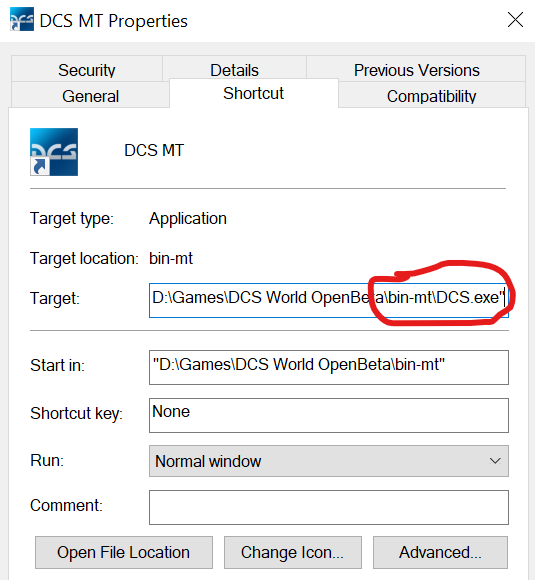
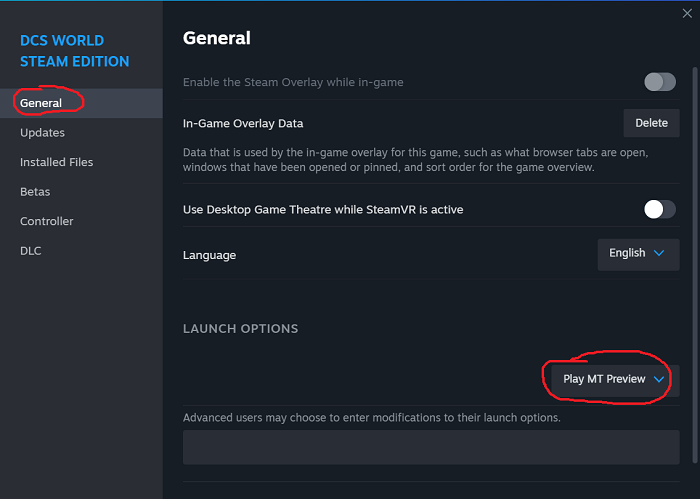
- If you are using DCS Steam Edition - running the executable from the
bin-mtfolder does not work, instead you must go to DCS World 'Properties' in Steam, then under 'General', make sure 'Launch options' is set to 'Play MT Preview'. You must then run the game from within your Steam library.
- If you are using DCS OpenBeta, create a shortcut to the
-
Contrary to popular beliefs, you do not need the
--force_OpenXRlaunch parameter when using DCS MT. -
In the DCS World settings, you must disable 'VR' -> 'Bloom effect' and 'System' -> 'Lens Effects' as they produced poor visuals when using foveated rendering.
-
You may watch Str][kerTV's tutorial video for a visual walkthrough:

PLEASE DO NOT HOTLINK TO THE DOWNLOAD LINK BELOW - INSTEAD LINK TO THIS PAGE THAT COMES WITH BOTH THE DOWNLOAD LINK AND ALL THE NECESSARY INSTRUCTIONS! THANK YOU
Quick download link: Varjo-Foveated-0.2.0.msi
Download the latest version from the Releases page. Find the installer program under Assets, file Varjo-Foveated-<version>.msi.
Run the installer and follow the instructions to complete the installation.
You can use 'Add or remove programs' (available from the Start Menu) and uninstall 'OpenXR-Varjo-Foveated' from there.
The default configuration should be sufficient for most users. You probably do not need to modify the configuration file.
If you intend to play with the configuration, here is where to start:
-
Read https://varjo.com/use-center/get-to-know-your-headset/getting-the-perfect-image-quality/ in order to understand how the Varjo displays work.
-
Then, read it again! It's a lot of information to absorb.
-
Read carefully the instructions below.
-
Then, read them again! My English is great, and it should be a treat to read :)
It is important to understand that the resolution settings in the configuration file are multipliers for the resolution configured in Varjo Base. Changing the settings in Varjo Base will alter the final resolutions used by the application.
With no application started, you can see the requested resolutions in Varjo Base:
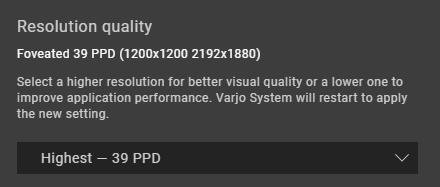
Upon starting your application in quad views mode, the resolutions displayed in Varjo Base will now reflect the effective resolution. You may also use the log file (see further down) to confirm.
In order of look-up:
-
%LocalAppData%\Varjo-Foveated\settings.cfg(you may have to create this folder and the file yourself, or copy from the fallback path below) -
%ProgramFiles%\OpenXR-Varjo-Foveated\settings.cfg
First file that is found is used!
peripheral_multiplier=1
focus_multiplier=1
turbo_mode=1
no_eye_tracking=0
-
peripheral_multiplieris the resolution multiplier for the peripheral region. This is a decimal number, with as many digits of precision as you wish. It is a multipler of dimensions, not number of pixels. For example, if the resolution configured in Varjo Base is 2000x1500, a multiplier of 2 will give 4000x3000 (each dimension multiplied by 2). -
focus_multiplieris the resolution multiplier for the focus (fovea) region. This is a decimal number, with as many digits of precision as you wish. It is a multipler of dimensions, not number of pixels. -
turbo_modeis a value 0 or 1, where 1 enables Turbo Mode, a signature feature from OpenXR Toolkit. -
no_eye_trackingis a value 0 or 1, where 1 disables the use of the eye tracker.
Location of the log file: %LocalAppData%\Varjo-Foveated\varjo-foveated.log
Things you want to look for:
Requested extension: XR_VARJO_quad_views
This means your application is indeed requesting the use of Varjo quad views, which makes Foveated Rendering possible.
If you are not seeing this, then your application does not support Varjo quad views, or perhaps you previously used OpenXR-InstanceExtensionsWrapper to disable the Varjo quad views capability. You will need to remove that by following the removal instructions on the page linked to re-enable quad views.
supportsFoveatedRendering = 1
This means your eye tracker is properly configured.
If you are not seeing this, then make sure in Varjo Base that you have enabled calibration under 'Headset' -> 'Foveated rendering'.
Trying to locate configuration file at 'C:\Users\mbucchia\AppData\Local\Varjo-Foveated\settings.cfg'...
  Found option 'peripheral_multiplier=1'
  Found option 'focus_multiplier=1'
  Found option 'turbo_mode=1'
  Found option 'no_eye_tracking=0'
A recap of where your config is loaded from, and which values are being picked up.
Peripheral resolution: 2192x1880 (multiplier: 1.000)
Focus resolution 1200x1200 (multiplier: 1.000)
These are the resolutions you are requesting. The game is free to use them... or ignore them. DCS seems to accept any value.
Creating swapchain with resolution: 2192x1880
Creating swapchain with resolution: 1200x1200
These are the resolutions you are actually getting. With DCS, this normally matches the values you have requested above.
Thanks to Varjo for providing me with an Aero for development.
Thanks to my beta testers for helping throughout development and release (in alphabetical order):
- MastahFR
- Micah Frisby
- Morphine
- Spite
Donations are welcome and totally optional. Please use my GitHub sponsorship page to make one-time or recurring donations!
Thank you!
