Repository navigation
Code Editor
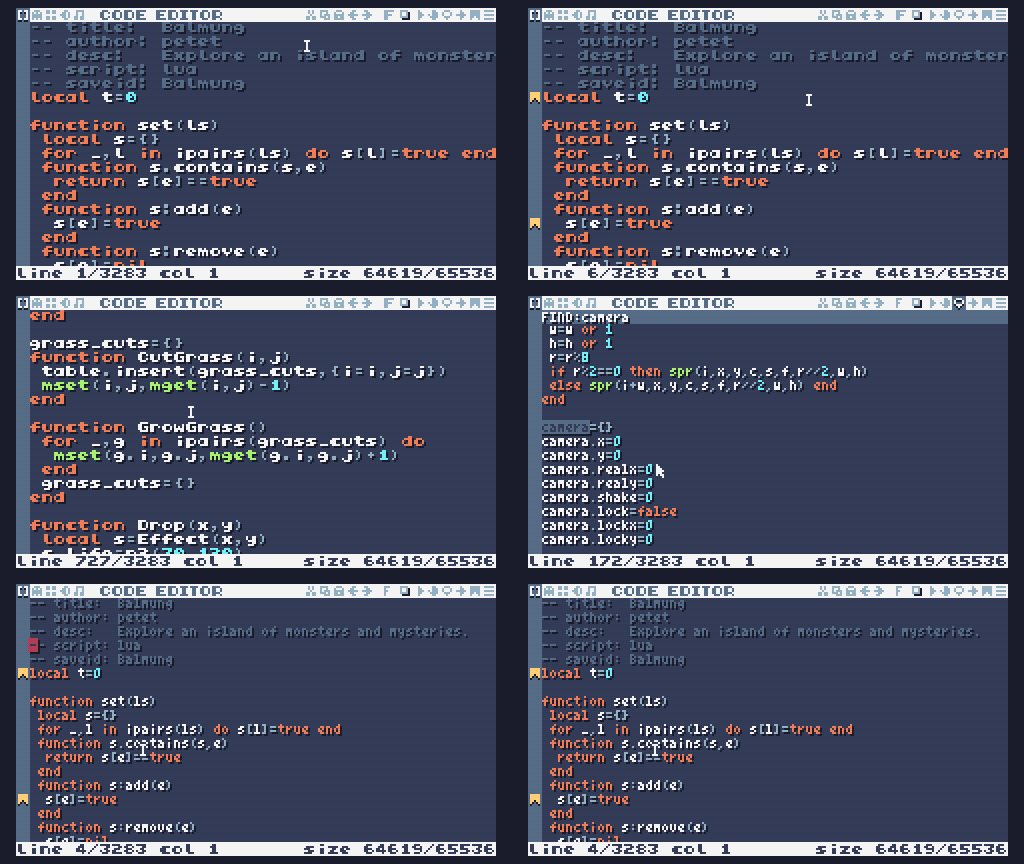
TIC-80 includes a powerful built-in code editor to assist with game development. It's entirely possible to design, code, and maintain a game without ever leaving the TIC-80 environment.
The editor's actions are in the menu bar: the CODE app menu has FIND, GOTO, BOOKMARKS, OUTLINE, the view toggles TINY FONT, SHADOW, LINES (ALT+L), SIDEBAR, STATUSBAR, MINIMAP, and the OPTIONS submenu with TAB SIZE, TAB MODE and KEYBIND MODE. TINY FONT and SHADOW have the ALT+F/ALT+S shortcuts only in VI mode; in the standard keybind ALT+F moves a word.
- LINES adds the line-number gutter; without it, the gutter narrows to the bookmark strip, and hovering it still previews and toggles a bookmark.
-
BOOKMARKS lists the bookmark lines;
CTRL+F1inserts a bookmark line above the current line (or removes it),F1andSHIFT+F1jump to the next and previous one, and clicking the gutter toggles a bookmark too. - A bookmark line is a column-0 comment:
<comment> @@@ <note>, for example-- @@@ bookmarkin Lua or// @@@ bookmarkin JS. The note is free text and is what the bookmark list shows. - OUTLINE navigates the functions and definitions of the current script.
Colors used in the code editor can be customized using the configuration file.
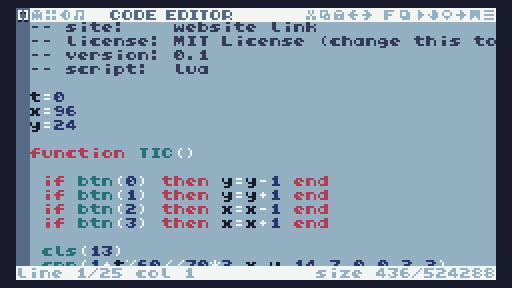
It is good practice to start cartridges by the metadata tags. In particular, the script tag is required when another language than Lua is used for the virtual machine to know.
At the core of every game is a loop that updates the game and renders new frames. In TIC-80, this is managed by the TIC() function:
-- # Metadata Tags:
-- title:   game title
-- author:  game developer, email, etc.
-- script:  lua --required to run cart if not lua

-- # Code outside TIC() runs once at program start.
-- Declare variables, functions, initialize

function TIC()
    -- # Code inside TIC() runs ~60 times per second.
    -- Handle inputs, update game state

    cls() -- Clear the screen
    -- Render graphics, characters, objects, backgrounds, etc.
end
Look at the Hello World cartridge as an example of TIC-80 code.
Note: Clearing the screen at every frame is not necessary but avoids annoying artifacts.
Please see API Reference for a full list of built-in functions or to download a quick function reference cheat sheet.
CTRL+F                  Find.
CTRL+G                  Go to line.
CTRL+P/N                Move to previous/next line.
CTRL+F1                 Insert or remove a bookmark line.
F1                      Move to the next bookmark line.
SHIFT+F1                Move to the previous bookmark line.
CTRL+B                  Show bookmark list.
CTRL+O                  Show code outline.
RIGHT CLICK             Drag.
CTRL+TAB                Indent line.
CTRL+SHIFT+TAB          Unindent line.
CTRL+/                  Comment/Uncomment line.
ALT+F                   Toggle the tiny font (VI mode).
ALT+S                   Toggle the text shadow (VI mode).
ALT+L                   Toggle line numbers.
The general hotkeys are available in the code editor too.
The PRO version allows to use an external editor to write your code, if that is your preference.
