


 Social Wall
 Feed Analytics


A reference table of X (Twitter) API error messages, what each one means and how to fix it, starting with authentication failures.
Are you seeing an error message in place of your Twitter feed?
In this guide, we’ll explain what each message from the plugin means and how to fix it. All you need is access to your WordPress dashboard.
Before you get started, make sure the latest version of Custom Twitter Feeds is installed and activated on your WordPress site.
- Where Error Messages Appear
- Error Messages
- Reactivating Your License Key
- Testing Your Connection
- Errors With Your Own App
- Server requirements
- Still Not Working?
- Frequently Asked Questions
Where Error Messages Appear
When your feed can’t display Tweets, the plugin shows a message where the feed normally appears. If you’re logged in to WordPress as an admin, you see a box with the error and what to try next.
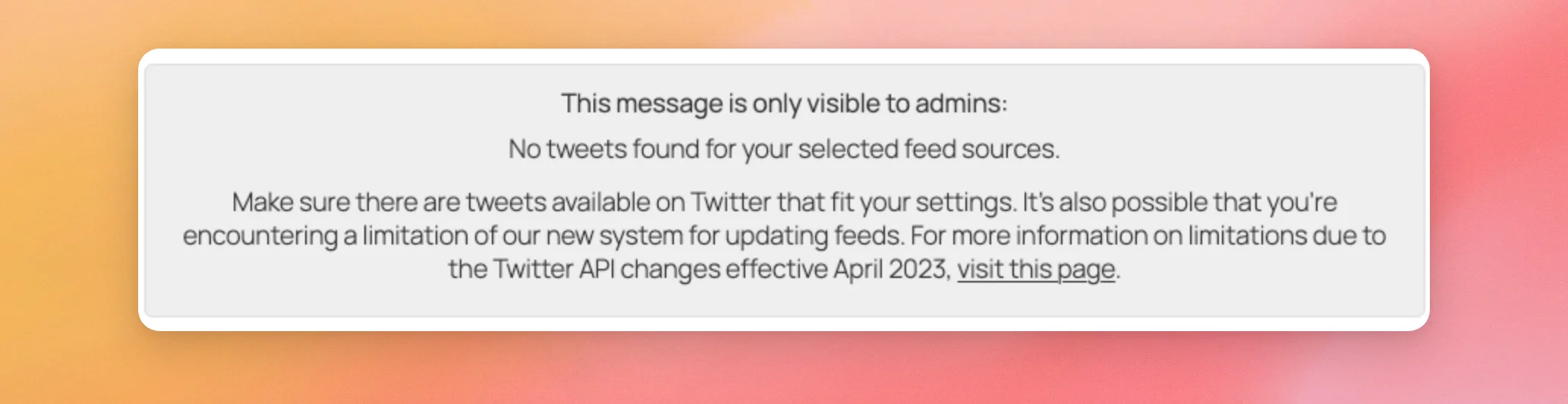
Visitors don’t see that box. In place of the feed, they see “Twitter feed is not available at the moment.”
The plugin also keeps a dated list of recent messages in your System Info, in the ERRORS section.
Error Messages
The messages are listed in alphabetical order. Find the one on your page. Then follow what the last column says.
| Message | What it means | What to do |
|---|---|---|
| Error [number]: [details]. | The Smash Balloon API answered with an error that has no message of its own. | On the paid version, test your connection. If the message stays, contact our support team with the full message. |
| HTTP request error – [code]: [details] | Your server didn’t get an answer from the Smash Balloon API. The details give the reason. | On the paid version, test your connection. Then check the server requirements. |
| It looks like there were no tweets found that fit your feed moderation settings. | Your feed’s filters leave no Tweets to show. | Edit the filters in your feed so more Tweets fit, or wait for new Tweets that fit them. |
| It looks like you’ve exceeded your daily feed update limit for this site as of [date]. | Your site has used its feed updates for the day, so new Tweets wait until the limit resets. It is 12 on the basic license level, 18 on the plus license level, and 24 on the elite license level. | No action is needed. The limit resets automatically within 24 hours. The free version updates once a week, so its limit resets within the next week. |
| No feed found with the ID [number]. | The feed ID in your shortcode doesn’t match a feed on your site. Everyone who opens the page sees this message. | Go to the All Feeds page in the plugin and copy the shortcode of the feed you want. |
| No tweets found for your selected feed sources. | The plugin has no Tweets to show for this feed. The source may have no Tweets, the feed’s filters may hide them, or a Hashtag or Search feed may have reached its seven-day limit. | Check the sources and filters in your feed, then clear the feed cache. |
| There may be an issue with your credentials for using the Smash Twitter API | The Smash Balloon API didn’t accept your site’s credentials. | Reactivate your license key. On the free version, refresh your site key. |
| Too many requests | The free version shows this message when the API receives too many requests in a short time. | Wait for your feed’s next update. If the message stays, contact our support team. |
| Twitter feed is not available at the moment. | This is what visitors see in place of the feed when there’s an error. | Open the page while logged in to WordPress as an admin to see the full message. |
| Unable to complete update your feeds. It seems your license key is not authorized with this site to make requests to the Twitter API | The Smash Balloon API didn’t accept your license key for this site. On the free version, the message names your site key. | Reactivate your license key. On the free version, refresh your site key. |
| Your site is unable to connect to smashballoon.com and start updating feeds. | Your site doesn’t have an active connection to Smash Balloon. | Reactivate your license key. On the free version, refresh your site key. |
Reactivating Your License Key
Several messages ask you to deactivate and then reactivate your license key. Your key stays saved while you do this, so you don’t need to type it again.
To get started, go to Twitter Feed » Settings in your WordPress dashboard. Then, on the General tab, click Deactivate in the License Key section.
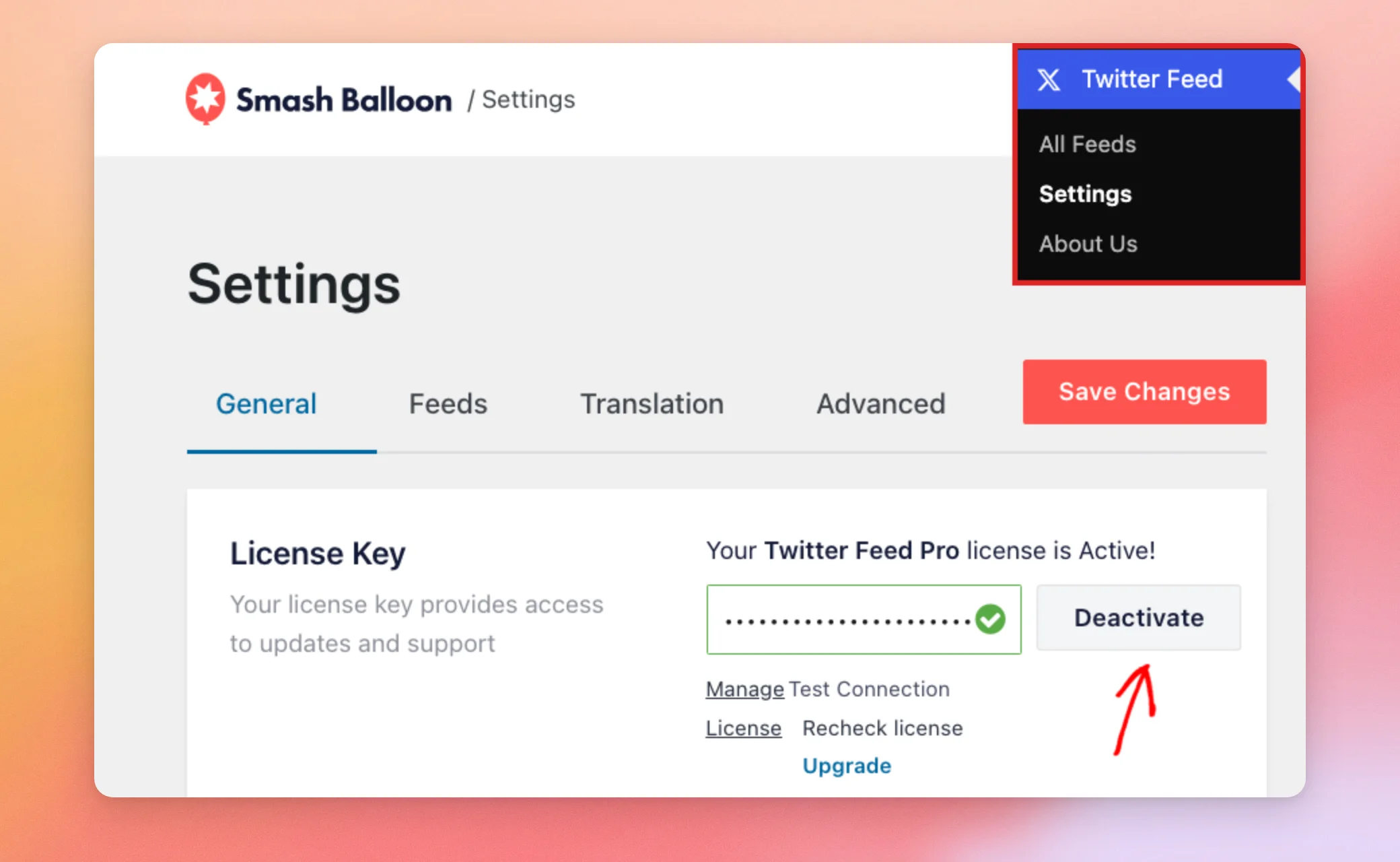
The status changes to Inactive. Next, click Activate.
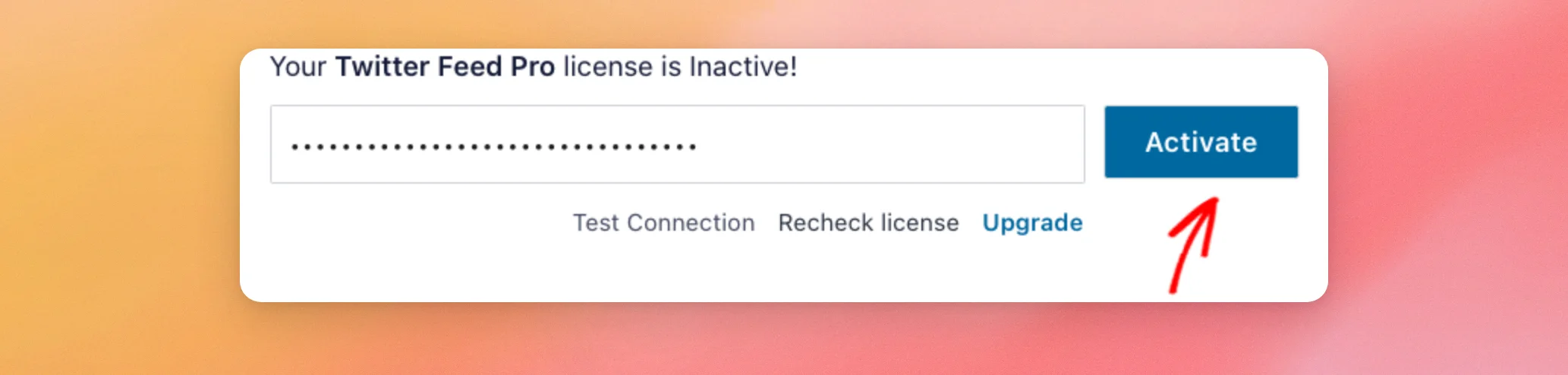
The status changes back to Active.
On the free version, go to Twitter Feeds » Settings and click Refresh in the Site Key row. If that row shows Connect instead, your site isn’t connected yet. Our guide on setting up the free version walks you through it.
Testing Your Connection
The paid version has a test that shows whether your server can reach smashballoon.com.
To run it, go to Twitter Feed » Settings in your WordPress dashboard. Then, click Test Connection in the License Key section of the General tab.
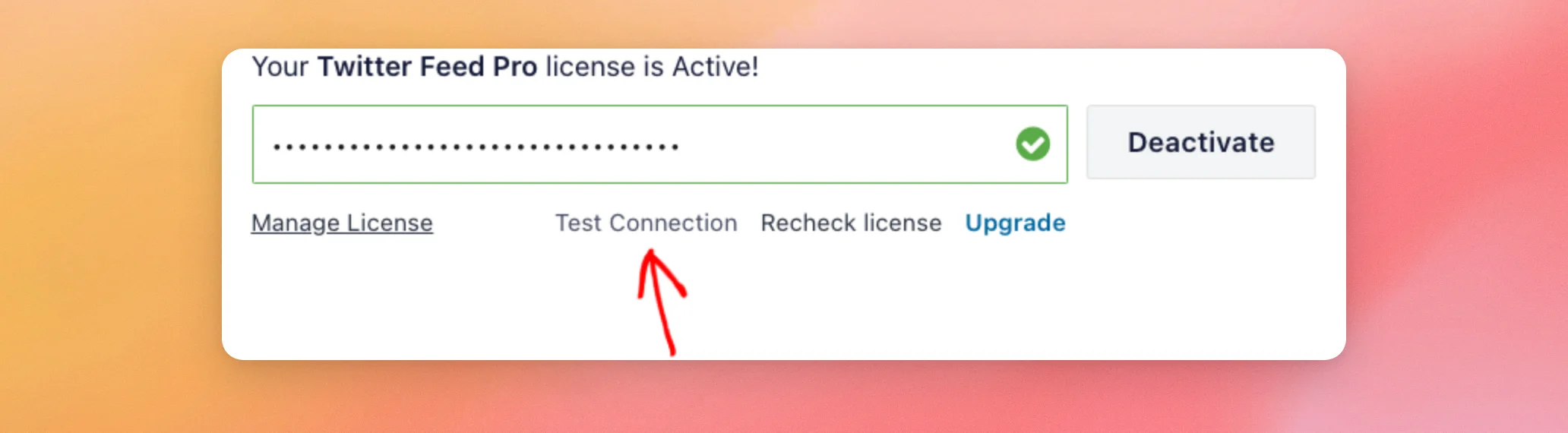
The result appears in place of the link. Connection successful means your server reached smashballoon.com. Connection failed means it didn’t. The View error link beside it gives the reason.
This test checks smashballoon.com, and your feeds update through ctf.smashballoon.com. If the test fails or the message stays, check the server requirements below.
Errors With Your Own App
If you connected your own app with Connect your Own App (V2), the plugin calls the X API directly instead of the Smash Balloon API. Errors from X are saved in your System Info, in the ERRORS section.
Here’s how to read what you find there:
- “Could not connect to the Twitter API. Your host may be blocking the connection.” means your server can’t reach the X API. To fix this, check the server requirements below.
- An error about your keys or tokens means X didn’t accept them. To fix this, check that the Consumer Key, Consumer Secret, Access Token, and Access Token Secret in the plugin match your app on X. Our guide on creating your own X app shows where to find each one.
Server requirements
Custom Twitter Feeds needs PHP 7.4 or higher. On the paid version, the MCP Write Access option needs WordPress 6.9 or higher.
The default connection updates your feeds through the Smash Balloon API at ctf.smashballoon.com. It uses the WordPress HTTP API. Your server needs to allow outbound HTTPS connections to that address. If those connections are blocked, ask your web host to allow them.
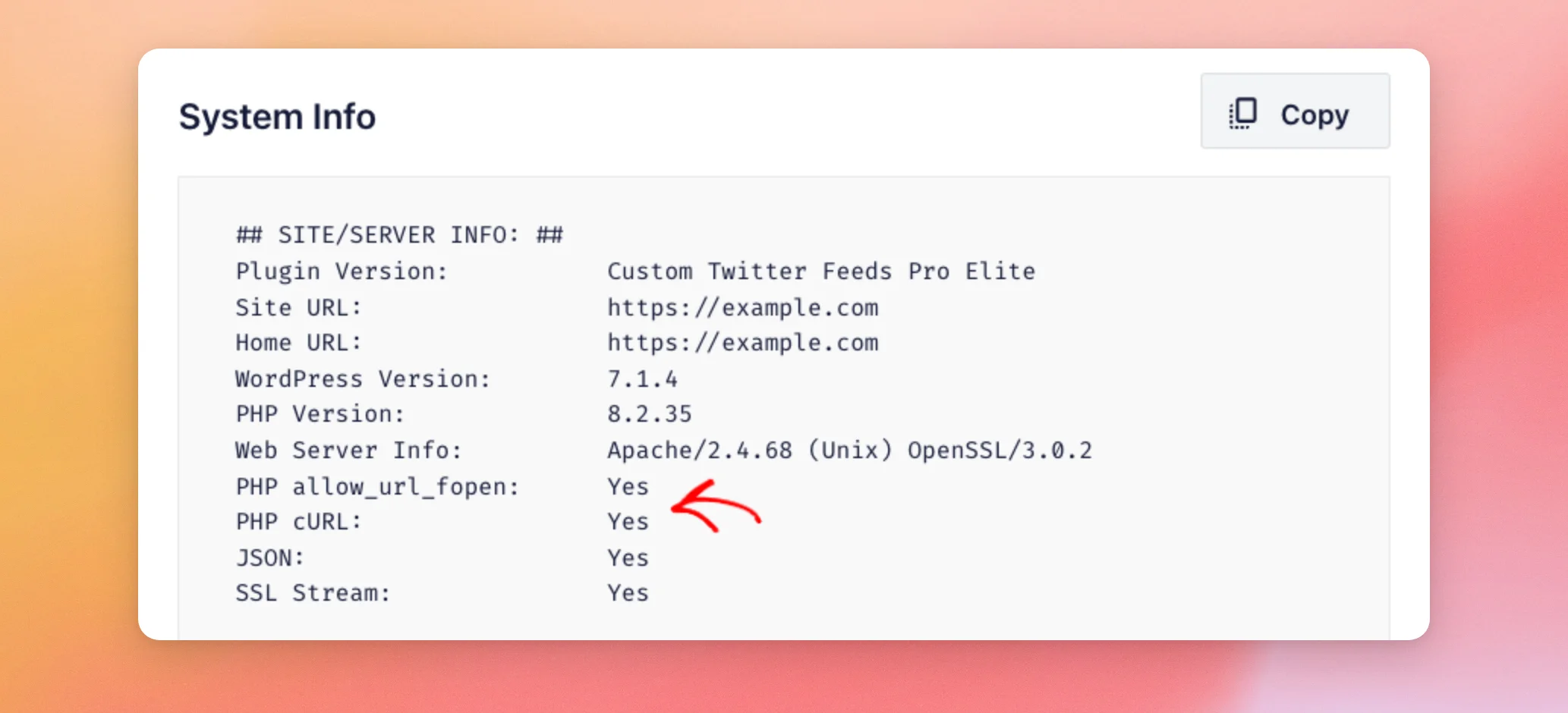
cURL and allow_url_fopen only matter if you connected your own app and set Request Method to cURL or file_get_contents(). The plugin then calls the X API at api.twitter.com with that method. Your server needs the matching option.
To check both, open your System Info. Then look for the PHP allow_url_fopen and PHP cURL lines.
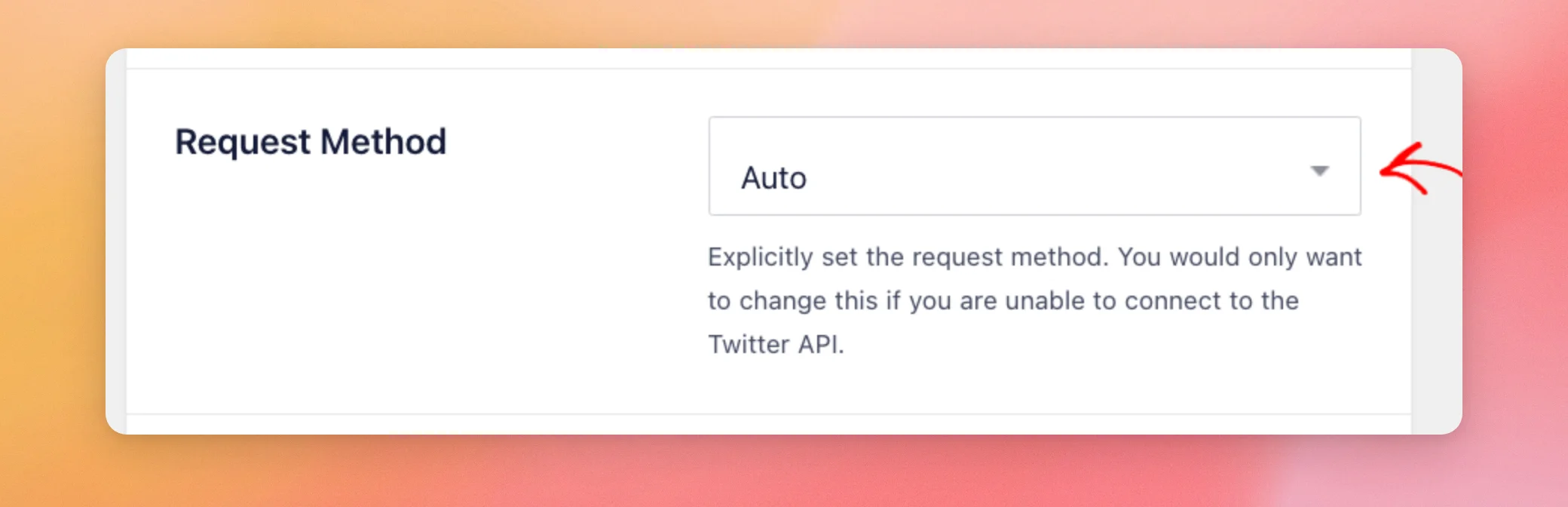
Request Method is on the Advanced tab of the plugin settings. It’s set to Auto by default. You only need to change it if you use your own app and can’t connect to X.
If your server meets these requirements and you still see an error, the next section explains how to get help.
Still Not Working?
If you still see an error message, our team can take a closer look. Contact our support team and include these details:
- The full error message
- The URL of the page with your feed
- Your feed type and source
- The fixes you’ve already tried
- Your System Info
That’s it! You now know what each error message means and how to fix it. Next, check out our guide on the changes to the X API to learn how feed updates work.
Frequently Asked Questions
Below, we’ve answered some of the most common questions about error messages in Custom Twitter Feeds.
Will deactivating my license key remove it from my site?
No. Your license key stays saved in the License Key field. See the Reactivating Your License Key section above for the steps.
Do I need to change the Request Method setting?
Only if you use your own app and can’t connect to X. The default connection always uses the WordPress HTTP API. On that connection, you can leave the setting on Auto.





