


 Social Wall
 Feed Analytics


Step by step instructions for creating a Google Cloud project and a YouTube API key, which feed types such as Playlist and Search require.
Would you like to set up the YouTube API key that YouTube Feed needs to keep your feeds up to date?
In this guide, we’ll walk you through creating a Google Cloud project and turning on the YouTube Data API v3. Then we’ll create the key and add it to the plugin. We’ll also cover how Google’s daily quota works.
Before you get started, make sure YouTube Feed is installed and activated on your site, and that you have a Google account.
Here is what we will cover:
- Creating a Google Cloud Project and API Key
- Adding the API Key to YouTube Feed
- How Does the Daily Quota Work?
- Clearing a Feed Stuck After an Account Change
- Frequently Asked Questions
Note: The Google Cloud steps below are shown as Google’s console looked when this guide was first written. Google changes its screens from time to time. A button may sit in a slightly different place. The steps stay the same.
Creating a Google Cloud Project and API Key
To get started, we’ll set up a project in Google’s developer console.
Playlist, Search, Shorts, Live Streams, and Single Videos feeds need your own YouTube API key. A Channel feed can use a connected YouTube account instead. A key is the better choice (see the FAQ at the end).
Note: If you already created an API key …
You will need to create a new project using this URL: https://console.developers.google.com/projectcreate. Then you can continue with step 3.
The new project you created must be the one selected in the dropdown at the top of the page.
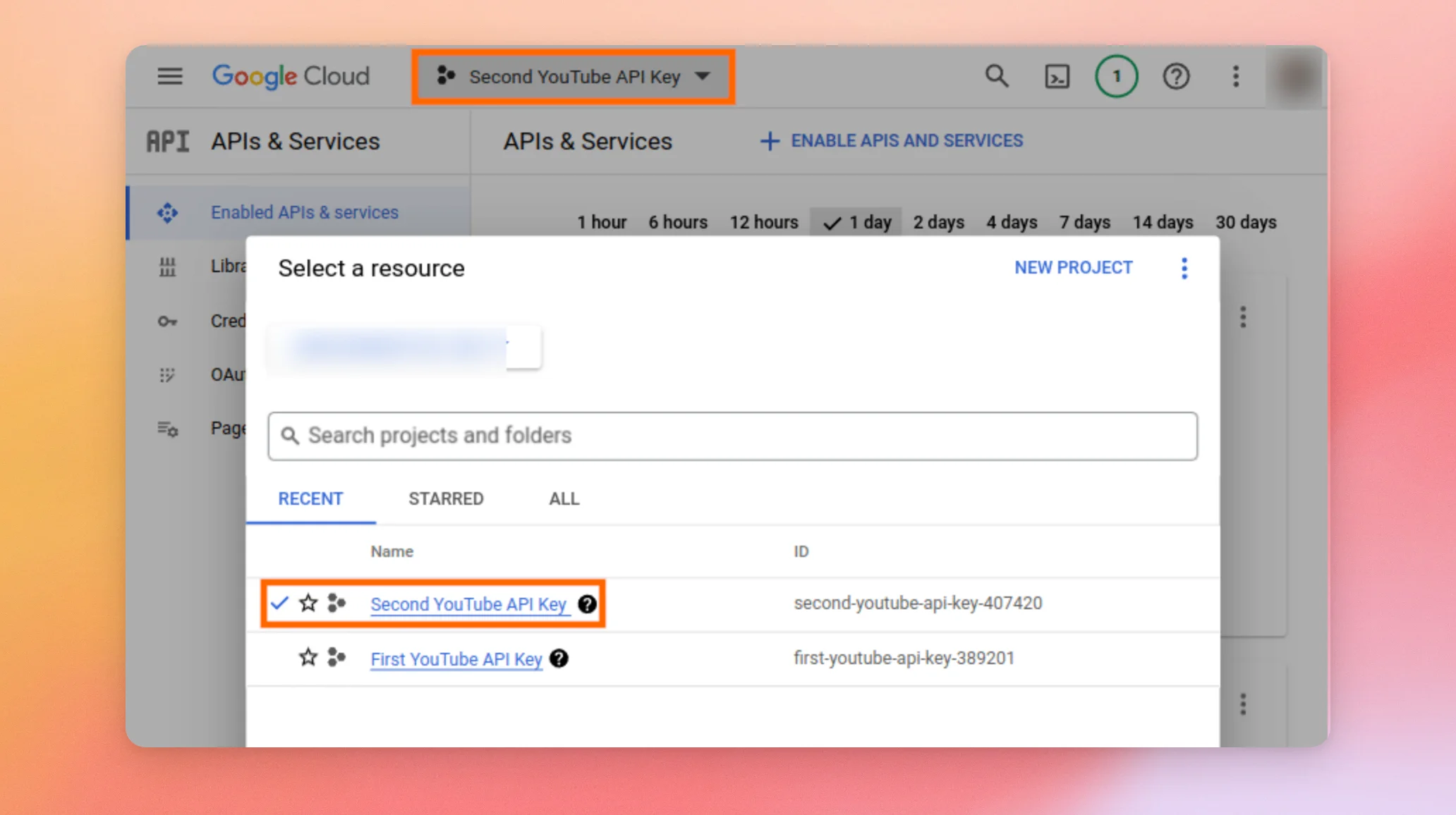
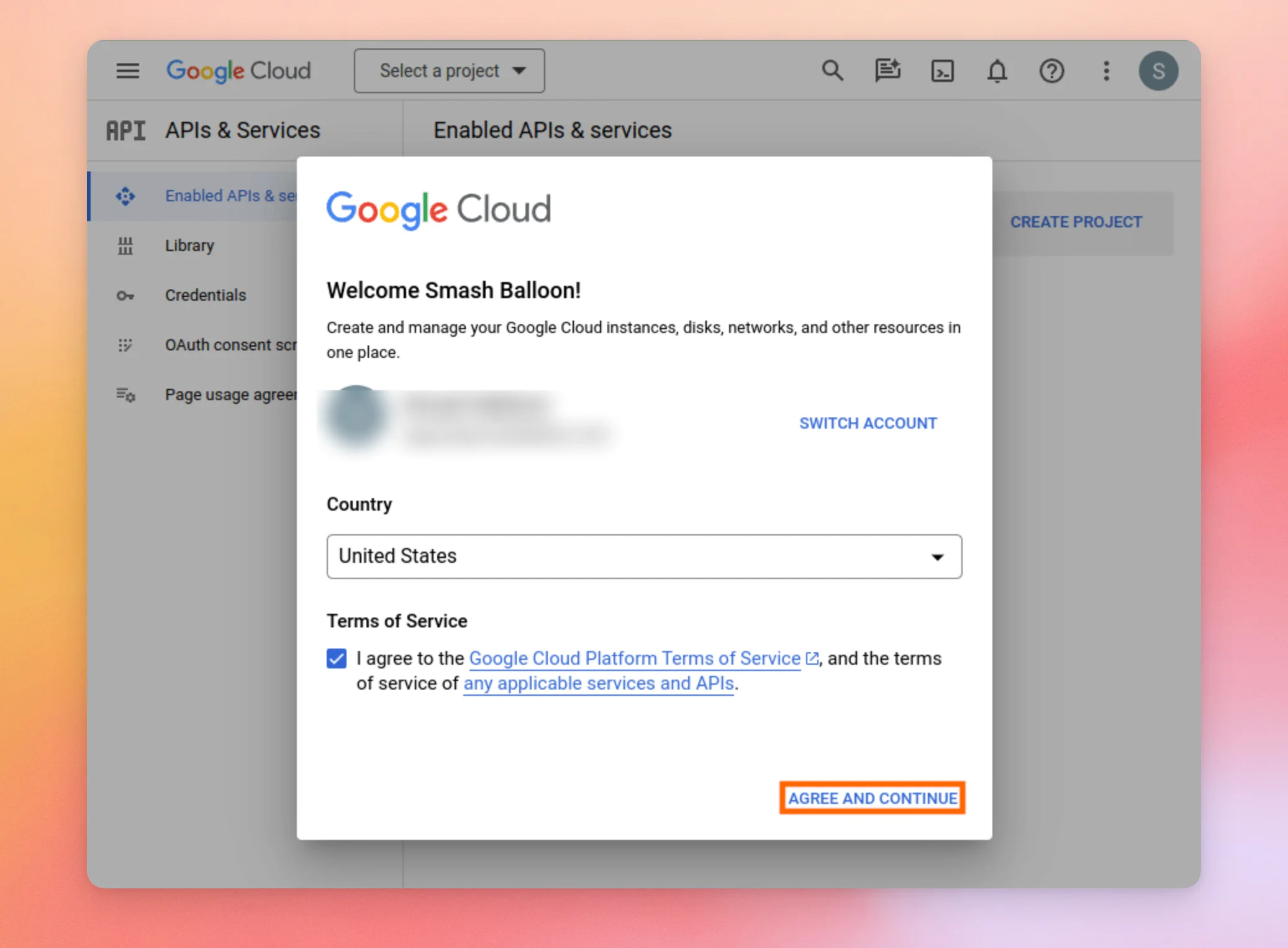
1) Go to console.developers.google.com/apis. If this is your first time using the Google API site, you’ll be asked to agree to the Terms of Service.
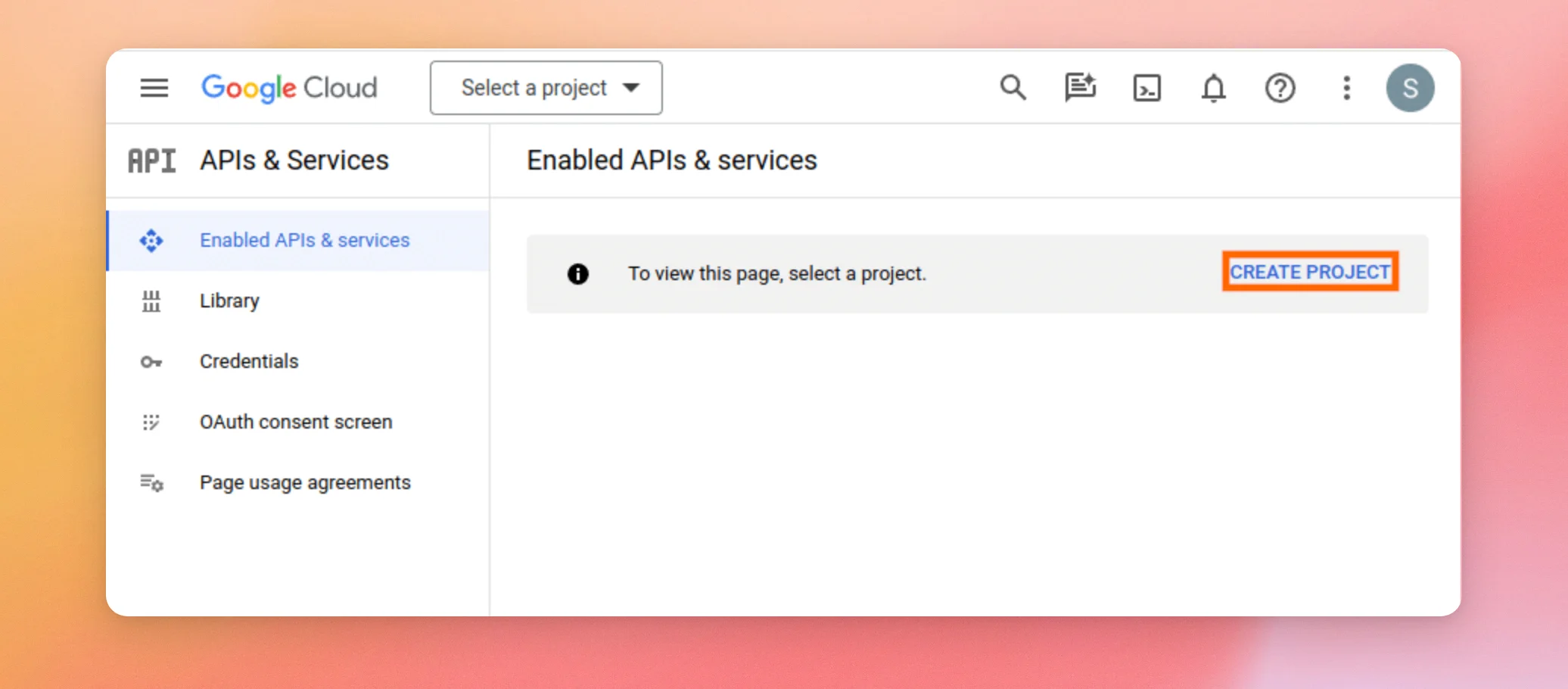
2) Create a project by clicking the CREATE PROJECT button.
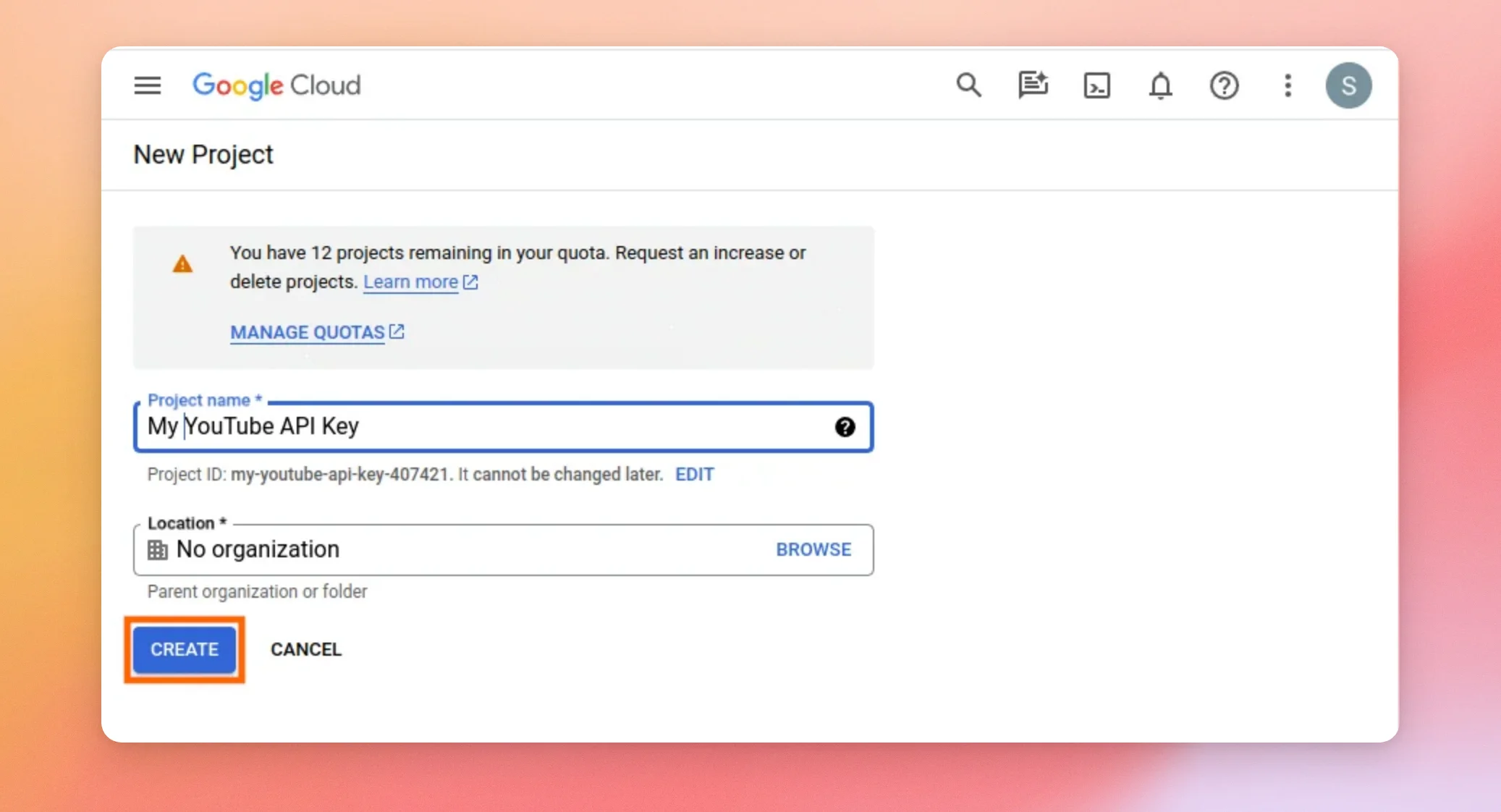
3) After giving your project a name, click the CREATE button.
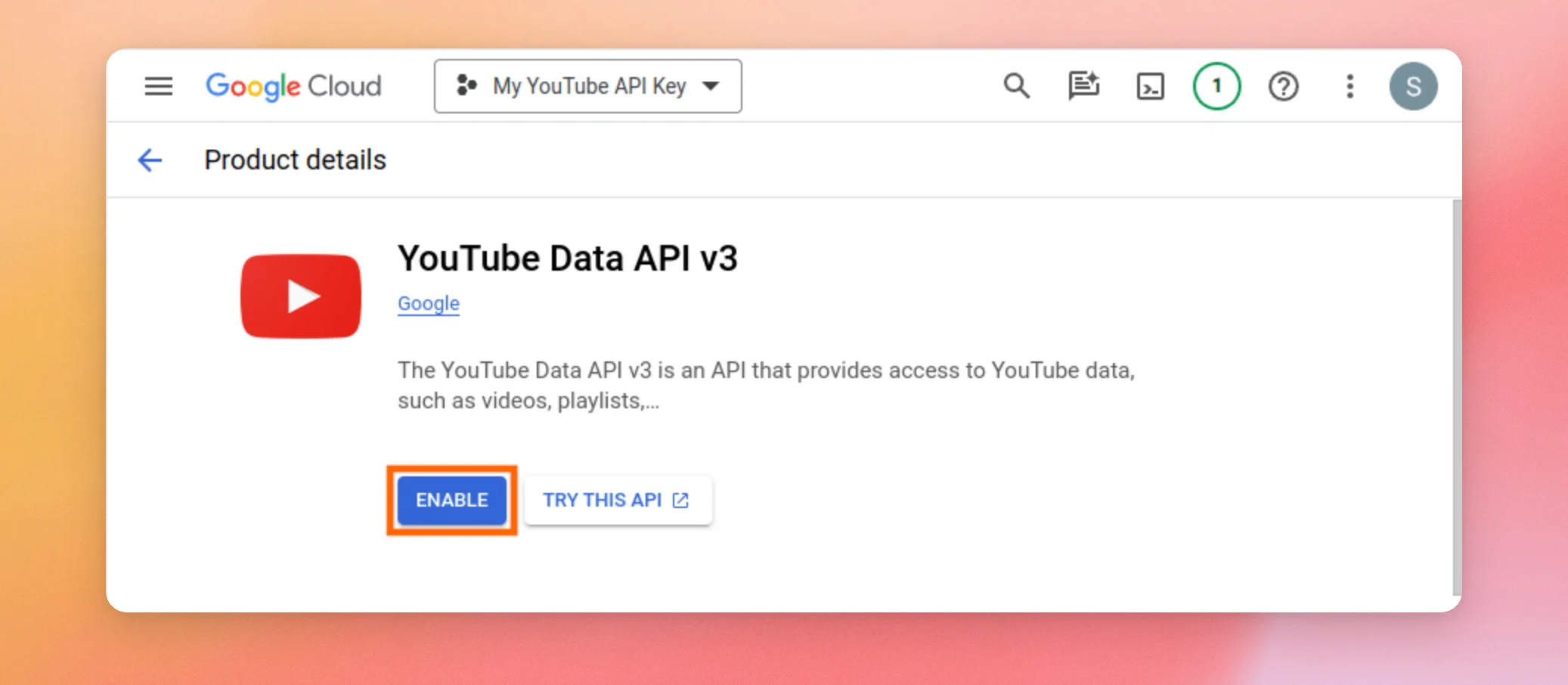
4) Next, turn on the YouTube Data API v3 for your project. To do this, open the YouTube Data API v3 page and click ENABLE. Without this step, YouTube rejects the key.
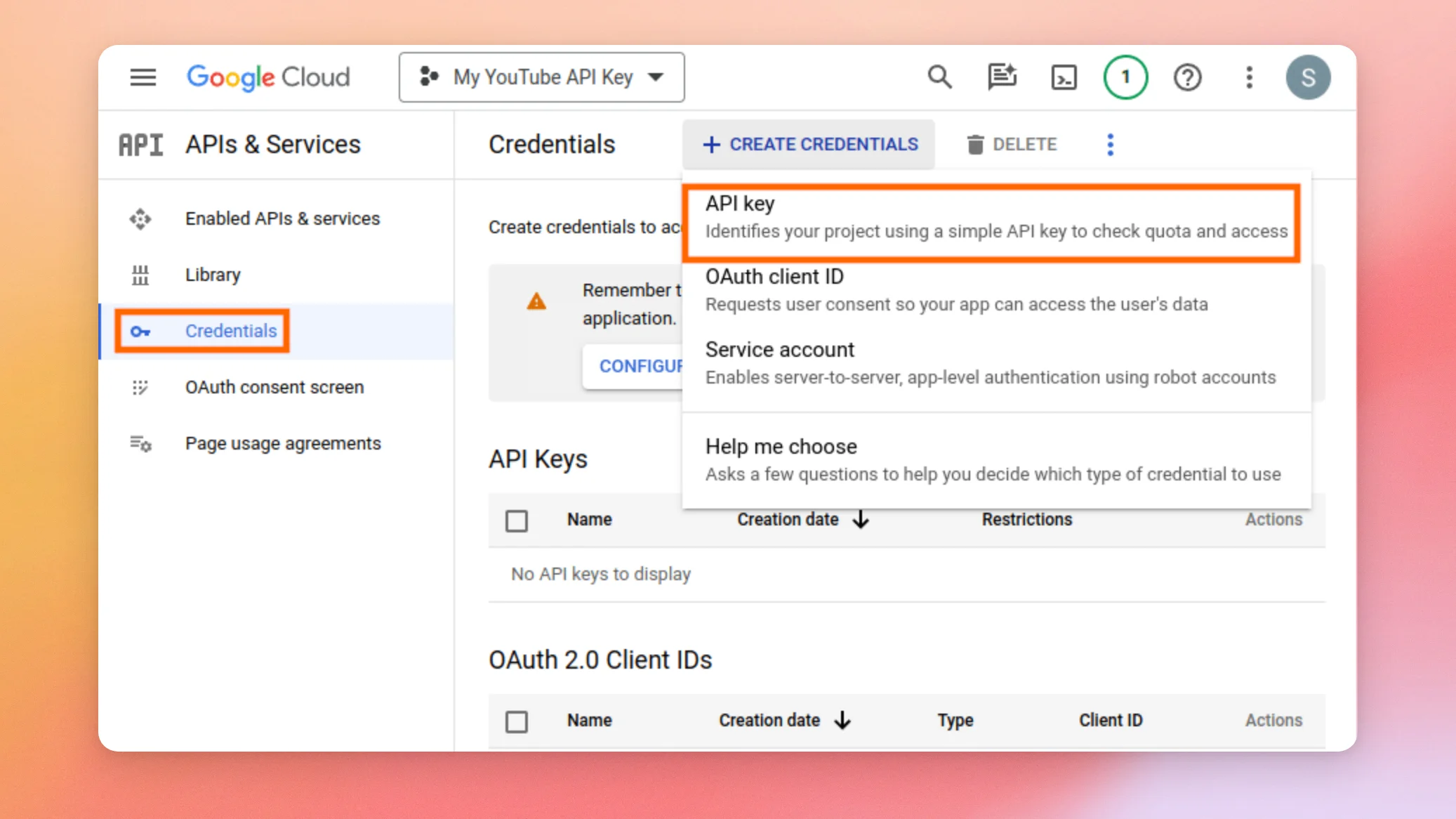
5) Go to the Credentials page and click CREATE CREDENTIALS. The type of key this plugin needs is an API key. Next, select that option.
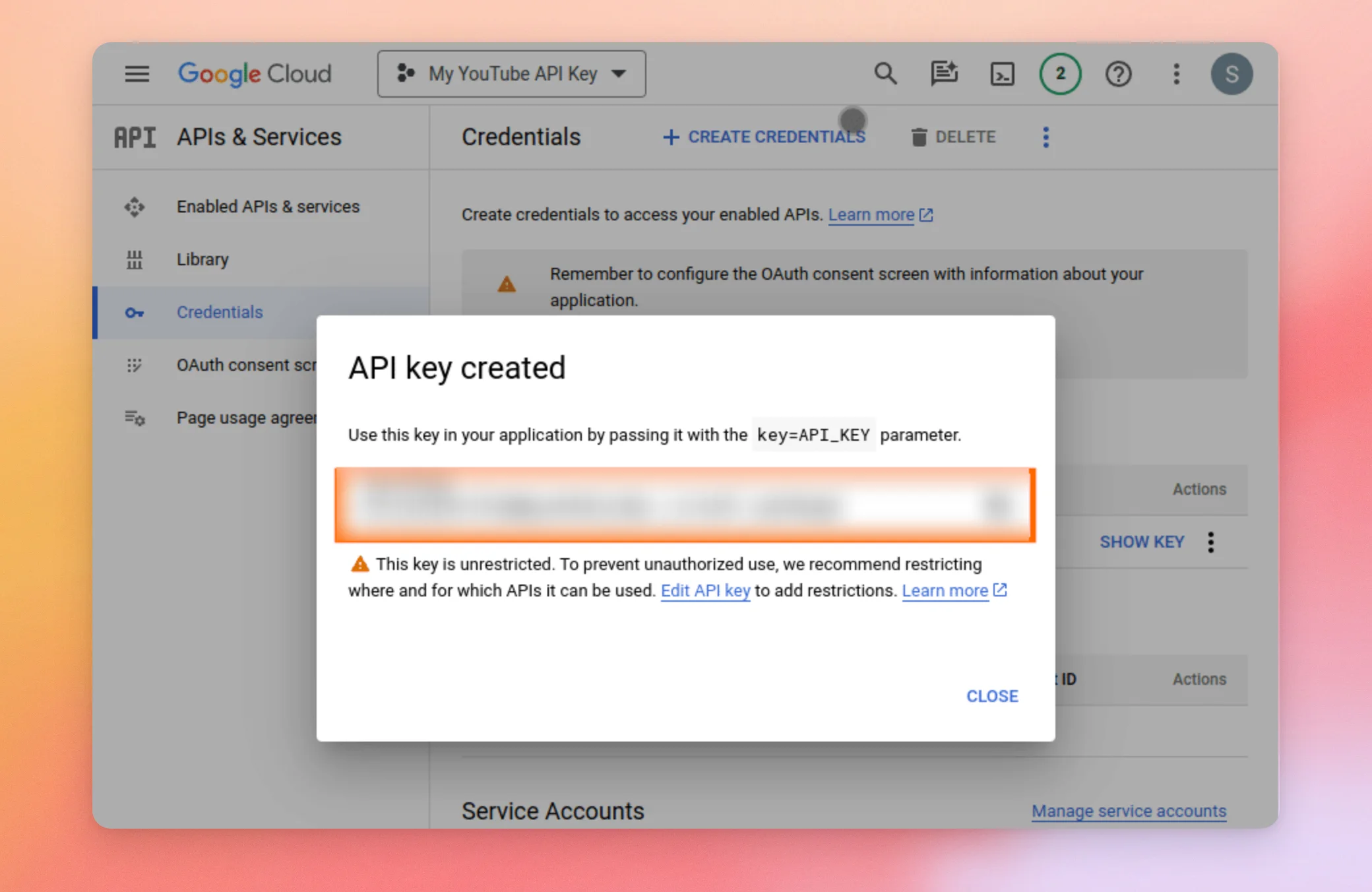
6) Copy the key from the pop-up window. You’ll need it in the next section.
Now that you have your key, you’re ready to add it to YouTube Feed.
Adding the API Key to YouTube Feed
Once Google gives you a key, you add it on the plugin’s Settings page.
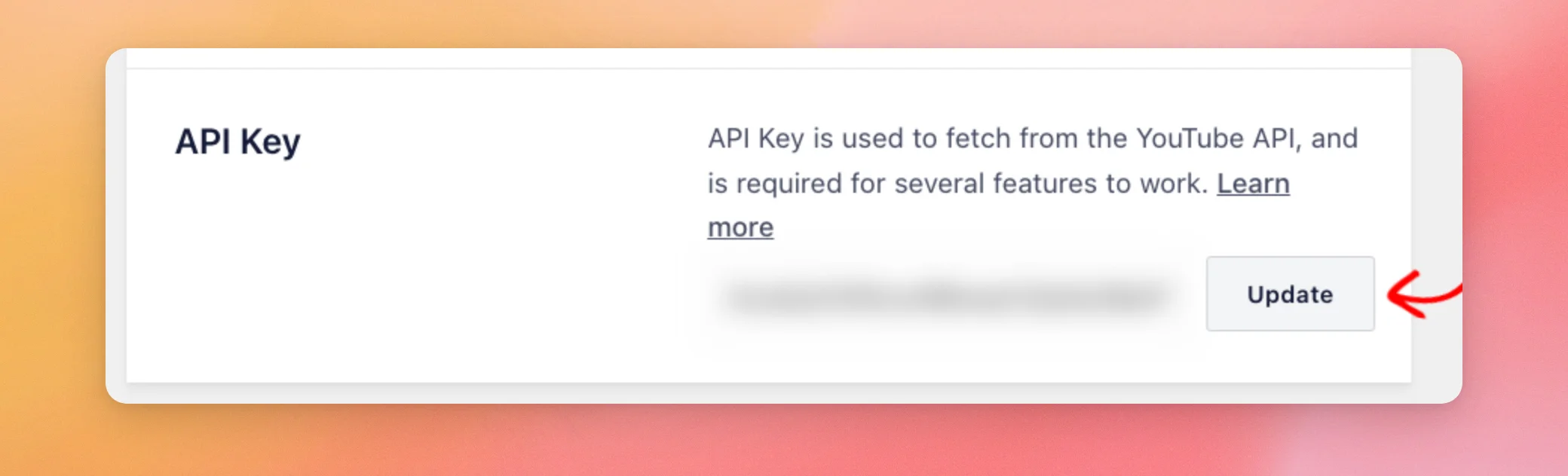
7) From your WordPress admin sidebar, go to YouTube Feed » Settings. Then open the General tab. Next, paste the key in the API Key field. Then click Add.
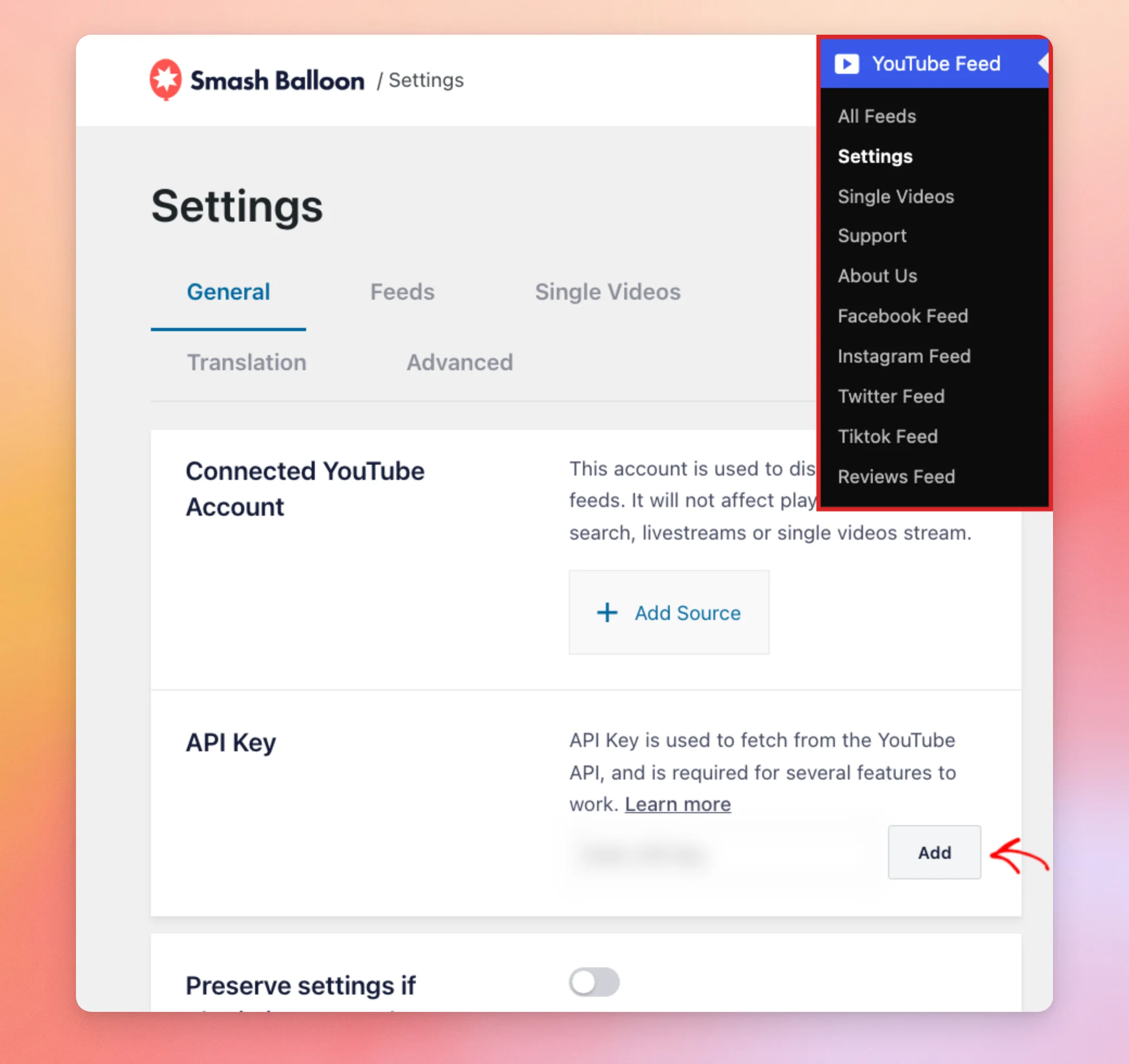
The plugin checks the key with YouTube and saves it. A green check mark shows in the field when YouTube accepts the key. If YouTube does not accept it, the field shows an error mark and a message with a link back to this guide.
Note: A new key can take up to 15 minutes to start working. If a feed still shows an error message about your key after that, our error message reference explains each one.
Once a key is saved, the same button reads Update. To replace a key, paste the new one over the old one. Then click Update.
Adding the Key While Creating a Feed
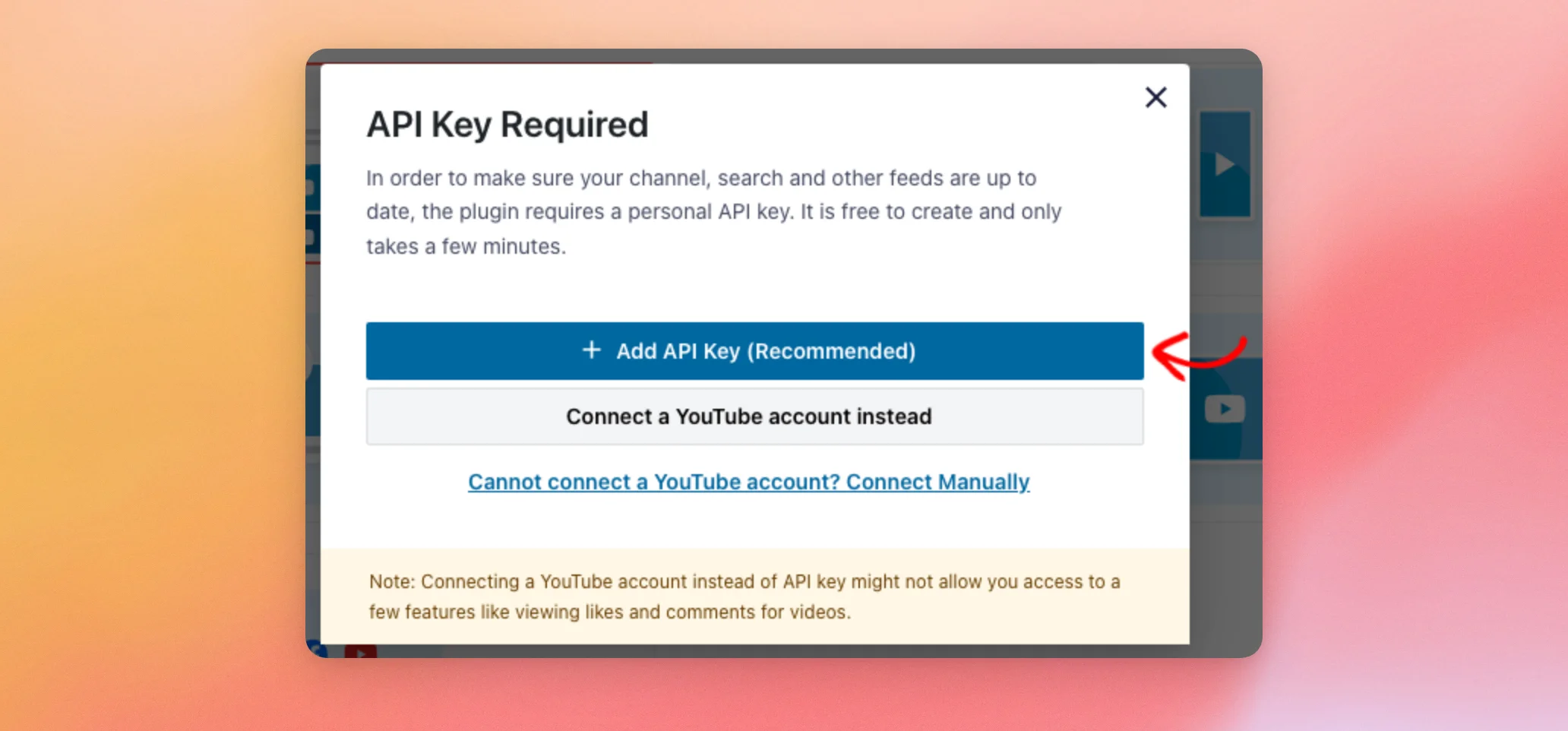
You can also add the key while you build a feed. When no key is saved, the feed builder opens an API Key Required window for every feed type except Channel and Social Wall. For a Channel feed, the same window opens when no account is connected either.
For a Channel feed, the window first offers a key or a connected YouTube account. The key is the better choice. A connected account also shows private, unpublished, and draft videos and might not allow likes and comments. When the window shows these choices, click Add API Key (Recommended).
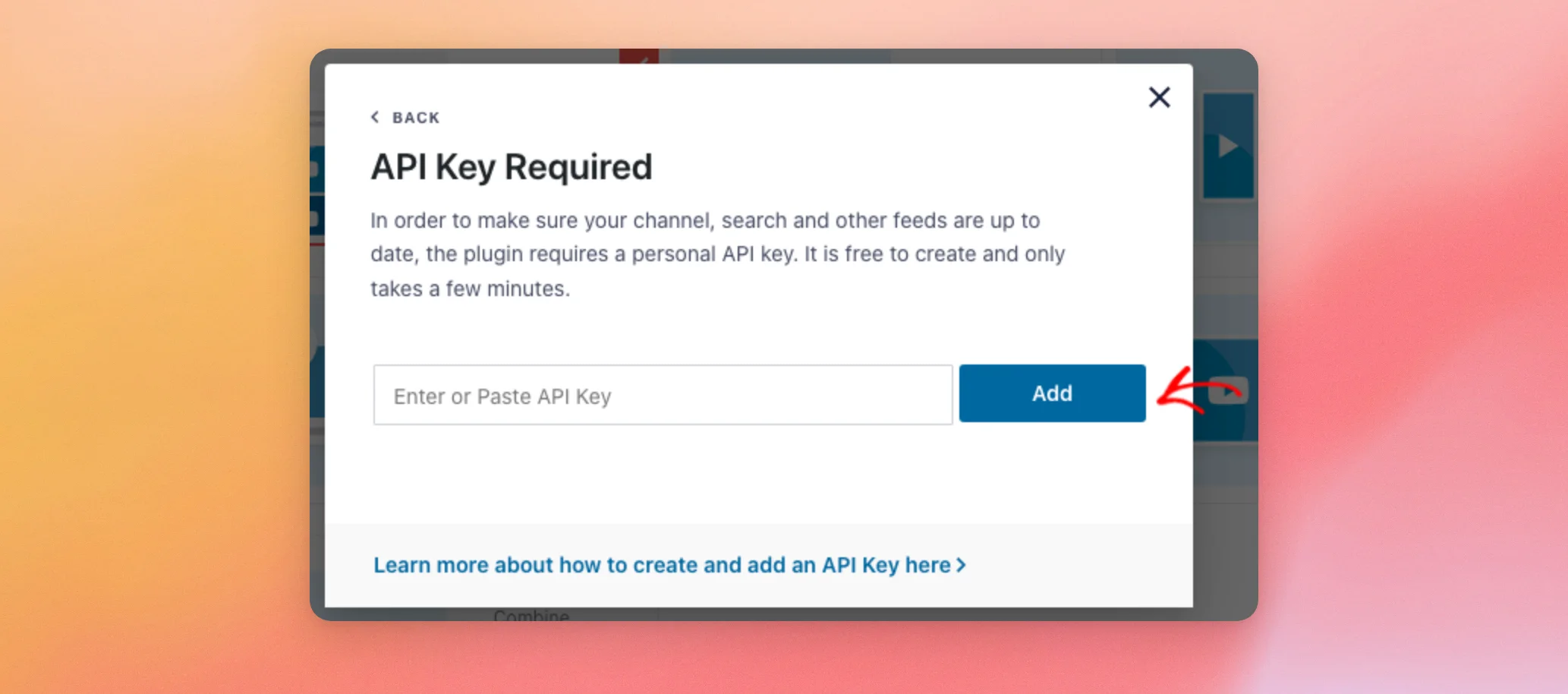
Next, paste your key in the field. Then click Add. The plugin saves the key. You can then carry on creating your feed.
Your key is now saved. Next, you’ll learn how Google’s daily quota applies to it.
How Does the Daily Quota Work?
Google gives each Google Cloud project a daily quota of requests. Each request YouTube Feed sends to YouTube with your key uses part of that quota. Every site and app that uses a key from that project shares it.
When the quota runs out, feeds that use the key stop updating until the quota resets. Google resets daily quotas at midnight Pacific Time. Google’s quota page lists the current allowance and what each type of request costs.
YouTube Feed saves each feed in its cache. Most page views don’t call YouTube at all. A longer cache time means fewer requests. Our error message reference shows how to lengthen it. It also shows what the daily limit message looks like.
If you removed a connected account and a feed still looks stuck, the next section shows how to clear it.
Clearing a Feed Stuck After an Account Change
YouTube Feed refreshes feeds in the background using the settings it saved with each feed’s cache. A feed may be cached while a connected YouTube account is in use. If that account is later removed, those saved settings can leave the feed empty or stuck on old videos. This can continue even after you add a valid key.
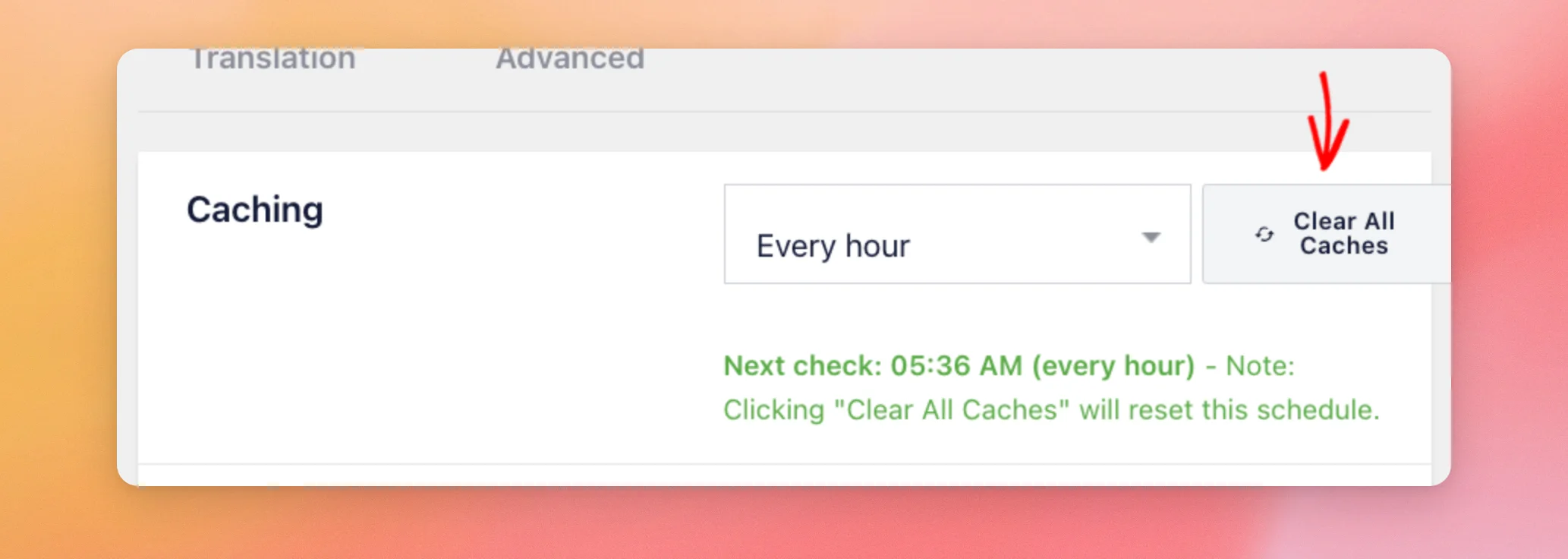
Next, go to YouTube Feed » Settings. Then open the Feeds tab. Finally, click Clear All Caches. Each feed is then rebuilt from its current settings. The next background update saves normally.
That’s it! You now have a YouTube API key saved in YouTube Feed.
Next, see our YouTube Feed error message reference if a feed shows a message instead of your videos.
Frequently Asked Questions
Below, we’ve answered some of the most common questions about YouTube API keys.
Note: if you want to restrict the API key …
To restrict your Google API key, use the Website restriction. YouTube Feed sends your site’s address with each request, which is why this restriction works. In the field, add these two entries one at a time.
- Your website URL including the prefix, for example
https://example.com www.googleapis.com
You can also set an API restriction. In that case, select the YouTube Data API v3.
Where do I add or replace my API key?
To add a key, go to YouTube Feed » Settings » General. Then paste the key in the API Key field and click Add, or Update if a key is already saved. The feed builder also asks for a key when you start a feed that needs one.
Do I need an API key for every feed type?
The feed builder asks for a key for every feed type except Channel and Social Wall. A Channel feed can run from a connected YouTube account or from a key.
Why should I use a key instead of connecting a YouTube account?
Connecting a YouTube account also displays private, unpublished, and draft videos. It might not allow access to features like viewing likes and comments. The plugin recommends a key to avoid both.
Will I pay anything to create an API key?
The plugin’s API Key Required window says a key is free to create and only takes a few minutes. Google sets the quota and any limits on its side. For current terms, see Google’s quota page.





