In a microservices architecture, Eureka Server acts as a Service Discovery server that keeps track of all registered microservices. By default, Eureka runs on port 8761, but developers can configure it to run on any custom port as per project requirements.
- Eureka Server is used for service discovery in microservices.
- The default Eureka Server port is 8761.
- A custom port can be configured using the server.port property.
Prerequisites
- Java 17 or later
- Spring Boot
- Spring Cloud Netflix Eureka
- Maven
- IntelliJ IDEA / Eclipse / STS
- Basic knowledge of Microservices
Example: Change Eureka Server Port from 8761 to 5000
- Eureka Server (Discovery Service) runs on port 5000
- Eureka Client (Demo Microservice) registers itself with the Eureka Server
Step 1: Create Spring Boot Project
To create a new Spring Boot project, please refer to How to Create a Spring Boot Project in Spring Initializr and Run it in IntelliJ IDEA. For this project choose the following things
- Project: Maven
- Language: Java
- Packaging: Jar
- Java: 17
Step 2: Add Eureka Server Dependency
Ensure the project contains the spring-cloud-starter-netflix-eureka-server dependency in the pom.xml file.
<?xml version="1.0" encoding="UTF-8"?>
<project xmlns="https://maven.apache.org/POM/4.0.0" xmlns:xsi="https://www.w3.org/2001/XMLSchema-instance"
    xsi:schemaLocation="https://maven.apache.org/POM/4.0.0 https://maven.apache.org/xsd/maven-4.0.0.xsd">
    <modelVersion>4.0.0</modelVersion>
    <parent>
        <groupId>org.springframework.boot</groupId>
        <artifactId>spring-boot-starter-parent</artifactId>
        <version>3.0.6</version>
        <relativePath/> <!-- lookup parent from repository -->
    </parent>
    <groupId>com.gfg.discovery-service</groupId>
    <artifactId>discovery-service</artifactId>
    <version>0.0.1-SNAPSHOT</version>
    <name>Discovery Service</name>
    <description>Demo project for Discovery Service</description>
    <properties>
        <java.version>17</java.version>
        <spring-cloud.version>2022.0.2</spring-cloud.version>
    </properties>
    <dependencies>
        <dependency>
            <groupId>org.springframework.cloud</groupId>
            <artifactId>spring-cloud-starter-netflix-eureka-server</artifactId>
        </dependency>

        <dependency>
            <groupId>org.springframework.boot</groupId>
            <artifactId>spring-boot-starter-test</artifactId>
            <scope>test</scope>
        </dependency>
    </dependencies>
    <dependencyManagement>
        <dependencies>
            <dependency>
                <groupId>org.springframework.cloud</groupId>
                <artifactId>spring-cloud-dependencies</artifactId>
                <version>${spring-cloud.version}</version>
                <type>pom</type>
                <scope>import</scope>
            </dependency>
        </dependencies>
    </dependencyManagement>

    <build>
        <plugins>
            <plugin>
                <groupId>org.springframework.boot</groupId>
                <artifactId>spring-boot-maven-plugin</artifactId>
            </plugin>
        </plugins>
    </build>
    <repositories>
        <repository>
            <id>netflix-candidates</id>
            <name>Netflix Candidates</name>
            <url>https://artifactory-oss.prod.netflix.net/artifactory/maven-oss-candidates</url>
            <snapshots>
                <enabled>false</enabled>
            </snapshots>
        </repository>
    </repositories>

</project>
Step 3: Enable Eureka Server
Open the main application class and add the @EnableEurekaServer annotation.
package com.gfg.discoveryservice;

import org.springframework.boot.SpringApplication;
import org.springframework.boot.autoconfigure.SpringBootApplication;
import org.springframework.cloud.netflix.eureka.server.EnableEurekaServer;

@SpringBootApplication
@EnableEurekaServer
public class DiscoveryServiceApplication {

    public static void main(String[] args) {
        SpringApplication.run(DiscoveryServiceApplication.class, args);
    }

}
Step 4: Change Eureka Server Port
Configure the application.properties file.
server.port=5000
spring.application.name=discovery-service
eureka.client.fetchRegistry=false
eureka.client.register-with-eureka=false
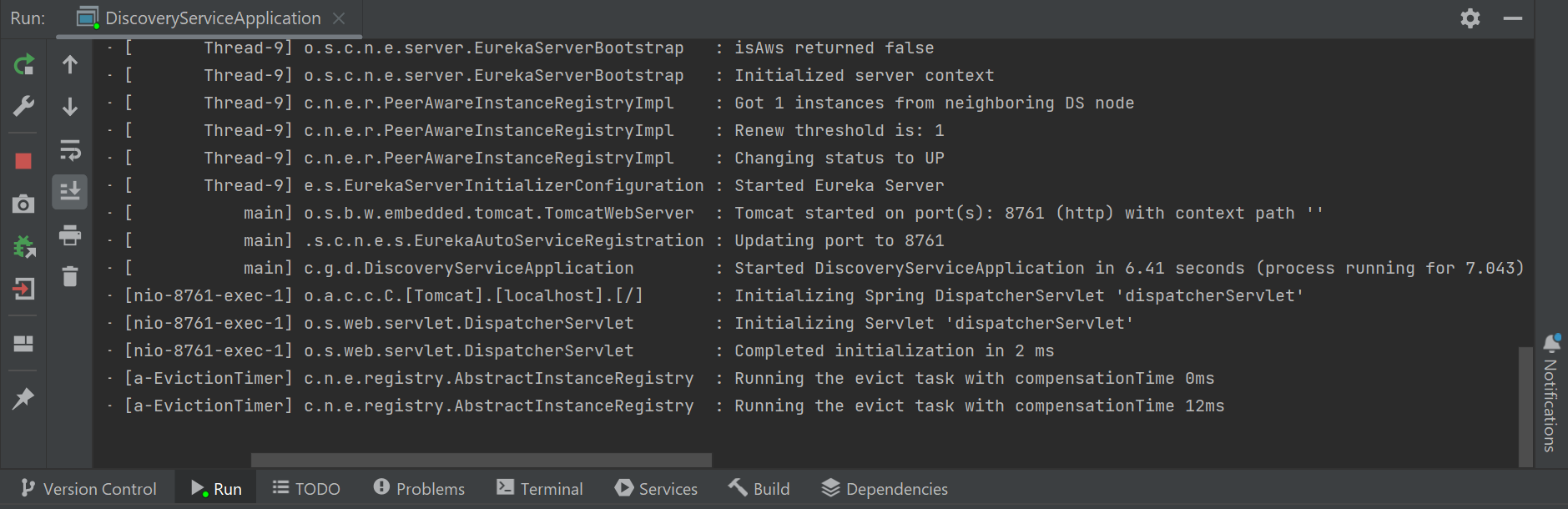
Now run your discovery-service. If everything goes well then you may see the following screen in your console. Please refer to the below image.
 Now hit the following URL in your browser
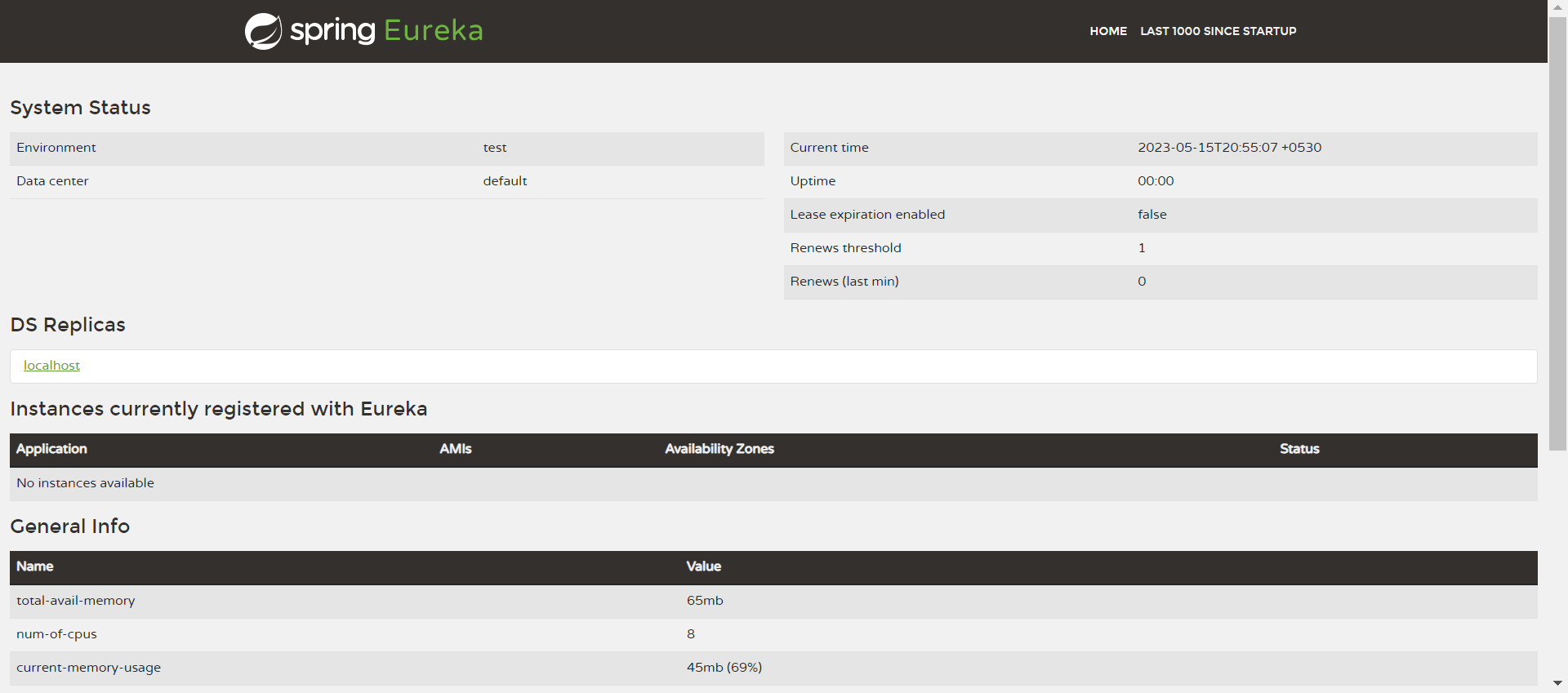
http://localhost:5000/
And you can see the Spring Eureka dashboard like below.
 Developing Microservice or Eureka Client
Step 1: Create a New Spring Boot Project in Spring Initializr
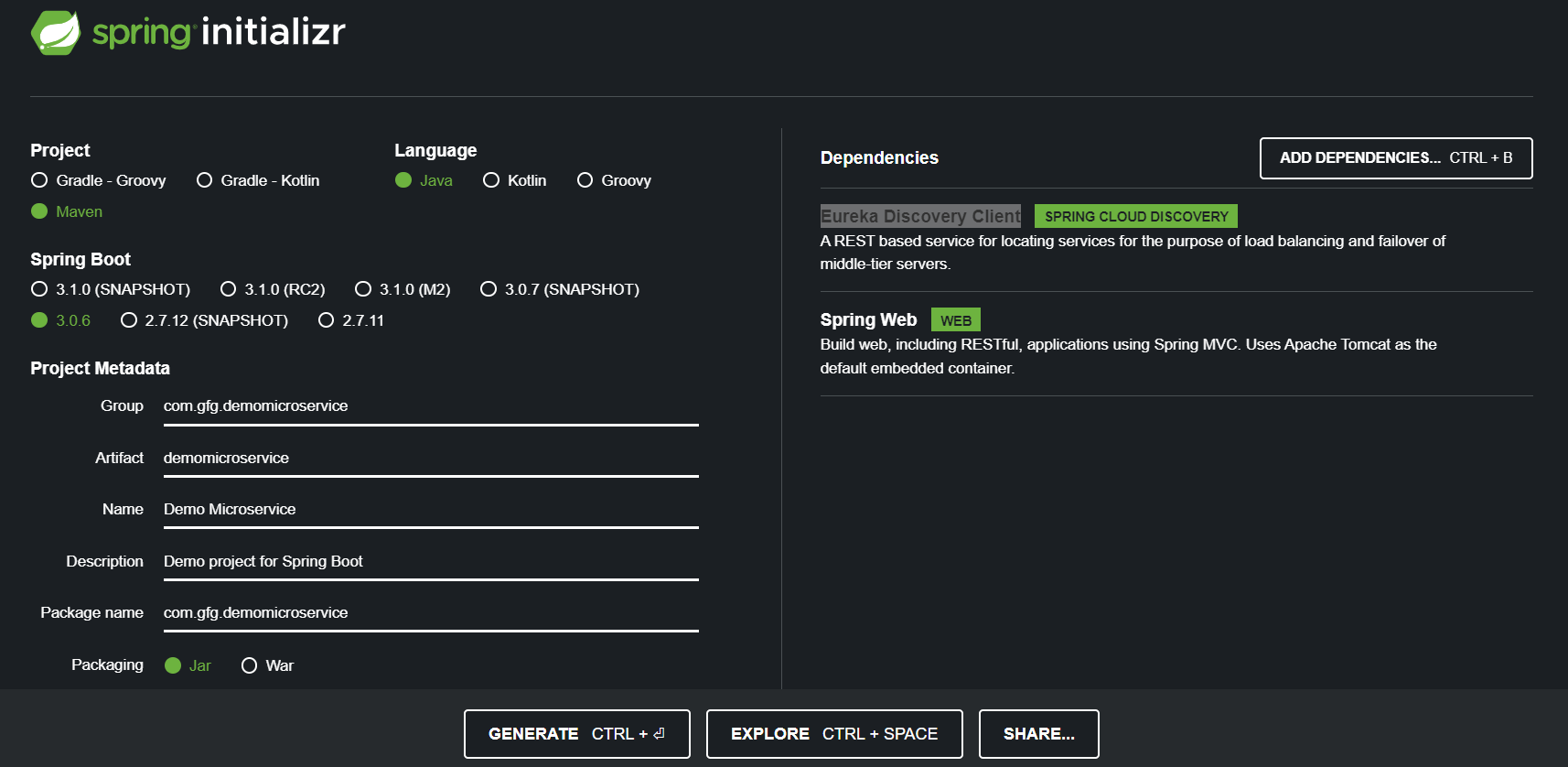
To create a new Spring Boot project, please refer to How to Create a Spring Boot Project in Spring Initializr and Run it in IntelliJ IDEA. For this project choose the following things
- Project: Maven
- Language: Java
- Packaging: Jar
- Java: 17
Please choose the following dependencies while creating the project.
- Eureka Discovery Client
- Spring Web
Generate the project and run it in IntelliJ IDEA by referring to the above article. Please refer to the below image.
Step 2: Add Eureka Client Dependency
Verify that the project contains:
<?xml version="1.0" encoding="UTF-8"?>
<project xmlns="https://maven.apache.org/POM/4.0.0" xmlns:xsi="https://www.w3.org/2001/XMLSchema-instance"
    xsi:schemaLocation="https://maven.apache.org/POM/4.0.0 https://maven.apache.org/xsd/maven-4.0.0.xsd">
    <modelVersion>4.0.0</modelVersion>
    <parent>
        <groupId>org.springframework.boot</groupId>
        <artifactId>spring-boot-starter-parent</artifactId>
        <version>3.0.6</version>
        <relativePath/> <!-- lookup parent from repository -->
    </parent>
    <groupId>com.gfg.demomicroservice</groupId>
    <artifactId>demomicroservice</artifactId>
    <version>0.0.1-SNAPSHOT</version>
    <name>Demo Microservice</name>
    <description>Demo project for Spring Boot</description>
    <properties>
        <java.version>17</java.version>
        <spring-cloud.version>2022.0.2</spring-cloud.version>
    </properties>
    <dependencies>
        <dependency>
            <groupId>org.springframework.boot</groupId>
            <artifactId>spring-boot-starter-web</artifactId>
        </dependency>
        <dependency>
            <groupId>org.springframework.cloud</groupId>
            <artifactId>spring-cloud-starter-netflix-eureka-client</artifactId>
        </dependency>

        <dependency>
            <groupId>org.springframework.boot</groupId>
            <artifactId>spring-boot-starter-test</artifactId>
            <scope>test</scope>
        </dependency>
    </dependencies>
    <dependencyManagement>
        <dependencies>
            <dependency>
                <groupId>org.springframework.cloud</groupId>
                <artifactId>spring-cloud-dependencies</artifactId>
                <version>${spring-cloud.version}</version>
                <type>pom</type>
                <scope>import</scope>
            </dependency>
        </dependencies>
    </dependencyManagement>

    <build>
        <plugins>
            <plugin>
                <groupId>org.springframework.boot</groupId>
                <artifactId>spring-boot-maven-plugin</artifactId>
            </plugin>
        </plugins>
    </build>
    <repositories>
        <repository>
            <id>netflix-candidates</id>
            <name>Netflix Candidates</name>
            <url>https://artifactory-oss.prod.netflix.net/artifactory/maven-oss-candidates</url>
            <snapshots>
                <enabled>false</enabled>
            </snapshots>
        </repository>
    </repositories>

</project>
Step 3: Configure Client Properties
Update the application.properties file.
server.port=9090
spring.application.name=demo-service
eureka.client.service-url.defaultZone=http://localhost:5000/eureka/
Note: So you have to add the above line if you are changing your default port of the Eureka server. If we don't do it it will by default try to look for Eureka in the 8761 port number and that will result in an exception and registration failure. For more explanation refer to this article How Eureka Server and Client Communicate with Each Other
Step 4: Run the Eureka Client
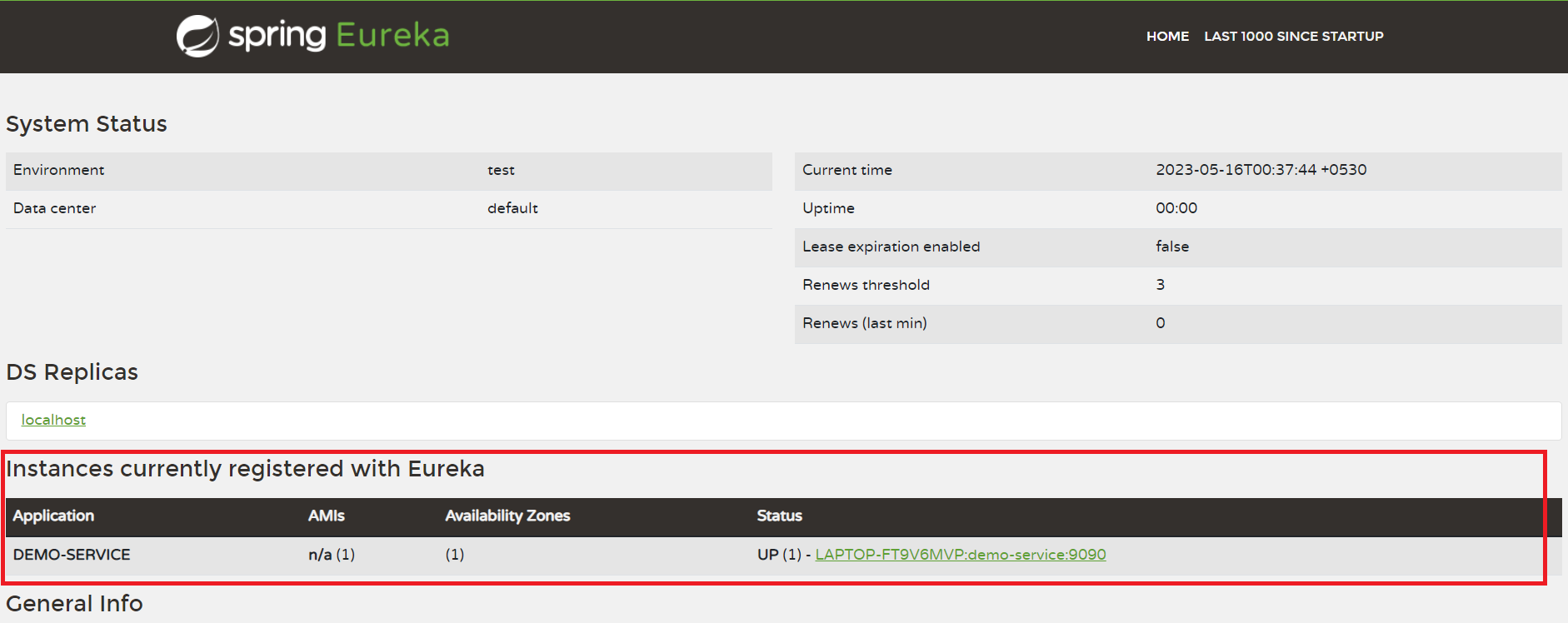
Now run your microservice that we have developed above. And you can see your DEMO-SERVICE has been registered with your Eureka Server. Please refer to the below image.