

Claude Code is Anthropic's terminal-based AI coding assistant, while Ollama is an open-source platform for running large language models locally. Using them together lets you access Claude Code's coding workflow with locally hosted models, reducing reliance on Anthropic's cloud API.
- Run AI models locally, keeping your code and prompts on your own machine.
- Avoid per-token API costs by using self-hosted or locally running models.
- Improve privacy since data does not need to be sent to cloud servers for inference.
- Easily switch between open-weight models such as Qwen2.5-Coder, Kimi, and Gemma without changing how Claude Code is used.
- Use the same Claude Code workflow while choosing the AI model that best fits your requirements.
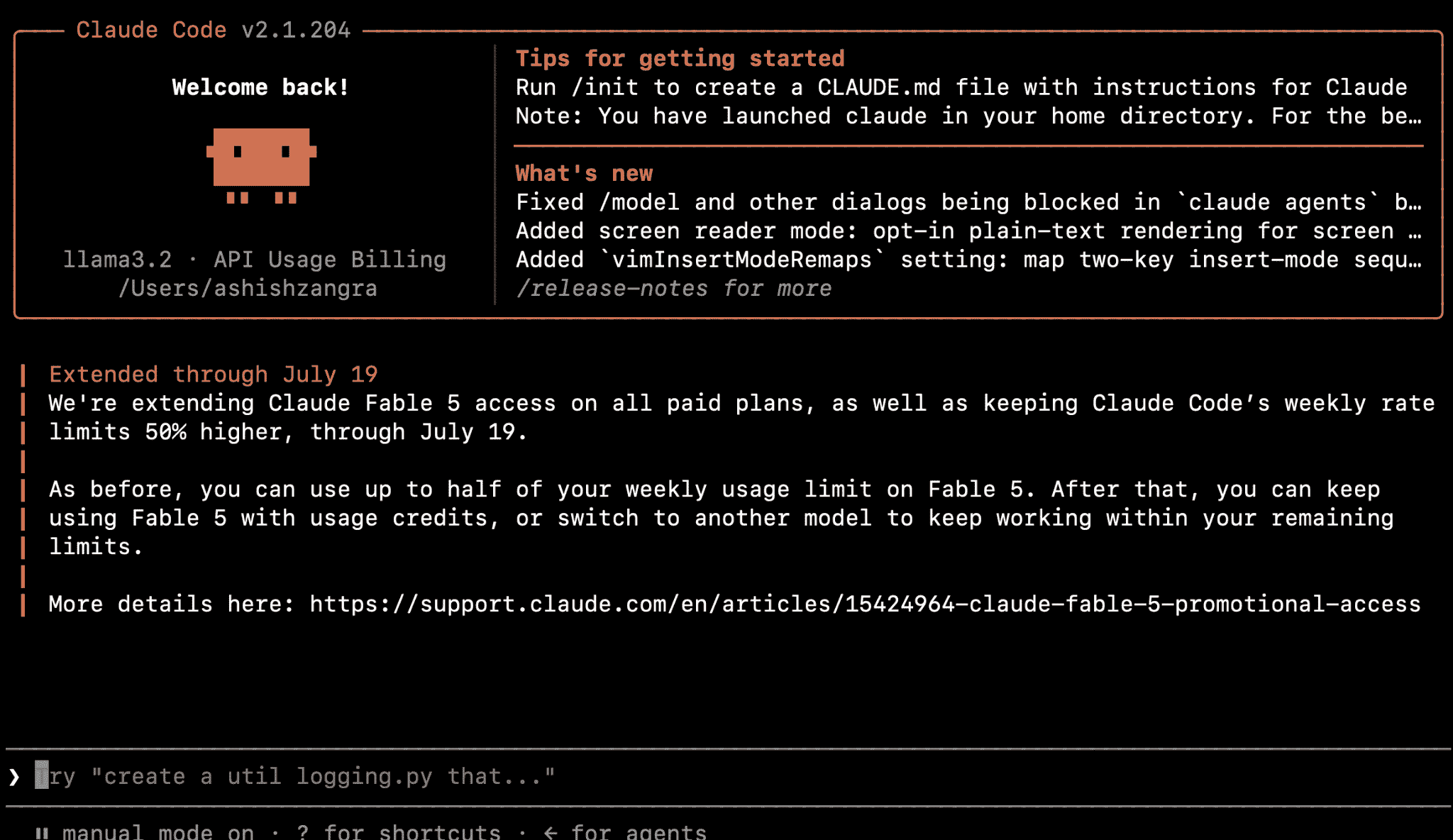
Running Claude Code with Ollama allows you to use an AI coding assistant with locally hosted models. This provides a private, cost-effective development experience while leveraging your own hardware.
Prerequisites
Before starting, make sure following requirements are ready:
- A computer running macOS, Linux, or Windows, with enough free RAM or VRAM for the model that will be used.
- Node.js and npm installed, which are needed to install Claude Code as an npm package.
- A terminal or command-line environment, since both Ollama and Claude Code are primarily used from the command line.
Step 1: Install Ollama
Ollama can be installed with a single shell command on macOS and Linux. Windows users can instead download and run the installer from Ollama’s website. On macOS or Linux, run:
curl -fsSL https://ollama.com/install.sh | sh
Step 2: Install Claude Code
Claude Code is published as an npm package, so it can be installed globally with:
npm install -g @anthropic-ai/claude-code
Step 3: Ollama launch Claude
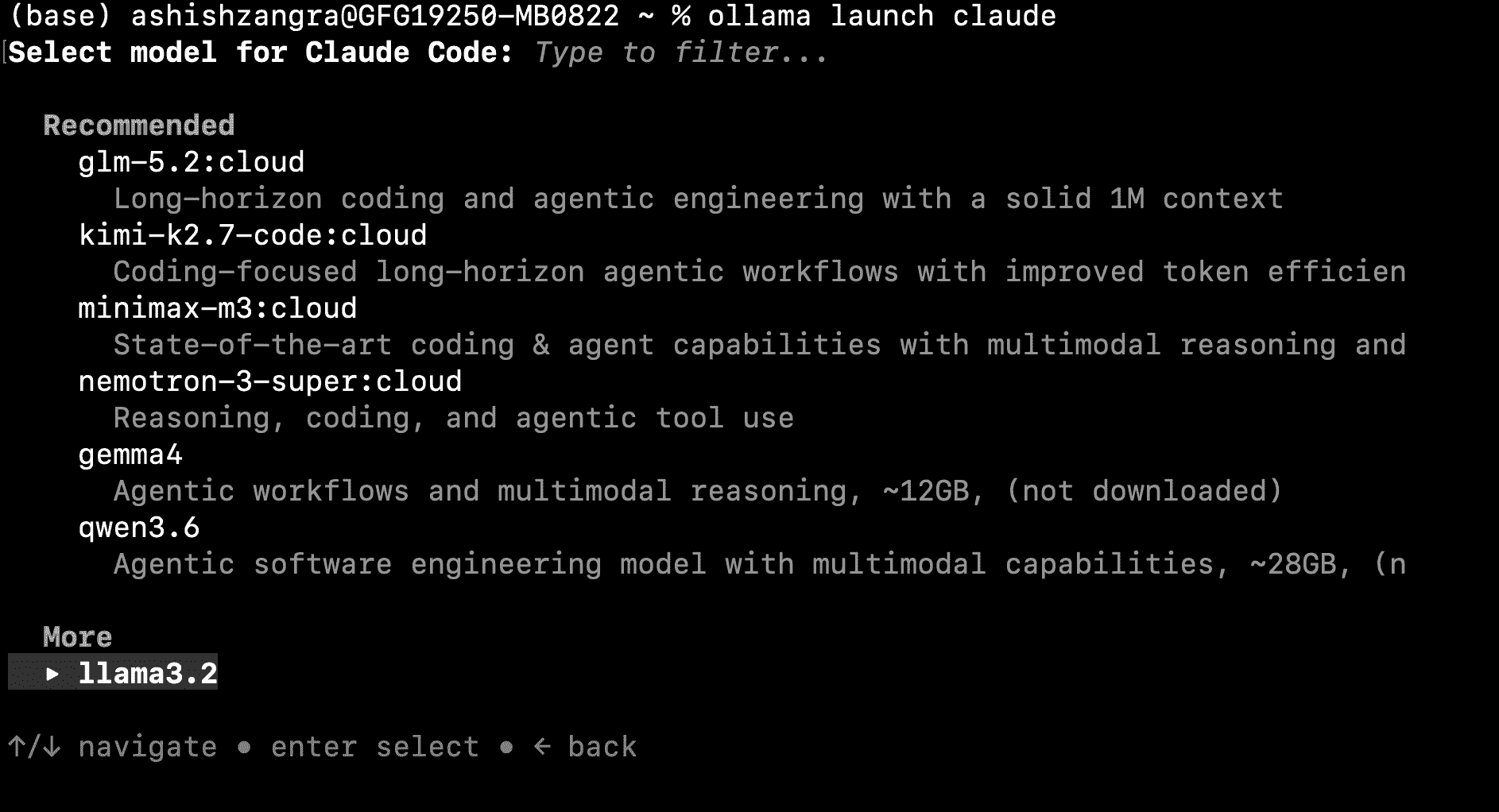
Ollama includes a built-in launcher that installs and wires up Claude Code automatically, prompting for a model to download if one isn’t already available. With both Ollama and Claude Code installed, this single command is enough to get started:
ollama launch claude
This single command starts Claude Code already configured to talk to Ollama’s local, Anthropic-compatible endpoint, so no manual environment variables are required.
Step 4: Manual Setup with Environment Variables
For more control, or when Claude Code was already installed separately, it can be pointed at Ollama by exporting three environment variables before launching it:
export ANTHROPIC_AUTH_TOKEN=ollama
export ANTHROPIC_API_KEY=""
export ANTHROPIC_BASE_URL=http://localhost:11434
Once the variables are set, start Claude Code and specify a model that has already been pulled into Ollama:
claude --model qwen3.5
The same variables can also be passed inline for a one-off session, without exporting them permanently into the shell:
ANTHROPIC_AUTH_TOKEN=ollama ANTHROPIC_BASE_URL=http://localhost:11434 ANTHROPIC_API_KEY="" claude --model kimi-k2.7-code:cloud
Choosing the Right Model
Selecting the right model is important for getting the best performance with Claude Code. Since Claude Code processes source files, code changes, and command outputs, it works best with models that support a large context window. Some recommendations are:
- Choose a model with a context window of at least 64K tokens for working with real-world codebases.
- Qwen2.5-Coder is a popular code-focused model available through Ollama.
- Qwen2.5-Coder is offered in multiple sizes, ranging from 0.5B to 32B parameters, allowing you to select a model based on your system's RAM or GPU memory.
- For projects that are too large to run efficiently on local hardware, Ollama also provides cloud-hosted models, which can be used without downloading them to your local machine.
- You can download a model in advance using the following command: ollama pull qwen2.5-coder:14b
For more details you can refer to: Choosing the Right Claude Model
Running Claude Code Without Interaction
For scripts, Docker containers, or continuous integration pipelines, Claude Code can run without any interactive prompts by adding the --yes flag to Ollama's launcher. This flag skips the setup selectors and automatically pulls the chosen model if it isn't already present, but it requires that a model is specified explicitly:
ollama launch claude --model gemma4:cloud --yes -- -p "how does this repository work?"
Additional Features of Ollama with Claude Code
Once you have configured Claude Code with Ollama, you can explore several additional features that improve your development workflow.
- Web Search: Claude Code can use Ollama's web search API to retrieve up-to-date information instead of relying only on its training data.
- Scheduled Tasks: The /loop command allows Claude Code to repeat a prompt or command at regular intervals, such as checking open pull requests every 30 minutes.
- Telegram Integration: You can connect Claude Code to a Telegram bot, allowing you to monitor and control your coding sessions remotely from your phone.
Troubleshooting Tips
If you encounter issues while using Claude Code with Ollama, try the following solutions:
- If Claude Code cannot find a model, download it first using ollama pull before referencing it.
- If the connection is refused, make sure the Ollama service is running in the background.
- If responses are slow or incomplete, use a smaller model or one with a larger context window to better match your system's hardware capabilities
