

Flutter SDK is an open-source Software Development Kit for building beautiful UI natively compiled in Android Studio. In this article, we will create a Simple BMI Calculator App using Flutter in Android Studio that can take height and weight. Based on that, it will show you the BMI, as well as the text background color, which will change.

The concepts covered are:
- EditText
- Background color
- Flutter App State
There are some simple steps to create a Simple BMI Calculator app using Flutter and Dart.
Step-by-Step Implementation
Step 1: Create a New Flutter Application
Create a new Flutter application using the command Prompt. To create a new app, write the below command and run it.
flutter create app_nameTo know more about it refer this article: Creating a Simple Application in Flutter
Step 2: Create a new .dart file
After opening a new flutter project in your IDE, you need to create a calculator.dart file under the lib folder.
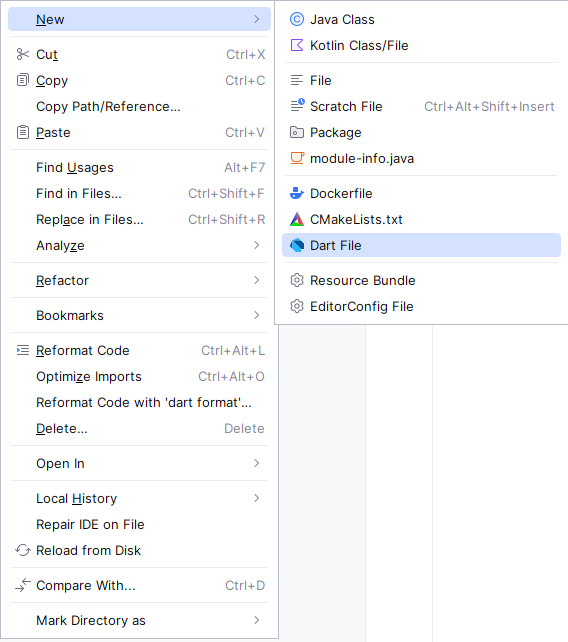
Then code this, on the calculator.dart.
calculator.dart:
import 'package:bmi/main.dart';
import 'package:flutter/material.dart';

class BMICalculator extends StatefulWidget {
  const BMICalculator({Key? key}) : super(key: key);

  @override
  _BMICalculatorState createState() => _BMICalculatorState();
}

class _BMICalculatorState extends State<BMICalculator> {

  // Variable to store the background
  // color of the BMI result container
  Color myColor = Colors.transparent;

  // Controllers for weight and height input fields
  TextEditingController weightController = TextEditingController();
  TextEditingController heightController = TextEditingController();

  // Controller to display the BMI result
  var mainResult = TextEditingController();

  // Function to calculate BMI based
  // on weight and height
  void calculateBMI(String weight, String height) async {

    // Parse weight and height to double
    var myDoubleWeight = double.parse(weight);
    var myDoubleHeight = double.parse(height);

    // Calculate BMI
    var res = (myDoubleWeight / (myDoubleHeight * myDoubleHeight));

    // Update the state with the BMI result
    // and corresponding color
    setState(() {

      // Format BMI to 2 decimal places
      mainResult.text = res.toStringAsFixed(2);

      // Determine the color based on BMI range

      // Underweight
      if (res < 18.5) {
        myColor = Color(0xFF87B1D9);
      }

      // Normal
      else if (res >= 18.5 && res <= 24.9) {
        myColor = Color(0xFF3DD365);
      }

      // Overweight
      else if (res >= 25 && res <= 29.9) {
        myColor = Color(0xFFEEE133);
      }

      // Obese
      else if (res >= 30 && res <= 34.9) {
        myColor = Color(0xFFFD802E);
      }

      // Extreme
      else if (res >= 35) {
        myColor = Color(0xFFF95353);
      }
    });
  }

  @override
  Widget build(BuildContext context) {
    double height = MediaQuery.of(context).size.height;

    return Scaffold(
      body: SingleChildScrollView(
        child: Center(
          child: Container(
            height: height,
            decoration: BoxDecoration(
              gradient: LinearGradient(
                colors: [
                  const Color(0xFF6DD5ED),
                  const Color(0xFF2193B0),
                ],
              ),
            ),
            child: Center(
              child: Column(
                crossAxisAlignment: CrossAxisAlignment.center,
                children: [
                  SizedBox(height: 100),
                  Text(
                    "BMI Calculator",
                    style: TextStyle(
                      fontWeight: FontWeight.bold,
                      color: Color(0xFF0038FF),
                      fontSize: 25,
                    ),
                  ),
                  SizedBox(height: 30),

                  // Weight input field
                  Padding(
                    padding: const EdgeInsets.only(left: 15, right: 15, top: 10),
                    child: TextField(
                      controller: weightController,
                      keyboardType: TextInputType.numberWithOptions(decimal: true),
                      style: TextStyle(fontSize: 18, color: Colors.black),
                      decoration: InputDecoration(
                        filled: true,
                        fillColor: Colors.white,
                        hintText: "Enter your weight (kg)",
                      ),
                    ),
                  ),

                  // Height input field
                  Padding(
                    padding: const EdgeInsets.only(left: 15, right: 15, top: 15),
                    child: TextField(
                      controller: heightController,
                      autofocus: false,
                      keyboardType: TextInputType.numberWithOptions(decimal: true),
                      style: TextStyle(fontSize: 18, color: Colors.black),
                      decoration: InputDecoration(
                        filled: true,
                        fillColor: Colors.white,
                        hintText: "Enter your height (m)",
                      ),
                    ),
                  ),

                  // Calculate button
                  Padding(
                    padding: EdgeInsets.only(top: 50),
                    child: Center(
                      child: SizedBox(
                        width: 180,
                        height: 50,
                        child: ElevatedButton(
                          onPressed: () {
                            calculateBMI(weightController.text, heightController.text);
                          },
                          child: const Text(
                            "Calculate",
                            style: TextStyle(
                              fontSize: 18,
                              fontWeight: FontWeight.bold,
                              color: Colors.white,
                            ),
                          ),
                          style: ButtonStyle(
                            backgroundColor: WidgetStateProperty.all(Color(0xFF0038FF)),
                            shape: WidgetStateProperty.all<RoundedRectangleBorder>(
                              RoundedRectangleBorder(
                                borderRadius: BorderRadius.circular(15.0),
                              ),
                            ),
                          ),
                        ),
                      ),
                    ),
                  ),
                  SizedBox(height: 80),

                  // BMI result display container
                  Center(
                    child: Container(
                      width: 300,
                      height: 100,
                      decoration: BoxDecoration(
                        color: myColor,
                        borderRadius: BorderRadius.all(Radius.circular(12)),
                      ),
                      child: Center(
                        child: Text(
                          "BMI: " + mainResult.text,
                          style: TextStyle(
                            fontSize: 25,
                            fontWeight: FontWeight.bold,
                            color: Colors.white,
                          ),
                        ),
                      ),
                    ),
                  ),
                  SizedBox(height: 80),

                  // BMI category color indicators
                  Center(
                    child: Row(
                      mainAxisAlignment: MainAxisAlignment.spaceEvenly,
                      children: [
                        _buildCategoryIndicator(Color(0xFF87B1D9), "Underweight"),
                        _buildCategoryIndicator(Color(0xFF3DD365), "Normal"),
                        _buildCategoryIndicator(Color(0xFFEEE133), "Overweight"),
                        _buildCategoryIndicator(Color(0xFFFD802E), "Obese"),
                        _buildCategoryIndicator(Color(0xFFF95353), "Extreme"),
                      ],
                    ),
                  ),
                ],
              ),
            ),
          ),
        ),
      ),
    );
  }

  // Helper function to build a BMI
  // category indicator
  Widget _buildCategoryIndicator(Color color, String label) {
    return Column(
      mainAxisAlignment: MainAxisAlignment.center,
      children: [
        Container(
          height: 50,
          width: 50,
          decoration: BoxDecoration(
            color: color,
            border: Border.all(color: Colors.black),
            borderRadius: BorderRadius.all(Radius.circular(12)),
          ),
        ),
        Text(
          label,
          style: TextStyle(fontSize: 15),
        ),
      ],
    );
  }
}
Step 3 : Work with the main.dart
Code main.dart file to use the calculator.dart file
main.dart:
import 'package:flutter/material.dart';
import 'calculator.dart';

void main() => runApp(MyApp());

class MyApp extends StatelessWidget {
  const MyApp({Key? key}) : super(key: key);

  @override
  Widget build(BuildContext context) {
    return MaterialApp(
      debugShowCheckedModeBanner: false,
      theme: ThemeData(brightness: Brightness.light, primaryColor: Colors.blue),
      home: BMICalculator(),
    );
  }
}
