

Gobuster is a fast and efficient command-line tool used in penetration testing for enumerating hidden directories, files, subdomains and virtual hosts. It is written in the Go programming language and is known for its high performance and concurrency support. Security professionals use Gobuster to discover exposed resources on web servers that are not directly accessible through standard navigation.
- High-speed enumeration using Go’s concurrency model
- Supports multiple modes: directory, DNS and virtual host enumeration
- Simple command-line interface for flexible usage
- Works with custom wordlists for targeted brute-force attacks
- Widely used in penetration testing and bug bounty hunting
Installation Steps of Gobuster Tool in Linux OS
Step 1: Create a working directory
mkdir gobuster
cd gobuster/
Step 2: Install Gobuster
apt-get install gobusterStep 3: Verify installation
gobuster -hStep 4: Install SecLists (wordlists)
apt-get install seclistsBy default, Wordlists on Kali are located in the directory.
/usr/share/wordlistsSyntax
gobuster <mode> -u <target> -w <wordlist> [options]- gobuster: runs the tool
- <mode>: type of scan (dir, dns, vhost)
- -u <target>: target URL/domain
- -w <wordlist>: wordlist for brute forcing
- [options]: extra settings (threads, extensions, output file, etc.)
Understanding Gobuster Mode
When using the Gobuster tool, specifying a mode is mandatory. Each mode defines the type of enumeration or brute-forcing task you want to perform. Gobuster provides multiple modes, each designed for a specific purpose such as discovering directories, subdomains or virtual hosts.
1. Directory Enumeration Mode (dir)
The dir mode in Gobuster is used to discover hidden directories and files on a target web server. It works by sending multiple HTTP requests using entries from a wordlist and checking which paths return valid responses. This helps in identifying unlinked or sensitive resources that are not directly accessible through normal browsing.
Options:
- -u: Specifies the target URL
- -w: Specifies the wordlist for brute-forcing
Command:
gobuster dir -h- dir: Activates directory brute-forcing mode
- -h: Displays help menu for this mode
Output:
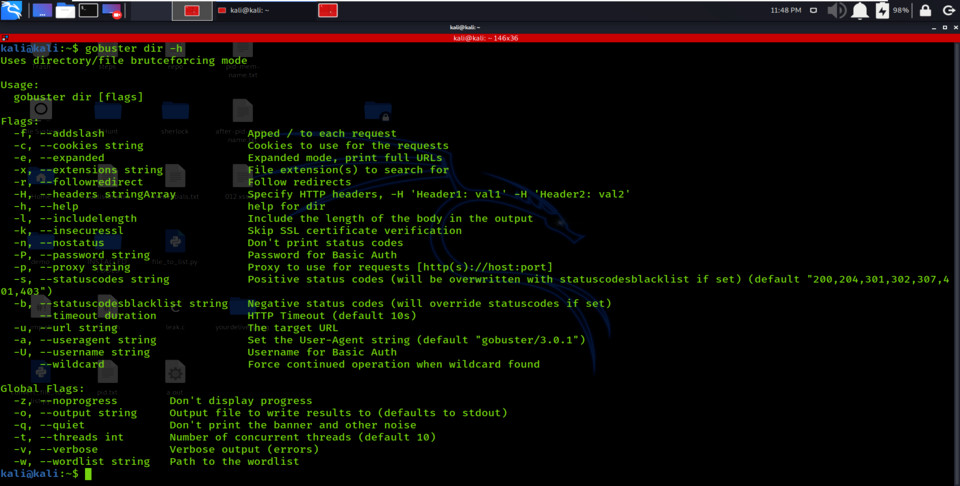
2. DNS Subdomain Enumeration Mode (dns)
The dns mode is used to identify subdomains associated with a target domain. It generates possible subdomains using a wordlist and attempts to resolve them via DNS queries. This helps in discovering hidden or less obvious subdomains that may expose additional services.
Options:
- -d: Specifies the target domain
- -w: Specifies the wordlist
Command:
gobuster dns -h- dns: Activates subdomain brute-forcing mode
- -h: Displays help menu
Output:
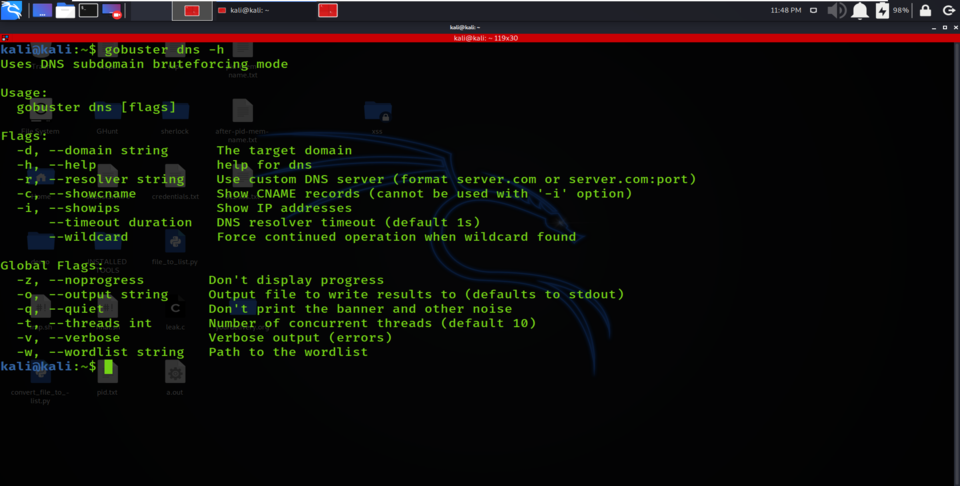
3. Virtual Host Enumeration Mode (vhost)
The vhost mode is used to find virtual hosts hosted on the same server. It works by sending requests with different hostnames and analyzing server responses to detect valid hosts. This is useful when multiple domains are hosted on a single server using virtual hosting.
Options:
- -u: Target URL
- -w: Wordlist
Command:
gobuster vhost -h- vhost: Activates virtual host enumeration
- -h: Displays help menu
Output:
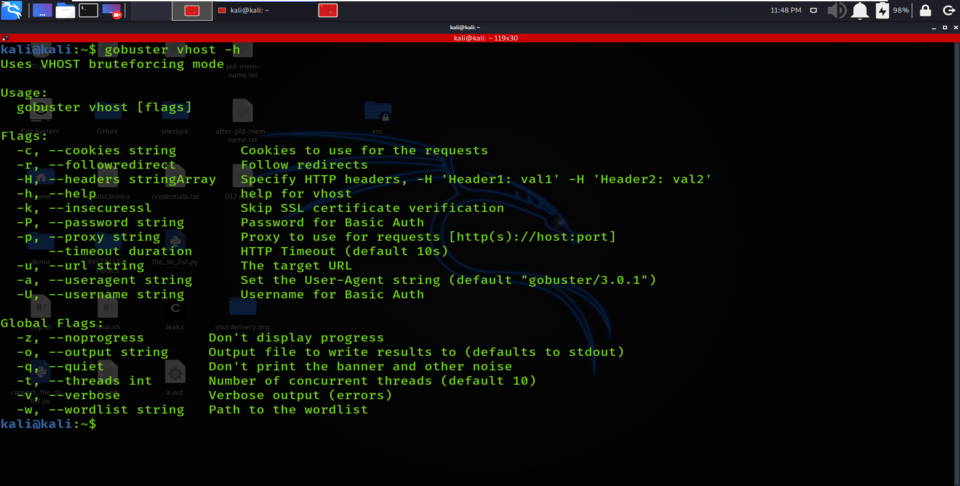
Understanding Gobuster Options
After selecting a mode in Gobuster, you need to provide appropriate options to control how the tool runs. These options define things like target, wordlist, output format and performance. You can view all available options using the help command (gobuster -h or mode-specific help like gobuster dir -h).
Commonly Used Options
Gobuster provides several general-purpose options that are used across different modes. These help control output, logging and performance during execution.
- -o: Saves output results to a file instead of displaying on terminal
- -t: Sets number of concurrent threads (higher = faster but more load)
- -q / -v: Controls output visibility (quiet or verbose mode)
Command:
gobuster -hOutput:
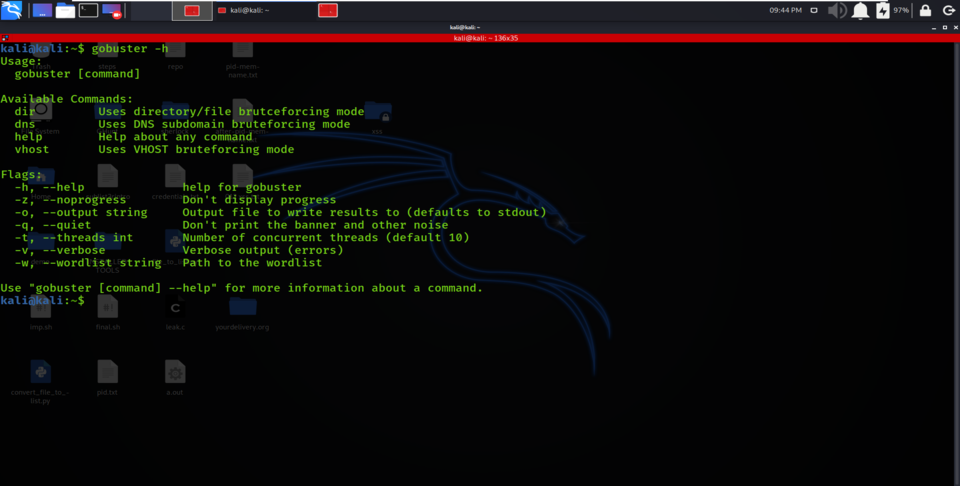
Target Specification (-u / -d)
While running Gobuster, specifying a target is mandatory. Without a target, the tool cannot perform any enumeration. The target can be a URL, IP address or domain depending on the mode being used.
- -u: Used in modes like dir and vhost for URLs/IPs
- -d: Used in dns mode for domain names
- Missing target option will cause the command to fail
Examples:
gobuster dir -u https://www.geeksforgeeks.org/
gobuster dir -u https://www.webscantest.com
gobuster dir -u 192.168.21.154
Note: These examples will not work if the mandatory option "-u" is not specified.
Wordlist Specification (-w)
Gobuster works using a brute-force approach, which means it tests multiple possible names from a predefined list. This list is called a wordlist and it is required for enumeration tasks.
- -w: Specifies the path to the wordlist file
- Wordlist must exist on the system
- Quality of wordlist directly affects results
Example:
gobuster dir -u https://www.geeksforgeeks.org/ -w /usr/share/wordlists/big.txtGobuster Tool enumerates hidden directories and files in the target domain by performing a brute-force attack. A brute-force attack consists of matching a list of words or a combination of words hoping that the correct term is present in the list. So, Gobuster performs a brute attack. To force an attack, we need to specify a collection of words, i.e., wordlist. So to provide this wordlist, you need to type the “-w” option, followed by the path of the wordlist where it is located. We can use a wordlist file that is already present in the system.
Enumerating Files with Extensions (-x)
By default, Gobuster searches for directories. To specifically search for files, you can use the -x option to define file extensions.
- -x: Allows targeting specific file types
- Multiple extensions can be provided using commas
- Useful for finding sensitive files like .php, .html, etc.
Example:
gobuster dir -u https://www.geeksforgeeks.com/ -w /usr/share/wordlists/big.txt -x php,html,htm- In this example, Gobuster searches for files with php, html and htm extensions along with directories.
Usage of Gobuster Tool with an Example
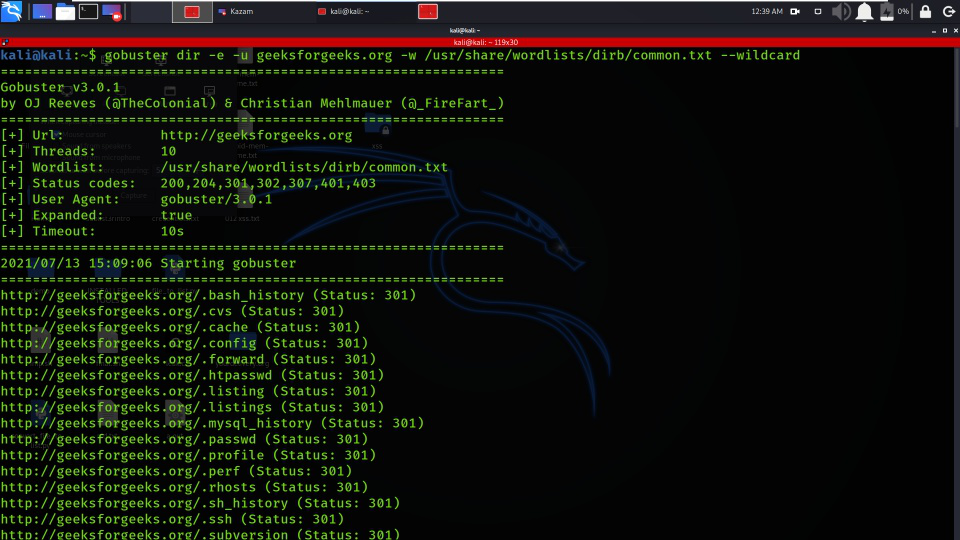
1. Obtaining Full Path for a directory or file
The -e option prints the complete URL of discovered directories or files instead of just relative paths. This makes results easier to use directly in a browser.
- Useful when copying results for further testing
- Avoids manual URL construction
Command:
gobuster dir -e -u geeksforgeeks.org -w /usr/share/wordlists/dirb/common.txt --wildcardOutput:
2. Hide Status Codes (-n)
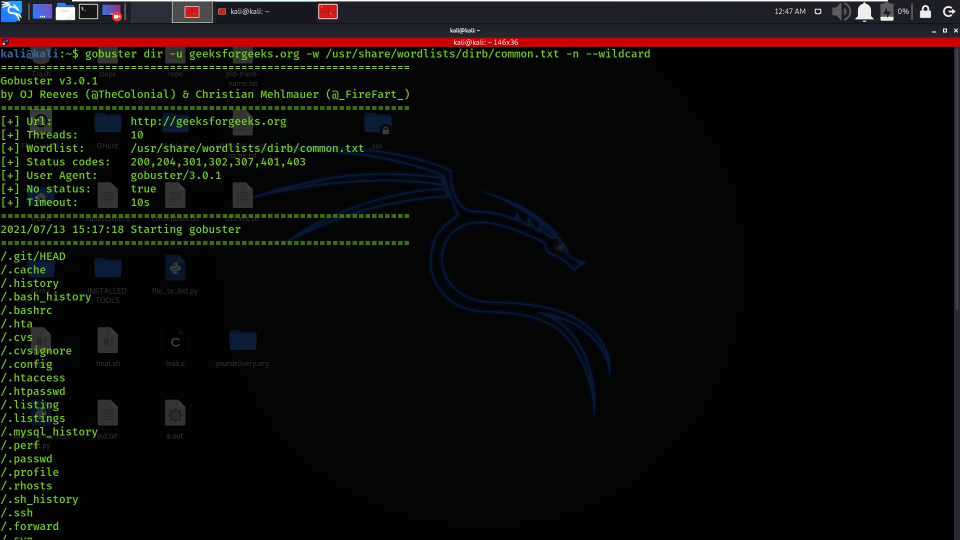
The -n option removes HTTP status codes from the output, showing only the discovered paths.
- Makes output cleaner and easier to read
- Useful when focusing only on discovered resources
Command:
gobuster dir -u geeksforgeeks.org -w /usr/share/wordlists/dirb/common.txt -n --wildcardOutput:
3. Disable Banner (-q)
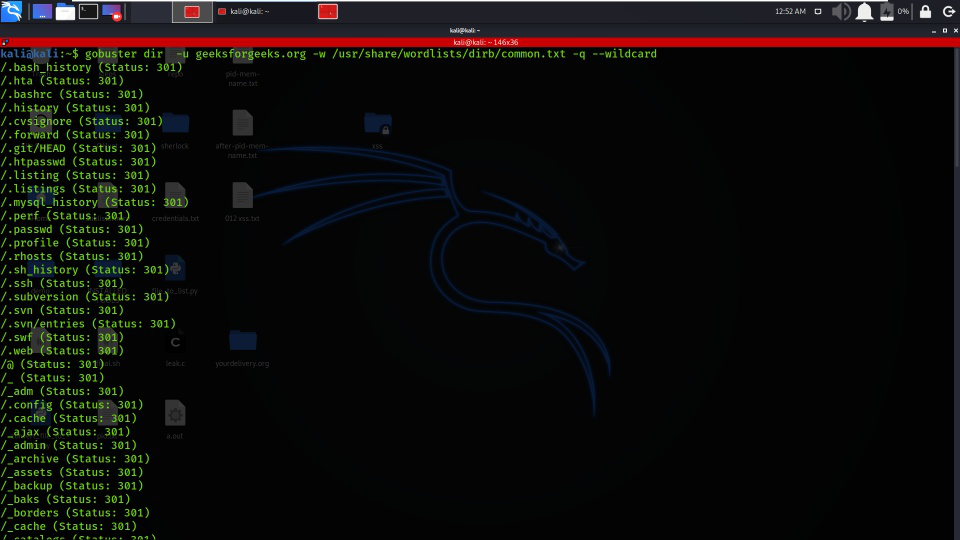
Gobuster displays a banner and scan details by default. The -q (quiet) option hides this extra information.
- Reduces unnecessary output
- Useful for scripting or automation
Command:
gobuster dir -u geeksforgeeks.org -w /usr/share/wordlists/dirb/common.txt -q --wildcardOutput:
4. Set Number of Threads (-t)
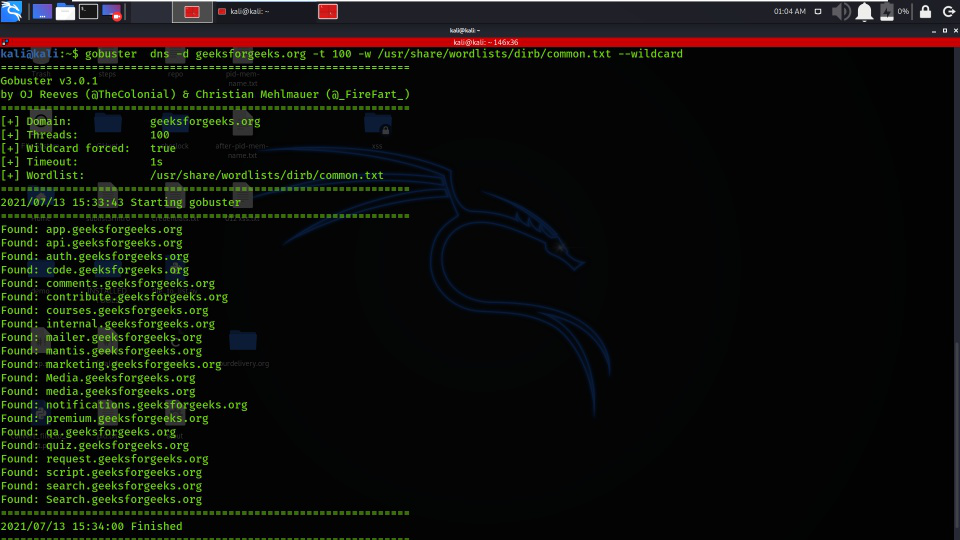
The -t option controls the number of concurrent threads used during scanning.
- Higher threads increase speed
- Too many threads may overload the target or system
Command:
gobuster dns -d geeksforgeeks.org -t 100 -w /usr/share/wordlists/dirb/common.txt --wildcardOutput:
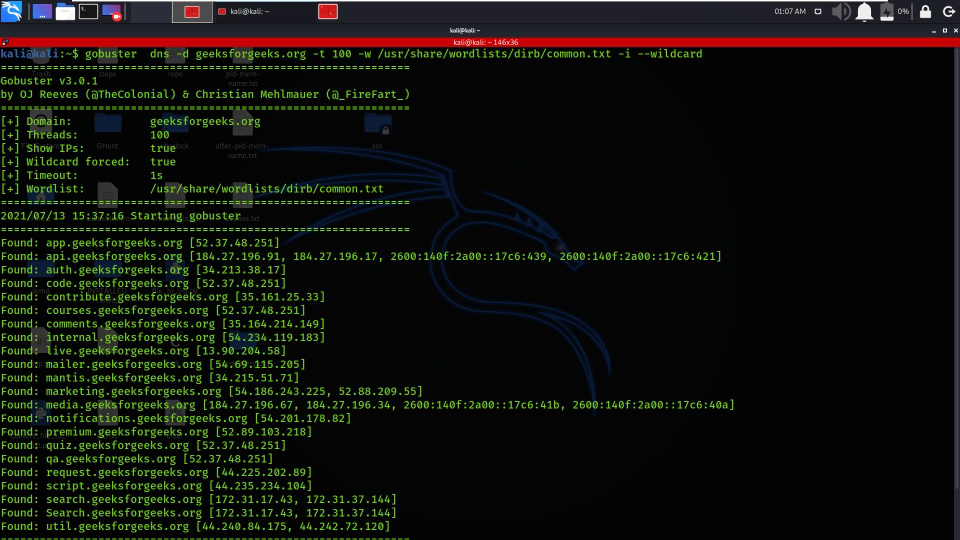
5. Show Subdomain IPs (-i)
The -i option displays the IP addresses of discovered subdomains in DNS mode.
- Helps in network mapping
- Useful for identifying hosting infrastructure
Command:
gobuster dns -d geeksforgeeks.org -t 100 -w /usr/share/wordlists/dirb/common.txt -i --wildcardOutput:
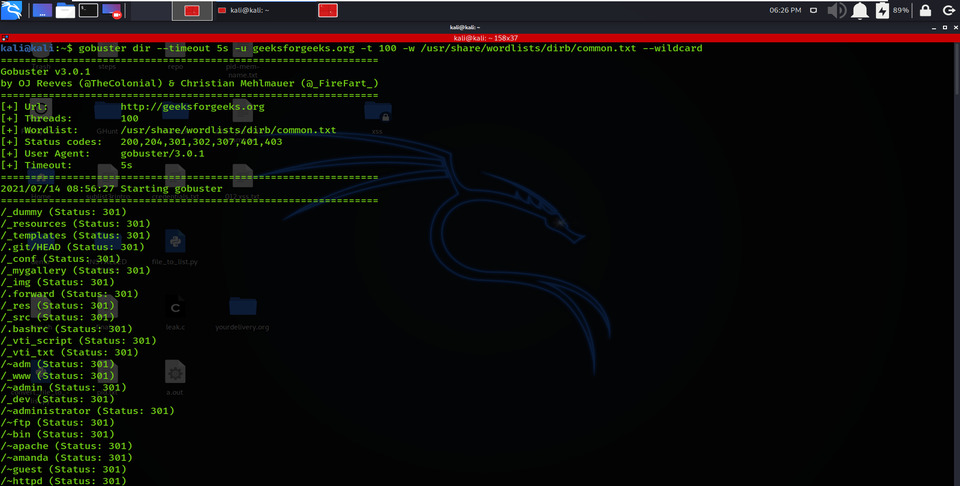
6. Set Request Timeout (--timeout)
The --timeout option defines how long Gobuster waits for a server response.
- Default is 10 seconds (varies by version)
- Lower values speed up scans but may miss slow responses
Command:
gobuster dir --timeout 5s -u geeksforgeeks.org -t 100 -w /usr/share/wordlists/dirb/common.txt --wildcardOutput:
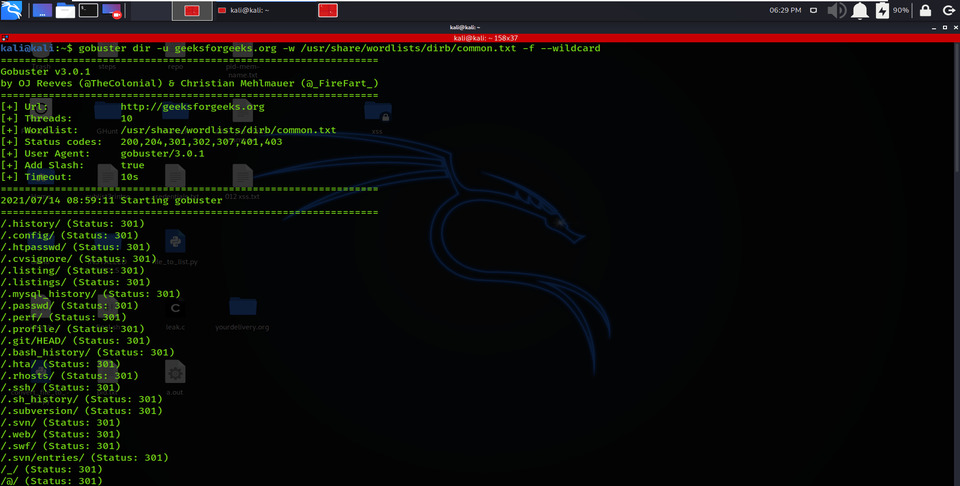
7. Append Forward Slash (-f)
The -f option adds a trailing / to discovered directory names.
- Helps distinguish directories from files
- Useful for accurate URL formatting
Command:
gobuster dir -u geeksforgeeks.org -w /usr/share/wordlists/dirb/common.txt -f --wildcardOutput:
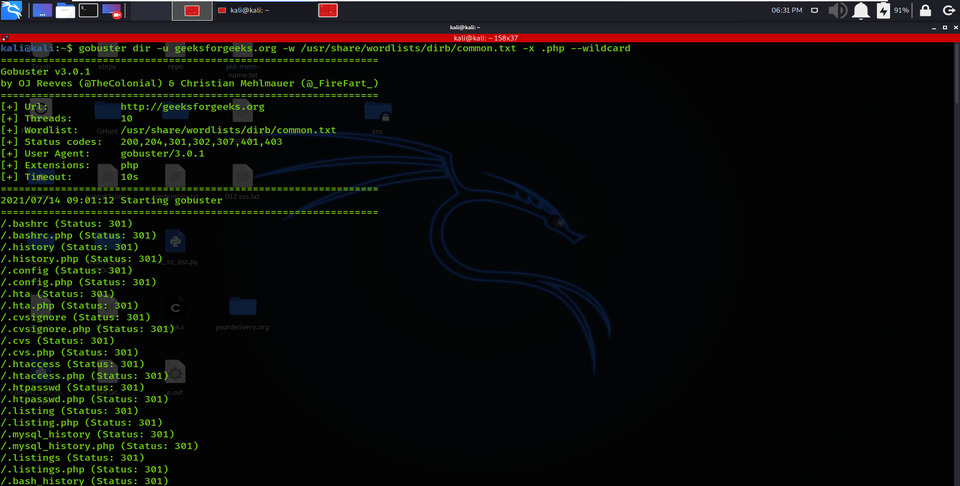
8. Search Specific File Extensions (-x)
The -x option allows searching for specific file types instead of only directories.
- Accepts multiple extensions separated by commas
- Useful for finding sensitive files
Command:
gobuster dir -u geeksforgeeks.org -w /usr/share/wordlists/dirb/common.txt -x .php --wildcardOutput:
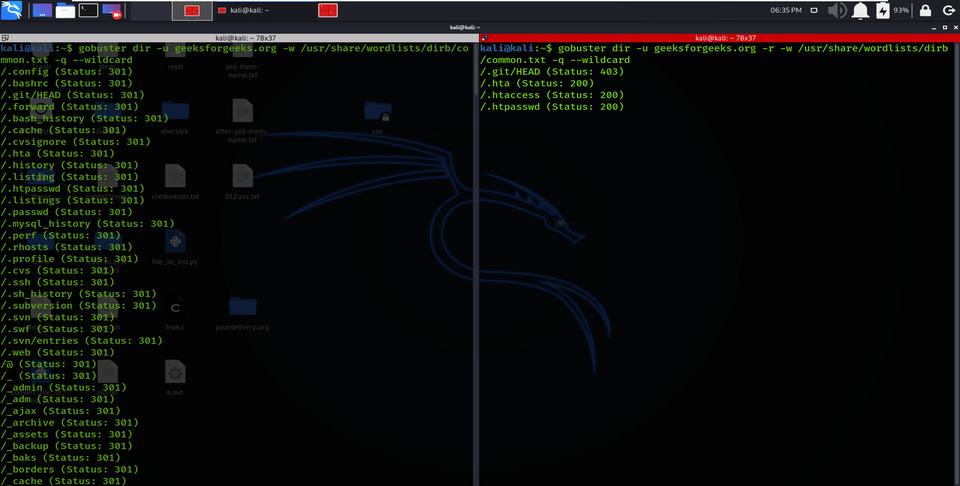
9. Follow Redirects (-r)
The -r option enables following HTTP redirects during scanning.
- Required when target redirects requests
- Ensures accurate detection of valid paths
Command Without -r:
gobuster dir -u geeksforgeeks.org -w /usr/share/wordlists/dirb/common.txt -q --wildcard- Without -r, redirecting endpoints might be missed or misinterpreted.
Command With -r:
gobuster dir -u geeksforgeeks.org -r -w /usr/share/wordlists/dirb/common.txt -q --wildcardOutput:
10. HTTP Authentication (-U, -P)
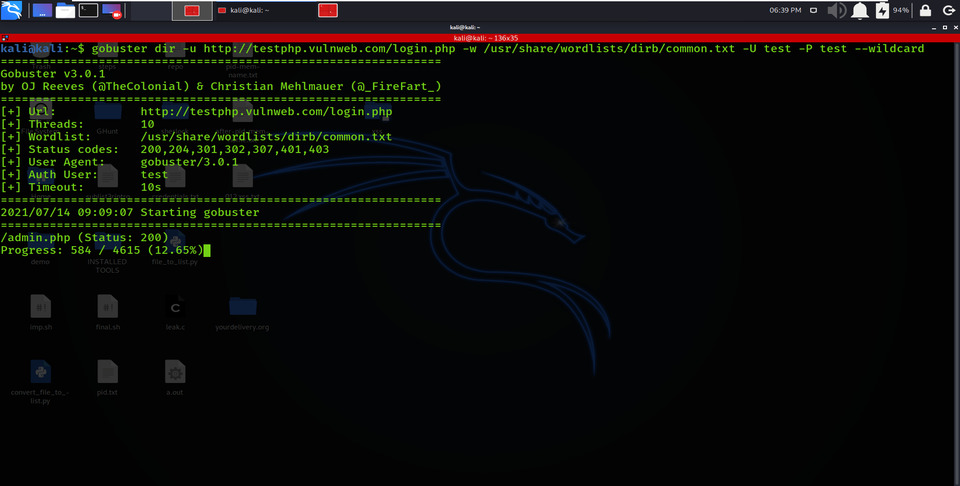
HTTP Authentication works using the 401 Unauthorized response code and the WWW-Authenticate header. In Basic Authentication, credentials are transmitted in Base64 encoding, which is not secure unless used with HTTPS.
- Gobuster supports authenticated scanning using the -U (username) and -P (password) flags
- These flags allow access to protected or restricted endpoints during enumeration
Command:
gobuster dir -u http://testphp.vulnweb.com/login.php -w /usr/share/wordlists/dirb/common.txt -U test -P test --wildcardOutput:
11. Continue on Wildcard Domains (--wildcard)
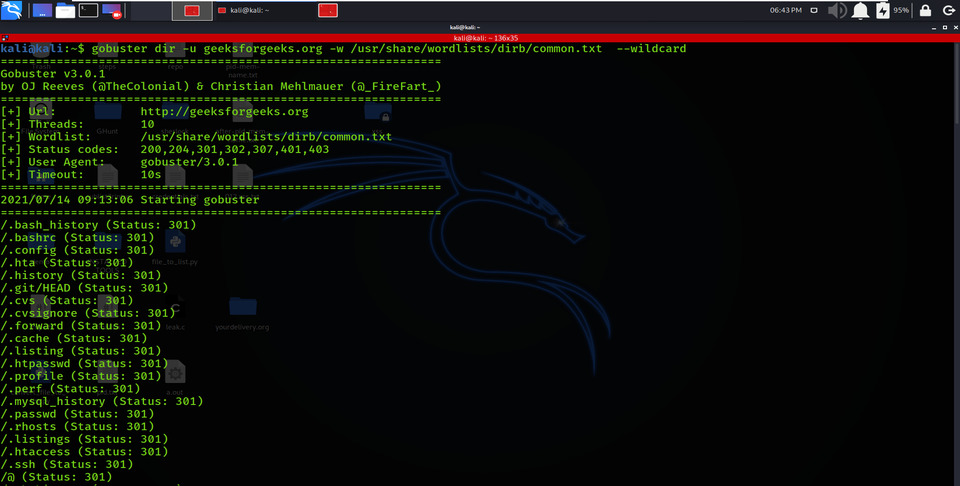
The --wildcard option forces Gobuster to continue scanning even if wildcard DNS is detected.
- Prevents false stopping of scans
- Useful for misconfigured domains
Command:
gobuster dir -u geeksforgeeks.org -w /usr/share/wordlists/dirb/common.txt --wildcardOutput:
12. Quiet Progress Output (-z)
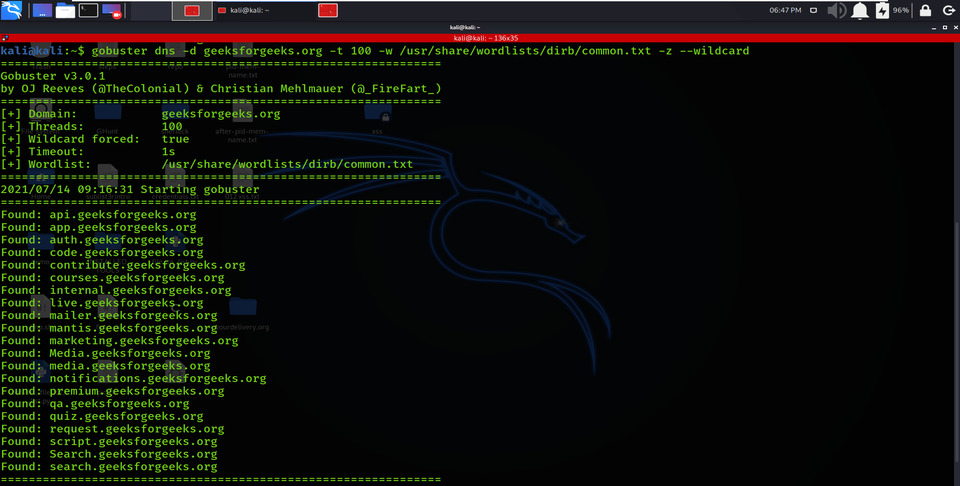
The -z option is used to suppress the progress display while performing DNS brute-force attacks. This results in a quieter output, showing only final results instead of ongoing scan updates.
- Keeps terminal clean
- Useful in automated scripts
Command:
gobuster dns -d geeksforgeeks.org -t 100 -w /usr/share/wordlists/dirb/common.txt -z --wildcardOutput:
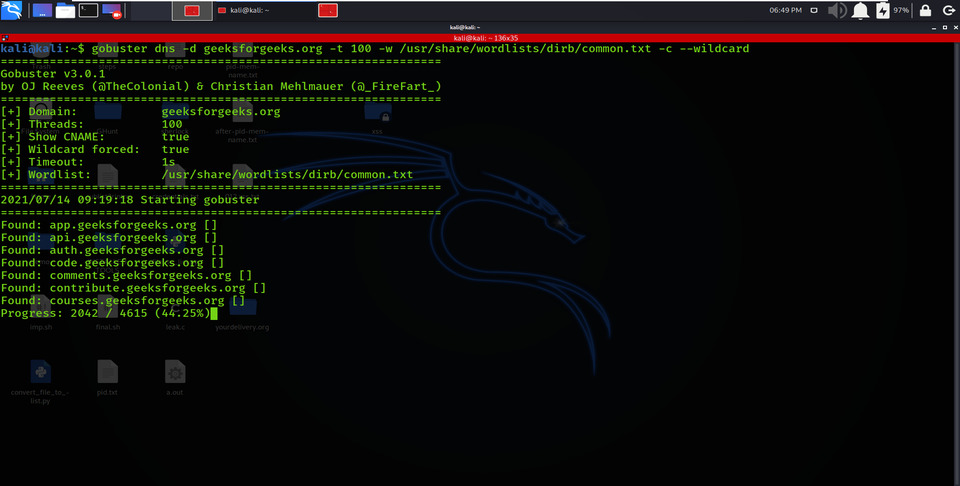
13. Extract CNAME Records (-c)
The -c option enables Gobuster to display CNAME (Canonical Name) records when performing DNS enumeration. These records show alias relationships between domain names.
- Helps in DNS analysis and understanding domain mapping structure
- Useful for identifying domain aliases
Command:
gobuster dns -d geeksforgeeks.org -t 100 -w /usr/share/wordlists/dirb/common.txt -c --wildcardOutput:
14. Use Proxy (--proxy / -p)
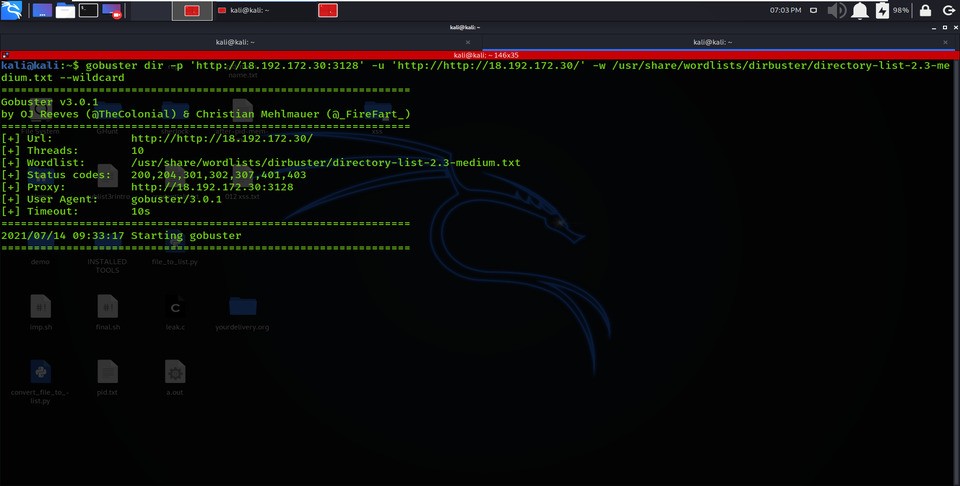
The -p option allows Gobuster to route all requests through a proxy server. By default, proxies often run on port 1080, but custom proxy URLs can also be used.
- Useful for anonymity or testing via intercepting tools
- Helps analyze traffic
Command:
gobuster dir -p 'https://18.172.30:3128' -u 'http://18.192.172.30/' -w /usr/share/wordlists/dirbuster/directory-list-2.3-medium.txt --wildcardOutput:
Real-World Example: Directory Enumeration
In this example, Gobuster is used to scan a target website for hidden directories using a common wordlist.
- Target: https://testphp.vulnweb.com
- Mode: Directory enumeration
- Wordlist: Common directory list (common.txt)
Output Behavior
When the command is executed, Gobuster performs the following steps:
- Iterates through each entry in the provided wordlist
- Appends each word as a potential directory to the target URL
- Sends HTTP requests to check whether the directory exists
- Displays only valid or accessible directories in the output
Command:
gobuster dir -u https://testphp.vulnweb.com -w /usr/share/wordlists/dirb/common.txtOutput:
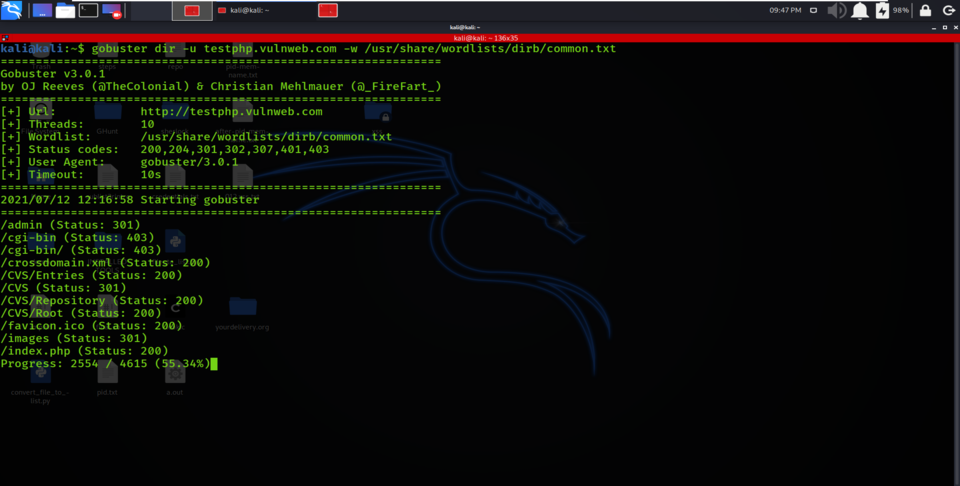
- Any discovered paths that return valid HTTP responses (such as 200 OK or 301/302 redirects) are shown in the terminal.
Observations from the Scan
From the scan results, Gobuster enumerates multiple directories on the target website using the specified wordlist located at:
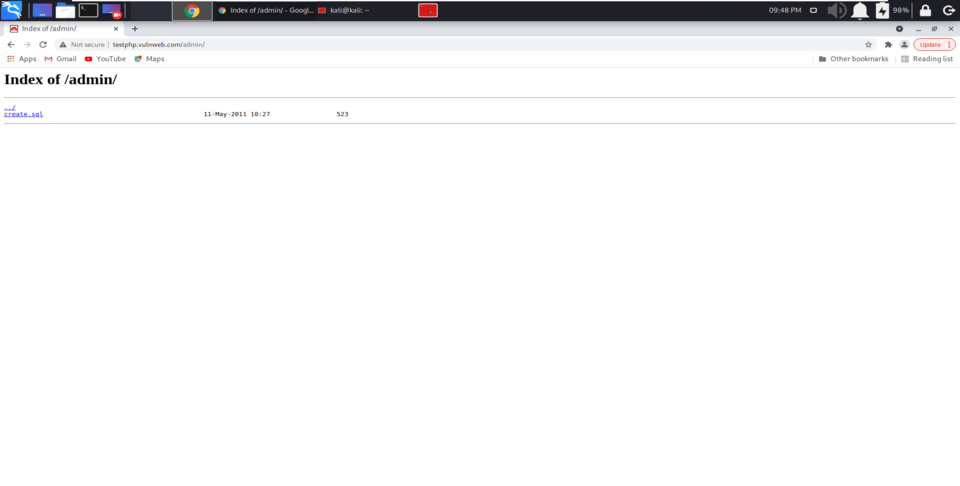
/usr/share/wordlists/dirb/common.txt- During the brute-force process, one of the discovered endpoints is an admin-related directory, indicating the presence of a potentially sensitive administrative interface.
Result Analysis
After identifying the /admin/ directory, it can be accessed through a browser by navigating to:
https://testphp.vulnweb.com/admin/- This reveals the contents of the discovered directory, which may include login pages, dashboards or restricted resources depending on server configuration.
