

Clearing text formatting in Microsoft Word involves removing all applied styles, such as fonts, sizes, colors, bold, italics, underlines, and paragraph settings like indentation or line spacing, to restore text to its default "Normal" style.
3 Quick Ways to Clear All Text Formatting in Word
- Using the "Clear All Formatting" Button
- Using the "Clear Formatting" Option in the Styles Pane
- Using Keyboard Shortcuts
Method 1: Using "Clear All Formatting Button"
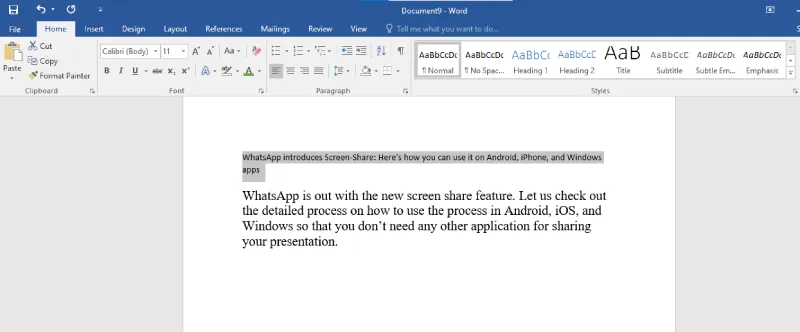
An option to "Clear All Formatting" can be found in Microsoft Word's Ribbon under the Font group. Pressing this button will restore the selected text to its original, unformatted condition by erasing all formatting.
Step 1: Open Microsoft Word
Select Microsoft Word from the Windows icon in the bottom left corner of your home screen.
Step 2: Select the text to remove the formatting
Use your mouse to highlight the desired text, or press Ctrl + A to select the entire document.
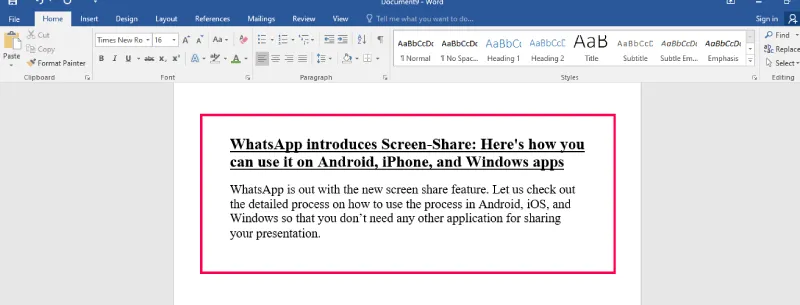
Step 3: Go to Font Group Under Home Tab
Locate the "Font" group on the Home tab in the ribbon.
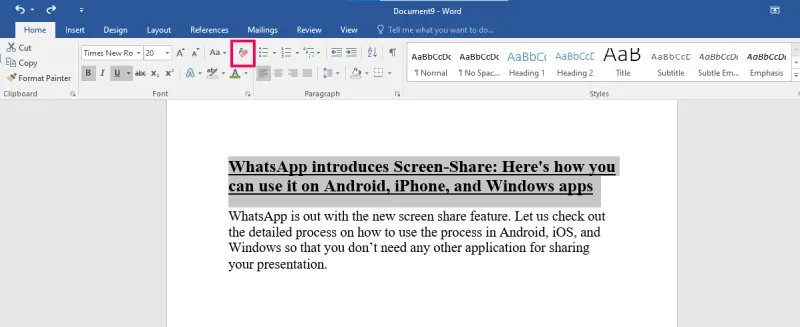
Step 4: Select "Clear All Formatting Button"
Click the "Clear All Formatting" button within the Font group. This button resembles an underlined letter "A" with an eraser next to it.
Step 5: Preview Results
Method 2: Using the "Clear Formatting" Option in Styles Pane
The Clear Formatting option is also available in the Styles Pane in case you cannot locate the Clear All Formatting button on your Ribbon.
Step 1: Open the Microsoft Word
Select Microsoft Word from the Windows icon on the bottom left corner of your home screen.
Step 2: Select the text to clear the formatting
On the Word file, select the text that you want to clear formatting. Use Control + A to select all text.
Step 3: Click on the Style dropdown in the Home tab
In the "Home" tab menu bar, go to the "Styles" option. Click on the arrow indicating downwards to open the "Styles" dropdown menu.
Step 4: Select "Clear Formatting" option
From the "Styles" dropdown menu, click on the "Clear Formatting" option.
Step 5: Preview Results
The document's formatting or selected text, including characters and paragraphs, should be cleared.
Method 3: Clear Formatting in Word Using Keyboard Shortcuts
Enlisted below are some keyboard shortcuts to remove all text formatting:
- Ctrl + Spacebar: Removes character formatting like font, size, and bold from the selected text.
- Ctrl + Q: Removes paragraph formatting like indentation and line spacing from the selected text.
- Ctrl + Shift + N: Applies the "Normal" style to the selected text, removing all formatting.
