

Accidentally deleting important files on Windows 11 can be frustrating and stressful. Fortunately, there are several effective methods to recover those lost files and restore your data. Whether you’ve emptied the Recycle Bin or the files were deleted permanently, this guide will walk you through the steps to successfully recover deleted files in Windows 11. Let’s explore the various options available to help you retrieve your valuable information.
Method 1: Recover Deleted Files from a Recycle Bin
The Recycle Bin on your computer is a special folder. It keeps old and deleted files safely. Want to open the recycle bin? Click on its icon on your screen or type "Recycle Bin" in the search box. To recover deleted files from the Recycle Bin, follow these steps:
Step 1: Open the Recycle bin.
Step 2: Locate the file you want to recover.
Step 3: Right-click on the file and select "Restore" from the context menu.
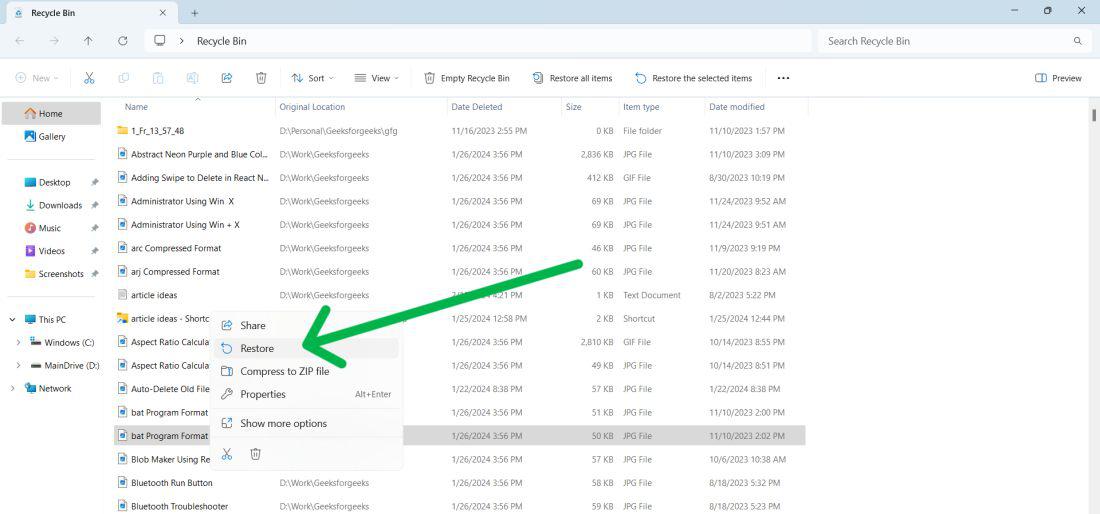
Step 4: The file will be restored to its original location.
Method 2: Recover Files using the Undo Delete Feature
If deleted a file and wish you hadn't. The Undo Delete feature can fix this. It won't work if you copy, move, or rename other files after deleting. Here’s how to use it:
Step 1: Press "Ctrl + Z" on your keyboard after deleting a file or right-click in the folder where the file was.
Step 2: Choose “Undo Delete” from the menu.
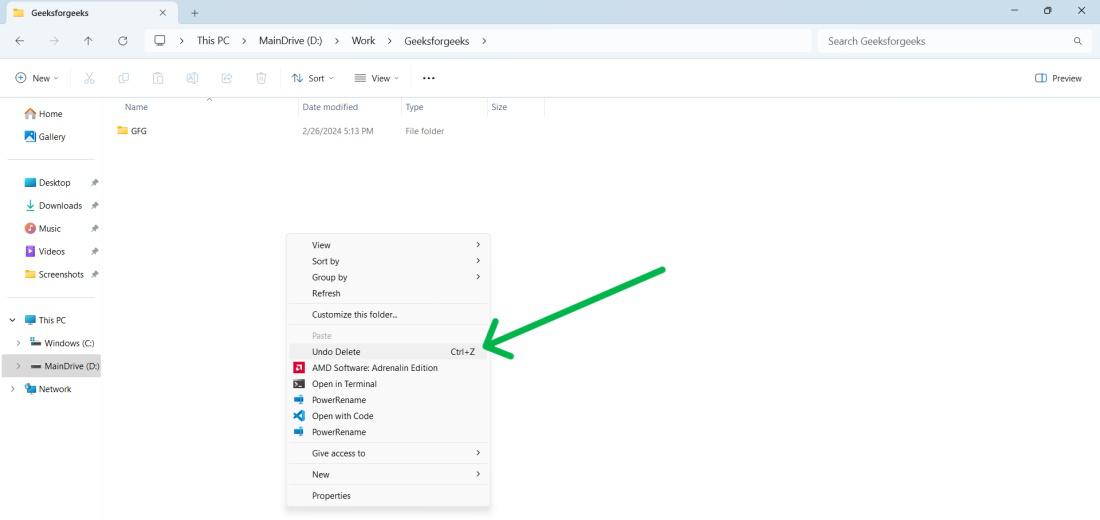
Step 3: The file returns to its original location.
Method 3: Restore Files Using the File History Feature
The Windows 11 PC has a handy tool called File History, which, if switched on, can help recover lost or changed files. File History is a backup tool that automatically files copies of your work to a separate drive or online site. This means, whether you need files from a particular time or want to contrast various versions, File History can lend a hand. To use this feature to retrieve files, simply follow these steps:
3.1 Using Control Panel
Step 1: Press Windows Key + R to open the run dialog.
Step 2: Then, On the run dialog type "Control".
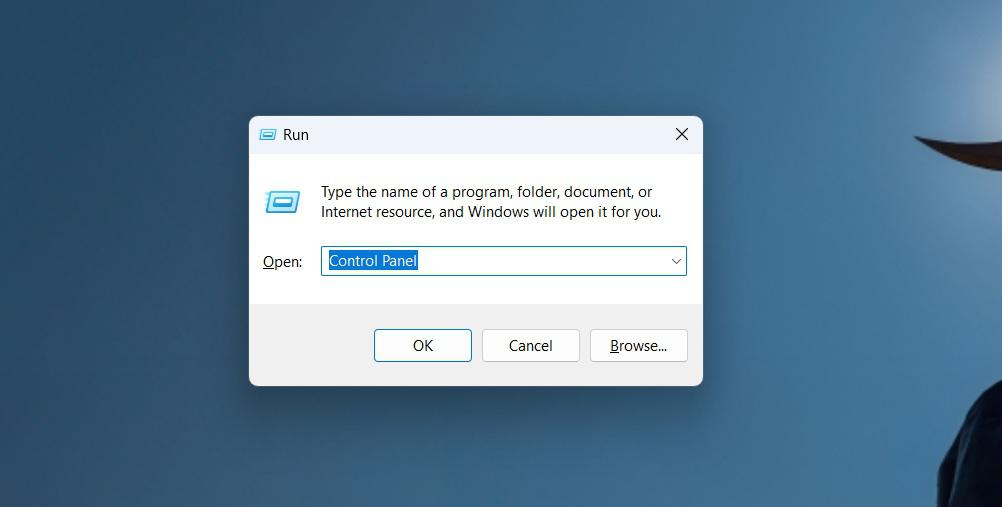
Step 3: Navigate to "System and Security" > "File History".
Step 4: Then, On the right side click on "Restore Personal Files".
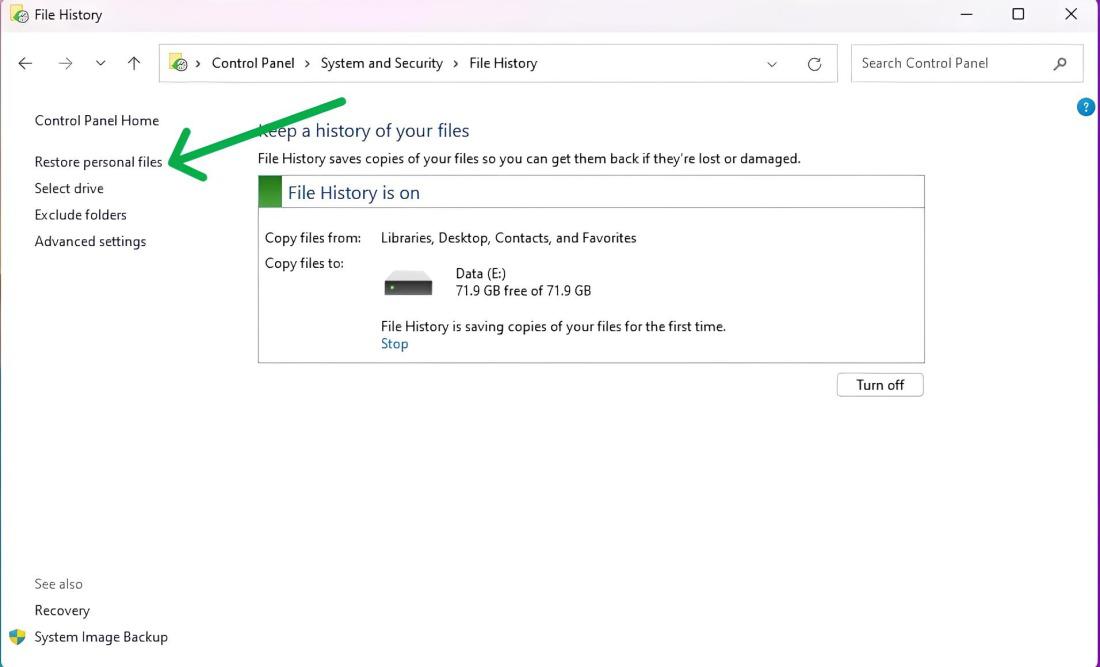
Step 5: Navigate back in time until you locate a backup copy containing the desired files.
Step 6: Select the files you wish to recover.
Step 7: Click the green recover button.
3.2 Using File Explorer
Step 1: Press the Windows key + E to open File Explorer then navigate to the folder which you want to restore.
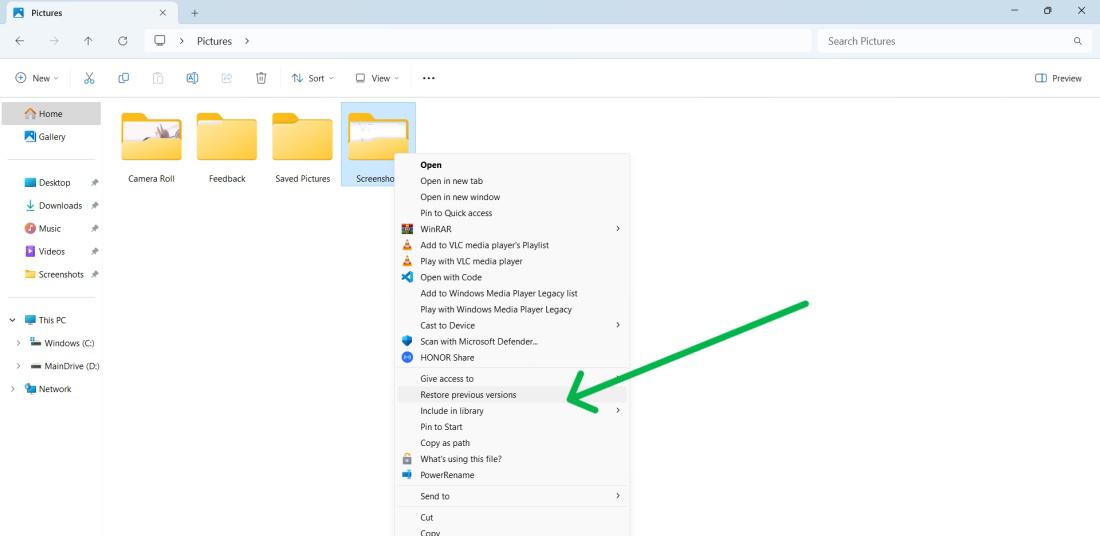
Step 2: Right-click on the folder then Click on "show more options" > "Restore previous versions".
Method 4: Recover Permanently Deleted Files from an Older Backup
If the file isn’t in the Recycle Bin or File History, or you’ve permanently deleted it, try restoring it from an older backup.
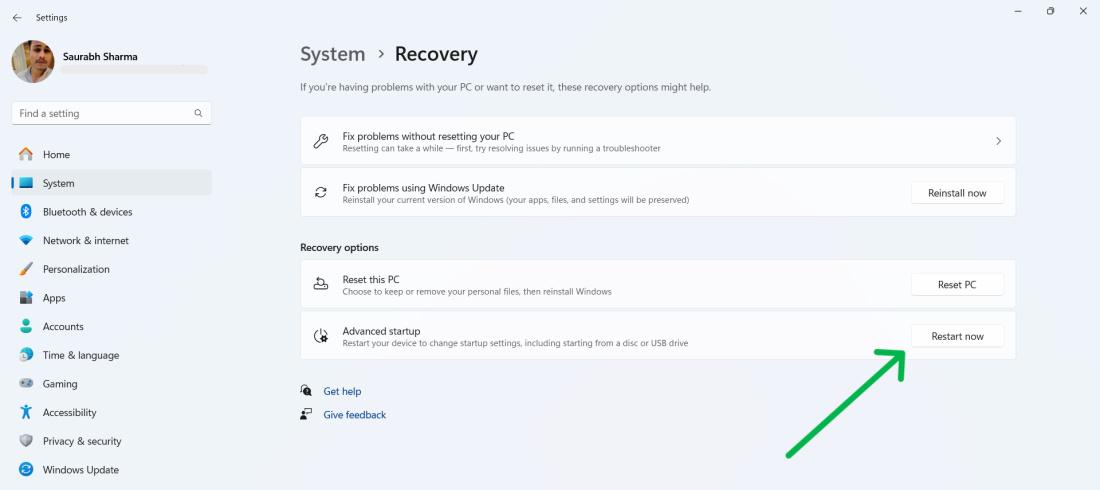
Step 1: Press Windows Key + I to open settings then navigate "System" > "Recovery"
Step 2: Under the recovery options, Click on the "Restart Now" button
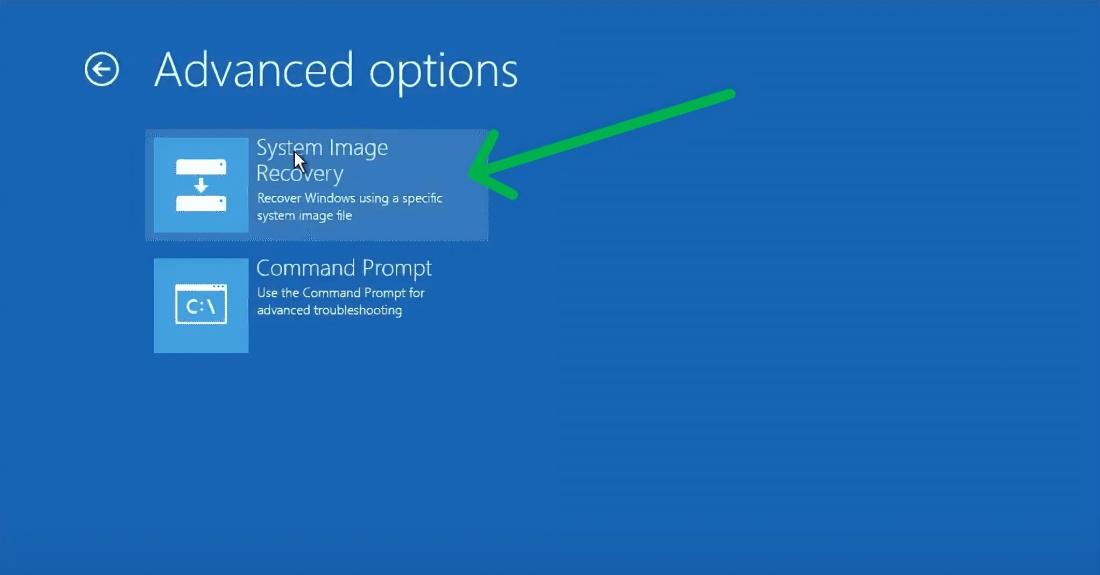
Step 3: Navigate to Troubleshoot > Advanced options > See more recovery options > System Image Recovery
Method 5: Use Microsoft’s Windows File Recovery Tool
If all else fails, consider using Microsoft's Windows File Recovery tool. This software helps retrieve deleted files from your drives. However, it's not part of the initial Windows 11 package and needs some tech skills. Here’s how to use it:
Step 1: Press Windows Key + S to open the search bar.
Step 2: Then, Search bar type "Microsoft Store".
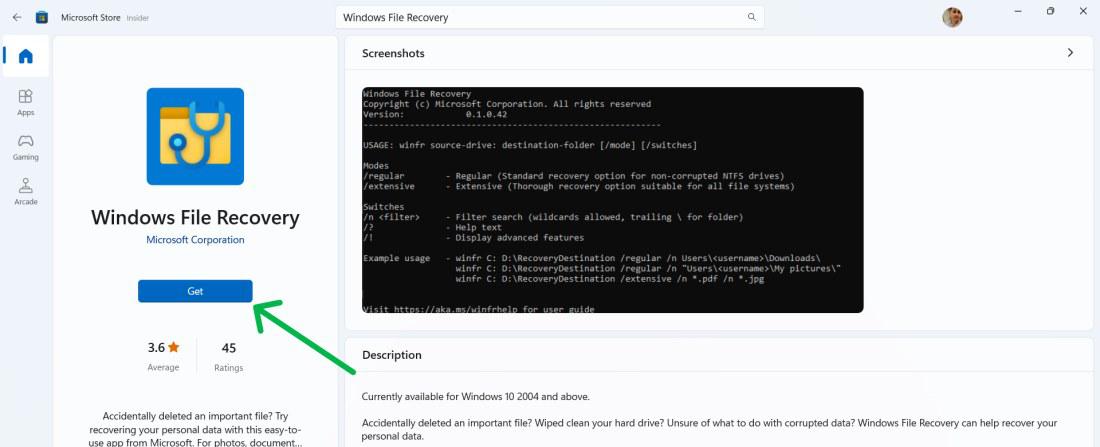
Step 3: In the MS Store search bar type "Windows File Recovery".
Step 4: Click on the "Get" button to install it.
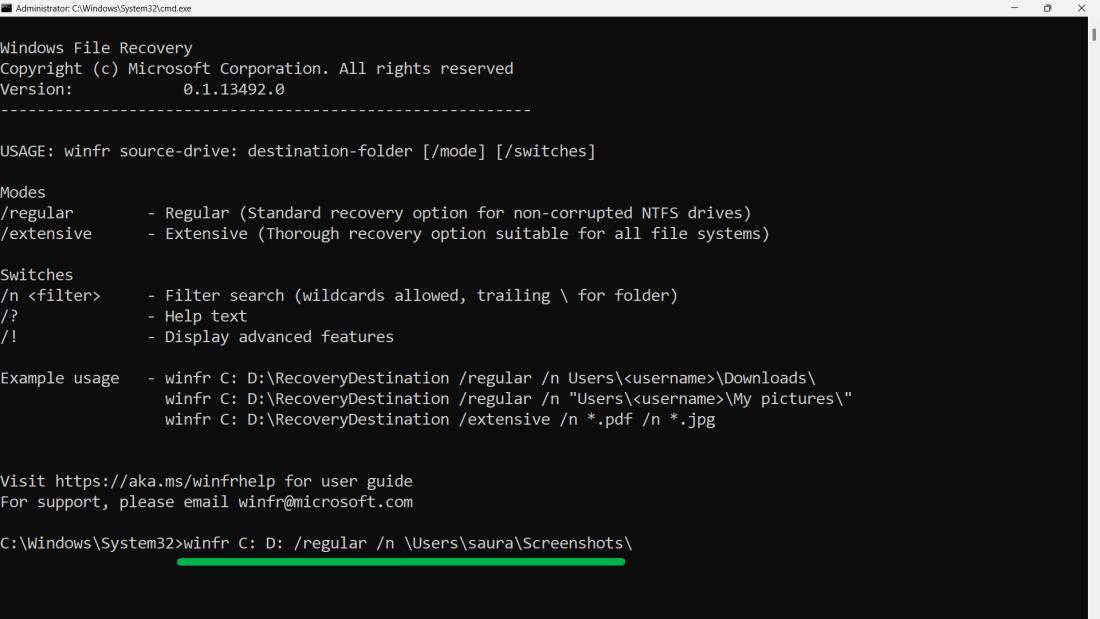
Step 5: Open Windows File Recovery.
Step 6: Type the following command and hit enter.
winfr C: D: /regular /n \Users\<username>\Screenshots\- Replace the <username> with the actual username.
- Replace the drive name and folder with you want to restore.
- Drive C to drive D:
Conclusion
Recovering accidentally deleted files in Windows 11 is possible with the right techniques and tools. By utilizing methods such as checking the Recycle Bin, using the Windows File Recovery tool, or leveraging backup solutions, you can restore your lost files efficiently. Don't let accidental deletions hinder your productivity—take advantage of these recovery options to safeguard your important data and ensure a smooth computing experience.
Also Read
- 10 Data Recovery Software to Retrieve Lost Files!
- How to Use Windows Recovery Options in Windows 11?
- How to Clear Cache in Windows 11?
