

Promoting a fresh Windows Server box into the first domain controller of a new forest is two commands and a reboot. The part that actually costs people an afternoon is everything around it: picking a domain name you will not regret, getting the hostname and IP settled before promotion instead of after, and then proving the thing works rather than assuming it does because the wizard said “Success”.
This guide covers both routes to install Active Directory Domain Services: the Server Manager wizard and the PowerShell equivalent. It then spends most of its length on the part other guides skip, which is verification. You get the real output of Get-ADDomain, dcdiag, the SRV records the promotion registers in DNS, and the FSMO role placement, plus the Active Directory Users and Computers console you will live in afterwards.
Ran this end to end twice in August 2026, once on Windows Server 2025 (build 26100) and once on Windows Server 2022 (build 20348). Same commands on both, with one difference in the functional level that I cover near the end.
Get these three things right before you promote
A domain controller bakes its hostname, IP address and domain name into the directory. Changing any of them afterwards ranges from tedious to genuinely risky, so spend two minutes here.
Set the hostname first. Renaming a live domain controller is a supported but fiddly operation involving netdom computername and a reboot window. Renaming a plain member server is one command. Do it now:
Rename-Computer -NewName DC01 -Force -RestartGive it a static IP. A domain controller that answers on a DHCP lease will eventually hand out stale records and break client logons. Check the adapter name first, because it is Ethernet on Hyper-V and KVM but Ethernet0 on VMware and something else again on a multi-NIC box:
Get-NetAdapter | Where-Object Status -eq Up | Format-Table Name,InterfaceIndex,InterfaceDescription -AutoSizeFeed that index into the address change. New-NetIPAddress disables DHCP on the interface by itself, so there is no separate step for it:
$i = 6
New-NetIPAddress -InterfaceIndex $i -IPAddress 192.168.1.106 -PrefixLength 24 -DefaultGateway 192.168.1.1
Set-DnsClientServerAddress -InterfaceIndex $i -ServerAddresses 192.168.1.1
Run this from the console rather than over RDP, because changing the address drops your session mid-command. If a default route already exists the cmdlet fails with “Instance MSFT_NetRoute already exists”; clear it with Remove-NetRoute -InterfaceIndex $i -DestinationPrefix 0.0.0.0/0 and run the line again. Afterwards confirm only one IPv4 address is bound to the adapter, since a leftover DHCP address makes the DC multi-homed and it will register both addresses in DNS.
The promotion rewrites that DNS setting to point at the server itself, which is covered further down. Do not pre-empt it by setting the resolver to 127.0.0.1 now, because nothing is listening on port 53 on this box yet and the prerequisite checks need a resolver that answers.
Pick a domain name you can live with. Use a subdomain of a domain you actually own, like corp.example.com. Two naming choices cause real pain later. A single-label name such as CORP with no dot is not something you can choose anyway, because the promotion wizard has refused to create a new single-label domain since Windows Server 2008 R2, and Microsoft’s own guidance is that such names may not work with some products. Reusing your public website name, such as making the internal domain example.com when that is also your live site, means the domain controller becomes authoritative for that zone internally and your own website stops resolving from inside the network.
For hardware, a lab domain controller runs fine on 2 vCPU and 4 GB RAM, which is the floor rather than a recommendation. Sizing in production is driven by directory object count, the number of clients authenticating against this DC, and whether it also carries DNS and a global catalog. A DC serving a few hundred users typically sits at 2 to 4 vCPU and 8 to 16 GB RAM, with the database on a disk that is not shared with the page file. If you are building the test box on a hypervisor first, the Windows Server template for Proxmox VE gets you a reusable base image in about twenty minutes.
1. Install the Active Directory Domain Services role
One command installs the role. The -IncludeManagementTools flag is the important part, and it is the flag people leave off and then wonder where their consoles went:
Install-WindowsFeature -Name AD-Domain-Services -IncludeManagementToolsIt finishes in well under a minute and, notably, asks for no reboot:
Success       : True
RestartNeeded : No
ExitCode      : Success
FeatureResult : {Active Directory Domain Services, Group Policy Management, Remote Server Administration Tools, Active
                Directory Administrative Center...}
That single flag pulled in seven features. This is exactly what installs Active Directory Users and Computers, so it is worth seeing the full list:
Name                InstallState
----                ------------
AD-Domain-Services     Installed
GPMC                   Installed
RSAT-AD-Tools          Installed
RSAT-AD-PowerShell     Installed
RSAT-ADDS              Installed
RSAT-AD-AdminCenter    Installed
RSAT-ADDS-Tools        Installed
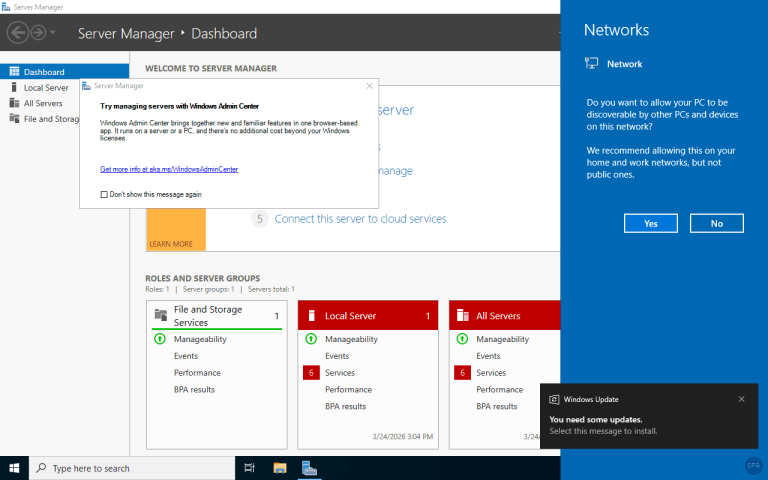
If you prefer the graphical route, it is Server Manager, then Manage, then Add Roles and Features, then Next through to Server Roles and tick Active Directory Domain Services. A dialog offers to add the management features alongside it; accept it, because that dialog is the wizard’s version of -IncludeManagementTools. The screenshot below is the same server after the role went in, which is why both entries read Installed.

Installing the role does not create a domain. At this point the box is still a standalone workgroup server that happens to have the AD DS binaries on disk. What it gained is the ADDSDeployment module, which is what the next step drives and which ships exactly ten cmdlets:
Add-ADDSReadOnlyDomainControllerAccount
Install-ADDSDomain
Install-ADDSDomainController
Install-ADDSForest
Test-ADDSDomainControllerInstallation
Test-ADDSDomainControllerUninstallation
Test-ADDSDomainInstallation
Test-ADDSForestInstallation
Test-ADDSReadOnlyDomainControllerAccountCreation
Uninstall-ADDSDomainController
Note the pairing. Every install cmdlet has a matching Test- cmdlet that runs the prerequisite checks and changes nothing, which is the safest way to find out whether a promotion will succeed before you commit to it.
2. Promote the server to a domain controller
Run the prerequisite check first. It takes a few seconds and it is free:
$dsrm = Read-Host -Prompt "DSRM password" -AsSecureString
Test-ADDSForestInstallation -DomainName corp.example.com -SafeModeAdministratorPassword $dsrm -InstallDns -Force
A clean run reports success and confirms no reboot is pending:
Status         : Success
Message        : Operation completed successfully
RebootRequired : False
The DSRM password is the Directory Services Restore Mode password. It is a break-glass credential stored outside the directory, used to boot the DC into a mode where the AD database is offline. It has to satisfy the password policy, and you will not be prompted for it again, so put it in your password manager now rather than rediscovering that you need it during an outage.
Now the promotion itself. Set the functional level explicitly rather than letting it default, because Microsoft documents the default as “typically the same as the version you are running” and that choice is effectively permanent. Prompting for the password with Read-Host also keeps it off the screen and out of your shell history:
Install-ADDSForest `
  -DomainName corp.example.com `
  -DomainNetbiosName CORP `
  -ForestMode Win2025 `
  -DomainMode Win2025 `
  -InstallDns:$true `
  -SafeModeAdministratorPassword $dsrm `
  -Force
That is the right choice only if every domain controller this forest will ever hold runs the current release. Older domain controllers cannot join a forest at that level at all, and the level cannot be walked back afterwards short of a forest recovery. If a 2022 or 2019 box might ever be promoted into this forest, swap both values for WinThreshold, which is the Windows Server 2016 level and the ceiling those releases support:
  -ForestMode WinThreshold `
  -DomainMode WinThreshold `
You can raise the level later once the last old domain controller is retired, so starting lower costs nothing but an afternoon down the line. The section on functional levels below has the measured differences between the two.
The server rebuilds itself into a domain controller and reboots on its own. Before it goes down it prints:
Message        : You must restart this computer to complete the operation.
Context        : DCPromo.General.4
RebootRequired : True
Status         : Success
Two defaults are worth knowing. -InstallDns is already true for Install-ADDSForest, so the DNS Server role comes along whether you ask for it or not, which is what you want for a first DC. And -DomainNetbiosName is optional; leave it out and the wizard derives one from the first label of the DNS name, which must come to 15 characters or fewer. Specify it when the derived name would be truncated or ugly, and note that passing a name of 16 characters or more fails the installation outright.
The GUI route runs the same operation through the Active Directory Domain Services Configuration Wizard. Click the yellow notification flag in Server Manager after the role install and choose Promote this server to a domain controller, then work through the pages: Deployment Configuration (pick Add a new forest and type the root domain name), Domain Controller Options (choose the forest and domain functional levels here, leave DNS server and global catalog ticked, and set the DSRM password), DNS Options (the delegation warning is expected on a first DC and is safe to pass), Additional Options (confirm the NetBIOS name), Paths, Review Options, then Prerequisites Check and Install. The server reboots itself at the end.
The Review Options page has a View script button worth knowing about. It exports your clicks as a PowerShell script, so you can drive the wizard once for an unusual topology and keep the generated command for the next server. What it writes is more verbose than the command above, because it spells out every default including -CreateDnsDelegation:$false, the three path parameters and -NoRebootOnCompletion:$false.
Log back in after the reboot and note that the login is now CORP\Administrator rather than a local account. The local Administrator became the domain Administrator, keeping the same password.
3. Verify the domain controller is actually working
“Status: Success” means the promotion ran, not that the directory is healthy. Six services need to be running before anything else is true:
Get-Service NTDS,ADWS,DNS,Netlogon,kdc,W32Time | Format-Table Name,Status,StartType -AutoSizeAll six should read Running. If NTDS is stopped the directory is down; if kdc is stopped nothing can authenticate:
Name      Status StartType
----      ------ ---------
ADWS     Running Automatic
DNS      Running Automatic
kdc      Running Automatic
Netlogon Running Automatic
NTDS     Running Automatic
W32Time  Running Automatic
Next, ask the directory to describe itself:
Get-ADDomain | Format-List DNSRoot,NetBIOSName,DomainMode,DistinguishedName,PDCEmulatorThe distinguished name is the one to sanity-check, because it is derived from the domain name and every object you ever create will live under it:
DNSRoot           : corp.example.com
NetBIOSName       : CORP
DomainMode        : Windows2025Domain
DistinguishedName : DC=corp,DC=example,DC=com
PDCEmulator       : DC01.corp.example.com
On a single-DC forest all five FSMO roles land on the same machine. Confirm that rather than assume it, because a missing role holder is the root cause of a whole family of later failures:
netdom query fsmoFive roles, one holder:
Schema master               DC01.corp.example.com
Domain naming master        DC01.corp.example.com
PDC                         DC01.corp.example.com
RID pool manager            DC01.corp.example.com
Infrastructure master       DC01.corp.example.com
The command completed successfully.
Then run the directory’s own health checker. These four tests are the ones that matter on a fresh single DC:
dcdiag /test:Connectivity /test:Advertising /test:FsmoCheck /test:ServicesAdvertising is the meaningful one, because it proves the DC is announcing itself as a logon server rather than merely being switched on. The real output wraps these in “Doing initial required tests” and “Doing primary tests” banners and runs FsmoCheck under an enterprise-tests heading; trimmed to the verdict lines it reads:
   Testing server: Default-First-Site-Name\DC01
      Starting test: Connectivity
         ......................... DC01 passed test Connectivity
      Starting test: Advertising
         ......................... DC01 passed test Advertising
      Starting test: Services
         ......................... DC01 passed test Services
      Starting test: FsmoCheck
         ......................... corp.example.com passed test FsmoCheck
Finally, the check that catches the most real-world breakage. Clients find domain controllers through SRV records, so if these are missing the domain is invisible no matter how healthy the server looks:
Resolve-DnsName -Type SRV _ldap._tcp.corp.example.com | Format-Table Name,Type,NameTarget,Port -AutoSize
Resolve-DnsName -Type SRV _kerberos._tcp.corp.example.com | Format-Table Name,Type,NameTarget,Port -AutoSize
LDAP on 389 and Kerberos on 88, both pointing at the DC. The columns are trimmed here; the full record also carries TTL, priority and weight:
Name                            Type NameTarget            Port
----                            ---- ----------            ----
_ldap._tcp.corp.example.com      SRV dc01.corp.example.com  389
_kerberos._tcp.corp.example.com  SRV dc01.corp.example.com   88
The two shares that carry Group Policy and logon scripts should also exist. Get-SmbShare confirms SYSVOL and NETLOGON are published from C:\WINDOWS\SYSVOL\sysvol. If SYSVOL is missing, Group Policy silently does nothing for every client in the domain.
4. Install Active Directory Users and Computers
On the domain controller itself, it is already there. Active Directory Users and Computers arrived with -IncludeManagementTools back in step one, and you open it with dsa.msc from Run or a terminal. If you skipped that flag, add the console on its own:
Install-WindowsFeature RSAT-ADDS-ToolsManaging the domain from a Windows 11 admin workstation instead is the better habit, and there the console ships as an on-demand capability rather than a server feature:
Add-WindowsCapability -Online -Name Rsat.ActiveDirectory.DS-LDS.Tools~~~~0.0.1.0Two things stop that command working. It needs Pro or Enterprise, because Features on Demand are not available on Home editions. And on a machine managed by WSUS it fails with 0x800f0954, because the feature payload comes from Windows Update rather than your update server; the policy that fixes it is “Specify settings for optional component installation and component repair”, with the option to download repair content directly from Windows Update enabled.
A brand new domain has almost nothing in it, so create an organizational unit and a user to confirm writes actually commit. The accounts you make here become the identity source for everything else on the network that speaks LDAP or Kerberos, from SQL Server on Windows Server to Active Directory authentication for kubectl:
New-ADOrganizationalUnit -Name Staff -Path "DC=corp,DC=example,DC=com" -ProtectedFromAccidentalDeletion $true

New-ADUser -Name "Joyce Mwangi" -GivenName Joyce -Surname Mwangi -SamAccountName jmwangi `
  -UserPrincipalName [email protected] -Path "OU=Staff,DC=corp,DC=example,DC=com" `
  -AccountPassword (Read-Host -Prompt "Password" -AsSecureString) -Enabled $true
The console screenshot further down came from this lab after running that New-ADUser block three times, once per person, alongside a second OU named Servers. Check what actually landed in the directory:
Get-ADUser -Filter * -SearchBase "OU=Staff,DC=corp,DC=example,DC=com" |
  Format-Table Name,SamAccountName,Enabled -AutoSize
Three enabled accounts, each with the sAMAccountName that becomes its logon name:
Name         SamAccountName Enabled
----         -------------- -------
Joyce Mwangi jmwangi           True
Alex Otieno  aotieno           True
Peter Kamau  pkamau            True
Open dsa.msc and the objects are there under the domain, alongside the default containers the promotion created. Builtin, Computers, Domain Controllers, ForeignSecurityPrincipals, Managed Service Accounts and Users all come as standard; Servers and Staff below are the two OUs I added.

Put user and computer accounts in OUs you create, not in the default Users and Computers containers. Those two are containers rather than organizational units, so you cannot link a Group Policy Object directly to them. They still inherit anything linked at the domain or site level, which is how Default Domain Policy reaches them, but you lose the ability to target policy at just those accounts. If you want new accounts to land somewhere policy-aware automatically, redirusr.exe and redircmp.exe repoint the default creation containers at OUs of your choosing. With the directory populated, joining clients is the next job, and Linux machines join the same domain through SSSD, covered in the guide on joining Rocky Linux and AlmaLinux to an Active Directory domain. Once more than a handful of servers are members, driving them from a control node beats logging into each one, and the WinRM groundwork for that is in the guide on automating Windows Server with Ansible.
5. What the promotion did to DNS
Promotion quietly rewires name resolution, and knowing what it changed saves you from “fixing” something that is working correctly. Two forward lookup zones now exist, both Active Directory integrated, meaning the zone data lives in the directory and replicates with it rather than sitting in a text file.

The _tcp, _udp, _sites and _msdcs folders hold the service records clients use for discovery. Never hand-edit them. The separate _msdcs.corp.example.com zone is forest-wide locator data and matters the moment you add a second DC.
Two changes catch people out. The DC’s own DNS client is now 127.0.0.1, replacing the resolver you set earlier, which is correct and deliberate. And the resolver you were using has been kept as a forwarder, so external lookups still work:
Get-DnsClientServerAddress -AddressFamily IPv4 | Where-Object InterfaceAlias -eq Ethernet |
  Format-Table InterfaceAlias,ServerAddresses -AutoSize
Get-DnsServerForwarder | Format-List IPAddress,UseRootHint,Timeout
The client points at itself while the server forwards onward to the old resolver:
InterfaceAlias ServerAddresses
-------------- ---------------
Ethernet       {127.0.0.1}

IPAddress   : 192.168.1.1
UseRootHint : True
Timeout     : 3
Domain members must use the domain controller for DNS and nothing else. Pointing a domain-joined client at a public resolver is the single most common cause of “cannot find the domain” failures, because public resolvers know nothing about your SRV records. If you need to serve additional internal names from this DC, adding a forward lookup zone in Windows Server is the next step.
What the Windows Server 2025 functional level actually adds
Windows Server 2025 introduced the first new domain and forest functional level since 2016, an eight-year gap, and that explains why the -ForestMode parameter looks so sparse. The 2019 and 2022 releases shipped no functional level of their own; both top out at the 2016 level. Asking each server which values it accepts makes the gap obvious.
(Get-Command Install-ADDSForest).Parameters['ForestMode'].ParameterType.GetEnumNames()On the 2022 host the list stops at WinThreshold, which is the Windows Server 2016 level. The 2025 host returns the same list plus one entry. There is no value for 2019 or 2022 anywhere, because those releases shipped no new level at all:
2022: Win2008, Win2008R2, Win2012, Win2012R2, WinThreshold, Default
2025: Win2008, Win2008R2, Win2012, Win2012R2, WinThreshold, Win2025, Default
Promoting both boxes and then reading the directory back gives the concrete differences. These numbers came off the two lab DCs, not from documentation:
| Property | Windows Server 2022 | Windows Server 2025 |
|---|---|---|
| OS build | 10.0.20348 | 10.0.26100 |
Highest -ForestMode | WinThreshold | Win2025 |
Get-ADForest ForestMode | Windows2016Forest | Windows2025Forest |
msDS-Behavior-Version | 7 | 10 |
Schema objectVersion | 88 | 91 |
| Optional features available | Recycle Bin, PAM | Recycle Bin, PAM, Database 32k Pages |
The schema jump from 88 to 91 is the AD schema extension that ships with the newer release. Several community write-ups quote 90; the live directory reports 91, which matches the three schema update files (sch89.ldf through sch91.ldf) that the release adds. Check your own with the query below rather than trusting either number:
(Get-ADObject (Get-ADRootDSE).schemaNamingContext -Properties objectVersion).objectVersionThe headline feature behind the new level is the 32k database page size. Active Directory has used an 8k page in its ESE database since Windows 2000, and Microsoft documents that 32k pages let multi-valued attributes hold approximately 3,200 values. The catch is that it is not on. A new forest gets a 32k-capable database that runs in 8k page simulation mode for compatibility, and the feature stays dormant until every domain controller in the forest is capable and you enable it forest-wide. The directory says so plainly:
Name               : Database 32k Pages Feature
FeatureGUID        : 52982ac6-1e73-754f-ae24-73ae2775aab8
RequiredForestMode : Windows2025Forest
EnabledScopes      : {}
An empty EnabledScopes is the tell. Two consequences are worth planning around before you pick a level at promotion time. The first is compatibility: per Microsoft’s functional level interoperability matrix, a domain controller running the 2022 or 2019 release cannot participate in a forest at the newer level at all. Choose it only if every DC you will ever add runs the current release; a mixed estate should promote at WinThreshold and raise the level once the last old DC is retired.
The second is that enabling the 32k feature is a one-way door. Microsoft states you cannot revert to 8k page simulation mode afterwards, and any 8k-page backup media taken beforehand becomes unusable without a complete authoritative forest recovery. Worth knowing too: a domain controller that reached the current release through an in-place upgrade keeps its old 8k database rather than gaining a 32k-capable one, so an upgraded estate can sit at the right functional level and still be unable to turn the feature on.
What broke in the lab and how I fixed it
Three things went wrong across the two builds, and all three are the kind that waste an hour because the error text points somewhere unhelpful.
Server Manager shows “Refresh failed” after renaming the server
Rename the server, and Server Manager keeps polling the old name and reports a red refresh failure on every tile. The roles are fine; the console’s cached server list is not. It stores the pre-rename hostname in an XML file under your profile:
Get-Process ServerManager | Stop-Process -Force
Remove-Item "$env:APPDATA\Microsoft\Windows\ServerManager\ServerList.xml" -Force
Reopen Server Manager and it rebuilds the file against the current hostname. Give the dashboard a minute to rediscover the roles before deciding whether anything is actually wrong.
Error: “The specified argument ‘NewDomain’ was not recognized”
This appears when you run Test-ADDSForestInstallation or Install-ADDSForest on a server that is already a domain controller. The message blames a parameter you never typed, which sends people hunting for a syntax error that does not exist. The full text is:
Verification of prerequisites for Domain Controller promotion failed.
The specified argument 'NewDomain' was not recognized.
Check what the machine already is before debugging the command. If Get-ADDomain returns a domain, the promotion you are trying to run already happened, and the cmdlet you want for a second DC in that domain is Install-ADDSDomainController instead.
The PDC emulator syncs time from its own CMOS clock
Straight after promotion, the time authority for the entire domain is the virtual machine’s hardware clock:
Stratum: 1 (primary reference - syncd by radio clock)
ReferenceId: 0x4C4F434C (source name:  "LOCL")
Source: Local CMOS Clock
Kerberos rejects a ticket once the clocks either side of it differ by more than five minutes, which is the default tolerance. Domain members chase the PDC emulator’s clock, so they will not drift away from it; what breaks are the things that do not follow the domain hierarchy. A machine that has not joined yet fails its first authentication, Linux and appliance clients running their own NTP fall outside the window, and certificate and token validity starts to misbehave. Point the PDC emulator at real time sources instead:
w32tm /config /manualpeerlist:"time.windows.com,0x8 pool.ntp.org,0x8 time.nist.gov,0x8" /syncfromflags:manual /reliable:yes /update
Restart-Service w32time
w32tm /resync
Microsoft asks for three or more peers here. With only two, flag the second one 0x2 instead of 0x8 so it is used only as a fallback, otherwise the service weighs both equally and can flap between them.
On a virtual machine there is one more step, and skipping it makes the fix look like it silently reverted. The hypervisor’s own time integration keeps pushing the host clock into the guest and fights the NTP configuration you just set, so disable it on the PDC emulator: the Time Synchronization integration service on Hyper-V, the equivalent tick in VMware Tools, or the timer offset setting on a KVM guest. Every other domain member takes its time from the domain hierarchy automatically, so this one server is the only clock you have to get right. Do it before you join a single client, because fixing time after a fleet has drifted is a much longer day than fixing it now.



Nice Article
What an amazing straightforward write-up.
the power of knowledge is to share it which you have done perfectly.
Thank you Kibet!
Always welcome Haytham! Thank You.
Wonderfull!!!! Thanks a Lot
Thanks and welcome Alberto!
Thank you very much to the writer for sharing the methods with detailed analysis and step-by-step instructions.
WOW, Perfect guide so far!
Thank you very much to the writer for sharing the methods with detailed analysis and step-by-step instructions.
wow, this post is really helpful and thank you
Nice article. Thanks a lot, it was really helpful.
Just helped me bring a system back online–thanks much!!!!!
We are really happy that this guide was able to help you!
I have an http and https eurrer and I’m looking for how to solve the problem that’s why I want to activate all Windows systems in 2019 to avoid eurrer and I wish you a great new year
This guide covers installing the AD DS role and promoting the server to a domain controller, not Windows licensing or activation. Post the exact error text and the step where it appears and I can point you at the right fix.