

Wine runs Windows programs on Linux without a Windows licence and without a virtual machine. On Rocky Linux and AlmaLinux it takes more work than elsewhere, because WineHQ publishes binary packages for Debian, Ubuntu, Fedora and Mageia but nothing for the enterprise Linux family. If you are on one of those instead, the Fedora Wine guide and the Debian install both use the vendor repository and are much shorter reads. On EL8 there are two routes: the packaged build sitting in EPEL, or a source build.
This guide covers both, with one detail that older build guides get wrong. A build configured with --enable-win64 alone cannot run 32-bit Windows programs, and on current Wine it cannot even finish setting up its own prefix. The build here enables both architectures instead, which is what makes the result usable. Every command, version string and error message below came off a Rocky Linux 8.10 host running Wine 11.0 in August 2026.
EPEL package or source build
Pick the route that matches what you need to run. The packaged build is a couple of dnf commands; the source build is current and handles 32-bit software.
| EPEL package | Source build | |
|---|---|---|
| Install effort | Two repos plus one dnf command | Dependencies plus a compile |
| Version | Years behind upstream | Current stable |
| 32-bit Windows apps | No, the EL8 package is x86_64 only | Yes, with both architectures enabled |
| Updates | Through dnf | Rebuild by hand |
| Good for | One old in-house tool that you know is 64-bit | Anything else |
Quick route: install Wine from EPEL
EPEL carries a Wine package for EL8, but enabling EPEL on its own is not enough. Wine pulls in SDL2, which lives in PowerTools, so turn on both repositories or the install dies on a dependency error:
sudo dnf -y install epel-release dnf-plugins-core
sudo dnf config-manager --set-enabled powertools
sudo dnf -y install wine
Skip the PowerTools line and dnf stops with this, which sends most people off hunting for a third-party repo they do not need:
Error:
 Problem: package wine-6.0.2-1.el8.x86_64 from epel requires wine-core(x86-64) = 6.0.2-1.el8, but none of the providers can be installed
  - conflicting requests
  - nothing provides SDL2(x86-64) needed by wine-core-6.0.2-1.el8.x86_64 from epel
Check what you got:
wine --versionEPEL 8 has been parked on the same release for years:
wine-6.0.2Two limits come with it. The package predates a lot of Windows API work, so anything recent is likely to fail. It is also 64-bit only: EPEL 8 ships no i686 Wine packages, and the install leaves no 32-bit library tree behind, only /usr/lib64/wine. A 32-bit installer will not launch. If either limit matters, build from source instead.
Why the build must enable both architectures
A large share of Windows desktop software is still 32-bit, and plenty of 64-bit applications ship a 32-bit installer stub. Wine handles that through WoW64, the same mechanism Windows uses to run 32-bit code on a 64-bit system. In current Wine the 32-bit side is a pure PE build, so it needs a cross-compiler rather than a stack of 32-bit Linux libraries. That is what makes this practical on EL8, where multilib coverage is thin and the old way of building Wine for 32-bit was never realistic.
Wine’s own configure script is blunt about what the 64-bit-only flag does:
./configure --help | grep -A1 -- --enable-win64The parenthetical is the whole story:
  --enable-win64          build a Win64 emulator on AMD64 (won't run Win32
                          binaries)
The flag to use instead is --enable-archs, which takes the list of architectures to compile PE modules for. That needs a PE cross-compiler, which is the one build dependency most guides leave out.
Prepare the build host
Update the system first and reboot if the kernel moved:
sudo dnf -y update
sudo reboot
Enable EPEL and PowerTools. Half the development headers Wine wants sit in PowerTools rather than AppStream, so skipping it costs you features later:
sudo dnf -y install epel-release dnf-plugins-core
sudo dnf config-manager --set-enabled powertools
Install the host toolchain plus the compiler that will produce the PE modules. Rocky 8 ships MinGW in PowerTools, but that package is stuck on a 2017 GCC that passes every check configure makes and then dies partway through the 32-bit half of the build, so use the LLVM in AppStream instead. It is recent, and Wine supports clang as a PE target directly:
sudo dnf -y groupinstall 'Development Tools'
sudo dnf -y install clang lld llvm
Confirm the clang version before going further, because anything much older than this will run into the same wall MinGW does:
clang --version | head -1
ld.lld --version
Rocky 8.10 currently gives you the LLVM 21 series, which is more than new enough:
clang version 21.1.8 (RESF 21.1.8-1.module+el8.10.0+40180+8e26bdb3)
LLD 21.1.8 (compatible with GNU linkers)
Then the library headers Wine builds against. Anything missing here silently drops a feature rather than failing the build, so install the lot up front:
sudo dnf -y install libxslt-devel libpng-devel libX11-devel zlib-devel libtiff-devel \
  freetype-devel libxcb-devel libxml2-devel libgcrypt-devel dbus-devel libjpeg-turbo-devel \
  fontconfig-devel gnutls-devel gstreamer1-devel libXcursor-devel libXi-devel libXrandr-devel \
  libXfixes-devel libXinerama-devel libXcomposite-devel mesa-libOSMesa-devel libpcap-devel \
  libusb-devel libv4l-devel libgphoto2-devel libgudev SDL2-devel gsm-devel libvkd3d-devel \
  libudev-devel alsa-lib-devel wget
None of these are hard requirements. Each one that is absent turns off a feature at configure time and the build still succeeds, which is why a Wine built on a minimal EL8 host so often comes out with no sound and no printing.
The list above gets you a Wine that builds and makes noise. If you want the rest of what EL8 can actually switch on, add these before you configure. All five come from repositories you have already enabled, and between them they turn on PulseAudio alongside ALSA, video playback, Vulkan, printing and Kerberos:
sudo dnf -y install pulseaudio-libs-devel gstreamer1-plugins-base-devel \
  vulkan-loader-devel cups-devel krb5-devel
One feature stays off whatever you do. The packet capture support wants a newer libpcap than EL8 ships, so configure keeps reporting it as missing even with libpcap-devel installed:
configure: pcap 64-bit development files not found, wpcap won't be supported.Download the Wine source
Set the release you want in a variable so the rest of the commands stay the same when you bump it. Check the Wine release list for the current stable tag:
WINE_VER=11.0
curl -O https://dl.winehq.org/wine/source/${WINE_VER}/wine-${WINE_VER}.tar.xz
tar xf wine-${WINE_VER}.tar.xz
cd wine-${WINE_VER}
Watch the URL shape. A stable release lives in a directory named after itself, so ${WINE_VER} drops straight into the path above. Development snapshots do not: they sit under the matching x directory instead, which is why a snapshot path reads source/11.x/. Mixing the two up is the fastest way to a 404.
Build and install Wine
Configure for both architectures with clang on the PE side, then build and install:
./configure --enable-archs=i386,x86_64 --with-mingw=clang
make -j$(nproc)
sudo make install
The --with-mingw=clang part matters even though nothing here uses MinGW. Left off, configure searches for i686-w64-mingw32-gcc first and will happily pick up the PowerTools one if it is installed, which puts you back on the broken compiler.
Configure ends with a list of optional features it could not find. Those are warnings, and each names the development package that would switch the feature on. What must not appear is a warning about the PE cross-compiler. If it does, clang was not picked up and the build falls back to a shape current Wine no longer supports well.
The compile is long because every module is built twice, once per architecture. On a six core virtual machine it took just under 23 minutes, so start it and go do something else.
Confirm the installation
Check the version:
wine --versionThe release you built prints back:
wine-11.0Note the command. Older guides tell you to run wine64, and that binary no longer exists: current Wine ships a single wine loader that picks 32-bit or 64-bit based on the executable it is handed. If a guide has you typing wine64, it predates that change.

The About tab in winecfg reports the same string, which is a quick way to confirm the prefix is running the build you just installed rather than a leftover package.
Create the Wine prefix
The prefix is the fake Windows drive Wine keeps per user, at ~/.wine by default. Create it:
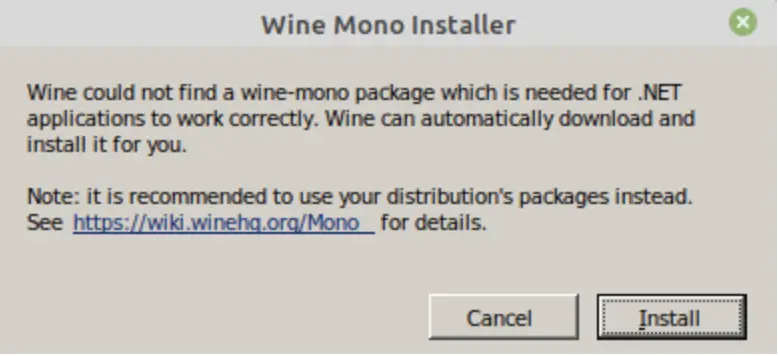
winecfgWine offers to download the Mono package on first run, which supplies the .NET runtime that some applications expect. Accept it unless you know you do not need it.
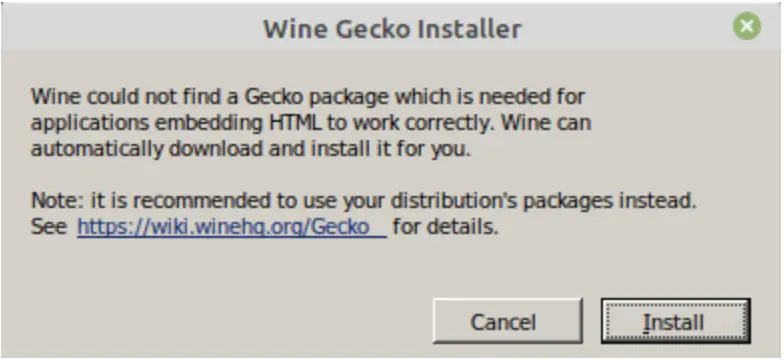
Gecko follows. That is Wine’s bundled browser engine, used whenever an application embeds a web view.
With both out of the way, winecfg itself opens. The Windows version on the Applications tab is what most software checks first, and Wine defaults it to a recent release:

Once the prefix exists, confirm the 32-bit side is really there. A working WoW64 prefix has a populated syswow64 directory:
ls ~/.wine/drive_c/windows/syswow64/ | wc -lOn the build above that prints 872, against 832 in system32. The two numbers being close is the point: every module was compiled twice. A 64-bit-only build prints 0 here, and an empty syswow64 is what makes winecfg die before it draws anything.
Run a Windows application
Notepad++ makes a good first test because its installer is 32-bit, so it exercises the part of the build that --enable-win64 would have left out:
VER=$(curl -s https://api.github.com/repos/notepad-plus-plus/notepad-plus-plus/releases/latest | grep tag_name | cut -d '"' -f 4 | sed 's/v//g')
wget https://github.com/notepad-plus-plus/notepad-plus-plus/releases/download/v${VER}/npp.${VER}.Installer.exe
wine npp.${VER}.Installer.exe
The installer runs like any other Windows setup wizard, and the finished application lands under ~/.wine/drive_c/Program Files (x86). Applications that need extra runtimes, fonts or DirectX pieces are easier to handle with winetricks, covered in the guide on running Windows apps with Winetricks. For games specifically, Legendary and the Epic Games catalogue is a better starting point than a raw prefix.

That window is a 32-bit binary, drawn by the same Wine install that runs 64-bit software. It is the whole reason for building both architectures.
All of this assumes a graphical session on the box. On a server install with no desktop, add one first, for example the KDE desktop on Rocky Linux, because winecfg and most Windows installers need an X display.
Errors you will hit on EL8
Four failures cover almost everything that goes wrong here. Two of them trace back to a build configured for 64-bit only, and the other two to the compiler.
wine64: command not found
The wine64 loader was removed upstream. There is now one wine binary that picks the right mode from the executable you hand it, so drop the 64 and the command works. Any guide still printing wine64 --version was written against an older release.
Wine cannot start rundll32 from syswow64
First run of winecfg or wineboot stops here:
wine: created the configuration directory '/home/user/.wine'
wine: failed to start L"C:\windows\syswow64\rundll32.exe": c0000135
The status code is STATUS_DLL_NOT_FOUND. Prefix setup needs a 32-bit helper, and a build made with --enable-win64 never installed one, so ~/.wine/drive_c/windows/syswow64 is created but left empty. A 32-bit installer pointed at the same prefix cannot run either, which is what the configure help means by “won’t run Win32 binaries”. Rebuild with both architectures enabled, then delete the half-built prefix, because Wine will not backfill syswow64 in a prefix that already exists:
rm -rf ~/.wine
wineboot -u
Anything you had installed inside the old prefix goes with it, so copy out documents or save games before running that.
initializer element is not constant in dlls/ucrtbase/tests
This one only appears once you enable the 32-bit architecture, and it stops the build outright:
dlls/ucrtbase/tests/misc.c: In function 'test_carg':
dlls/ucrtbase/tests/misc.c:2015:34: error: initializer element is not constant
         { -INFINITY,  INFINITY,  M_PI_3_4 },
                                  ^~~~~~~~
make: *** [Makefile:191451: dlls/ucrtbase/tests/i386-windows/misc.o] Error 1
The MinGW compilers in PowerTools are stuck on a 2017 GCC, and that release rejects a constant initializer current Wine relies on. Building the PE side with clang, as above, is the fix. The file that fails belongs to the regression suite rather than to Wine itself, so --disable-tests will step over this particular error, but it leaves you compiling the rest of the 32-bit tree with the same 2017 toolchain. Switching compiler is the cleaner answer.
Suitable PE cross-compiler not found
This one is a warning, not an error, and it is the easiest to miss because configure prints it among a dozen optional-feature notes. It means Wine is falling back to a build shape it no longer supports well. Treat it as a stop sign: fix the toolchain and configure again rather than running make.
Remove a source-built Wine
Readers of the earlier version of this guide asked how to undo it and never got an answer, which is fair, because nothing here went through dnf and there is no package to erase. The build tree you compiled in is the only thing that knows which files went where, so keep it until you are certain you are keeping Wine.
From inside that same tree, hand the job back to the Makefile:
cd ~/wine-11.0
sudo make uninstall
The rule is generated from the same install rules that placed the files, so it takes out every module of both architectures and then prunes the directories it emptied:
rm -f /usr/local/lib/wine/i386-windows/acledit.dll \
  /usr/local/lib/wine/i386-windows/aclui.dll /usr/local/lib/wine/i386-windows/activeds.dll \
  /usr/local/lib/wine/i386-windows/actxprxy.dll \
  /usr/local/lib/wine/i386-windows/adsldp.dll /usr/local/lib/wine/i386-windows/adsldpc.dll \
  /usr/local/lib/wine/i386-windows/advapi32.dll
On the build described here that comes to just under four thousand files, every one of them under /usr/local, which is the prefix configure picks when you do not ask for a different one. Confirm the loader is gone:
command -v wine || echo "wine is gone"If the build tree is already deleted, do not start removing files by hand. Extract the same release again, run the same configure line, then make uninstall. That file list is generated from the configuration, so a different release or a different set of flags produces a different list and leaves pieces behind.
What make uninstall leaves behind
Your Wine prefix is user data and the Makefile has no idea it exists. It holds the fake Windows drive, the registry and everything you ever installed into it, so it stays in your home directory after Wine is gone:
rm -rf ~/.wineUse the matching path if you set WINEPREFIX elsewhere, and remember a per-application prefix is a separate directory every time.
A prefix on its own leaves nothing else behind. Desktop integration only appears once you install a Windows application into it, and those files sit in your home directory rather than in the prefix, so they outlive the application and Wine together. Installing Notepad++ into a fresh prefix produced four of them:
~/.local/share/applications/wine/Programs/Notepad++.desktop
~/.local/share/desktop-directories/wine-Programs.directory
~/.local/share/desktop-directories/wine-wine.directory
~/.config/menus/applications-merged/wine-Programs-Notepad++.menu
Delete those and the Windows programs stop appearing in your application menu. Nothing else on the system was touched, because a prefix never writes outside your home directory.
Explore More with CloudSpinx
Here at CloudSpinx, we focus on navigating IT complexity, so you can focus on growing your business.
Check out more articles from us:


Is it possible to update to Wine 11.0?
Because it doesn’t build on this version.
Yes, and it does build now. The blocker is the PE cross-compiler rather than Wine itself. PowerTools ships mingw32-gcc and mingw64-gcc built from GCC 7.2 (2017); they pass every configure probe and then the build dies in the 32-bit tree with dlls/ucrtbase/tests/misc.c:2015: error: initializer element is not constant. Install clang lld llvm from AppStream instead and run ./configure –enable-archs=i386,x86_64 –with-mingw=clang, and it compiles all the way through, about 23 minutes on six cores here. One more change worth knowing: wine64 was removed upstream, so the verify step is wine –version now, not wine64 –version. The guide has been rebuilt around 11.0 on a Rocky Linux 8.10 host, so every command and version string in it came off that build. Thanks for the nudge.
P.S. Your settings aren’t even right; WOW64 is missing. A Wine build absolutely has to be WOW64, otherwise it’s pointless.
Correct, and it is fixed. –enable-win64 on its own builds a 64-bit-only Wine, and on current releases that does not merely limit you, it stops the prefix from being created at all: syswow64 comes out empty and wineboot stops with failed to start L”C:\windows\syswow64\rundll32.exe”: c0000135. The guide now configures with –enable-archs=i386,x86_64 and names clang explicitly as the PE compiler, since configure will otherwise pick up the PowerTools MinGW and fail later. On the rebuilt host syswow64 holds 872 files against 832 in system32, and the 32-bit Notepad++ installer runs under it, so WoW64 is genuinely there this time.